

In today's digital world, email is one of the most common ways cybercriminals attack organizations. Every day, businesses receive phishing emails, spam, malicious attachments, and dangerous links that can steal data, passwords, or sensitive information.
To protect against these threats, Microsoft provides Microsoft Defender for Office 365. It is a cloud-based security solution that helps keep your organization's email, files, and collaboration tools safe from modern cyberattacks.
In this article, you'll learn what Microsoft Defender for Office 365 is, why it is important, and get an overview of the Microsoft Defender portal. In the upcoming articles of this series, we'll explore each security feature in detail and learn how to configure and manage them step by step.
What is Microsoft Defender for Office 365?
Microsoft Defender for Office 365 is a cloud-based security service that helps protect your organization's email and Microsoft 365 apps from cyber threats.
It provides extra protection on top of Exchange Online Protection (EOP). It uses technologies like artificial intelligence (AI), machine learning, and Microsoft's global threat intelligence to identify and stop threats before they reach users.
Microsoft Defender checks emails, attachments, links, and user activity to detect suspicious or harmful content. If it finds a threat, it blocks or quarantines it to help keep your organization safe.
It protects Microsoft 365 services such as:
Exchange Online
Microsoft Teams
SharePoint Online
OneDrive for Business
Whether it's a phishing email, a harmful attachment, or a dangerous website link, Microsoft Defender for Office 365 helps stop these threats before users can open or click them.
Accessing Microsoft Defender
You can access the Microsoft Defender portal by visiting: https://security.microsoft.com
Sign in using your Microsoft 365 administrator account.
After signing in, you'll see the Microsoft Defender portal. This is the main place where you can monitor security alerts, manage security policies, investigate threats, and configure protection settings for your Microsoft 365 environment.
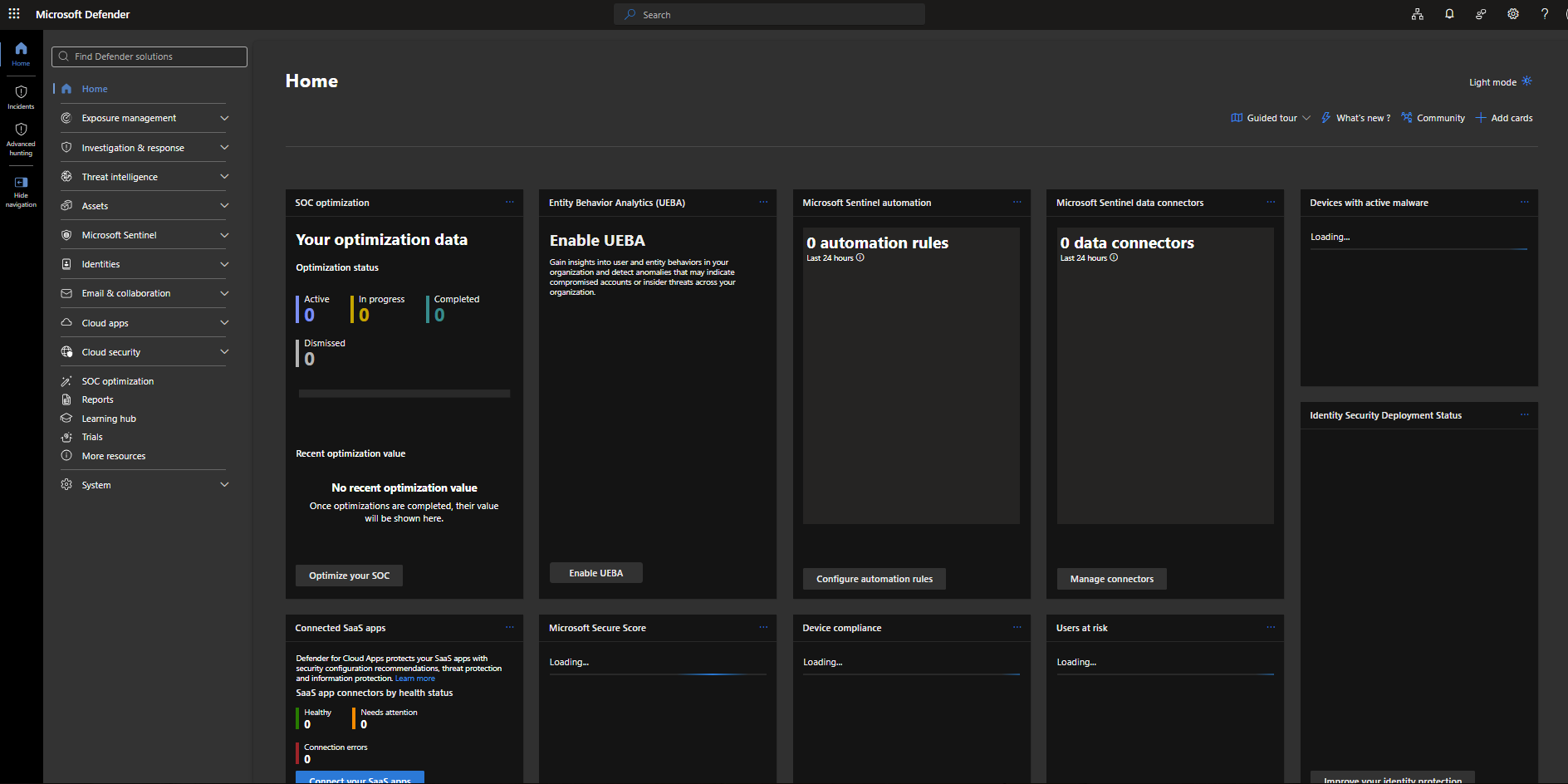
Microsoft Defender Portal Overview
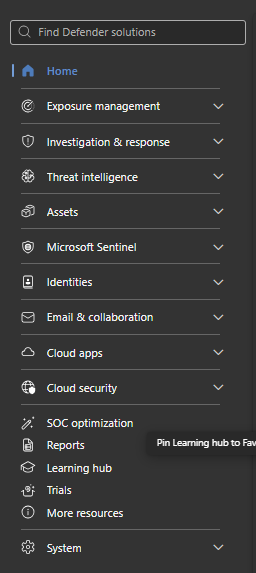
The Microsoft Defender portal provides a single place to manage and monitor your organization's security. From the left navigation menu, administrators can access different security features, including:
Incidents – View and manage security incidents.
Exposure Management – Identify and reduce security risks.
Investigation & Response – Investigate and respond to detected threats.
Threat Intelligence – View information about the latest cyber threats.
Assets – Monitor and manage protected devices, users, and resources.
Microsoft Sentinel – Access advanced security monitoring and threat detection.
Identities – Protect user identities and monitor sign-in activities.
Email & Collaboration – Manage email and collaboration security policies for Exchange Online, Microsoft Teams, SharePoint Online, and OneDrive.
Cloud Apps – Monitor and secure cloud applications.
Reports – View security reports and insights.
Learning Hub – Access Microsoft security learning resources and training.
Each section helps administrators monitor security, investigate threats, and manage protection settings from a single, centralized portal.
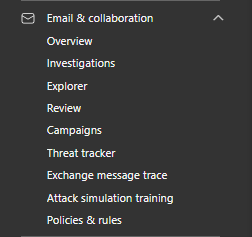
The Email & Collaboration section is one of the most important areas for Microsoft 365 administrators. It contains the tools and settings used to protect your organization's email and collaboration services from cyber threats.
From this section, administrators can:
Review email threats and security alerts.
Investigate suspicious emails and messages.
Track phishing attacks and other email-based threats.
Run Exchange message traces to check email delivery.
Configure email security policies and protection settings.
If you're responsible for managing Microsoft 365 email security, this is the section you'll use most often. In the upcoming articles, we'll explore each feature in this area and learn how to configure them step by step.
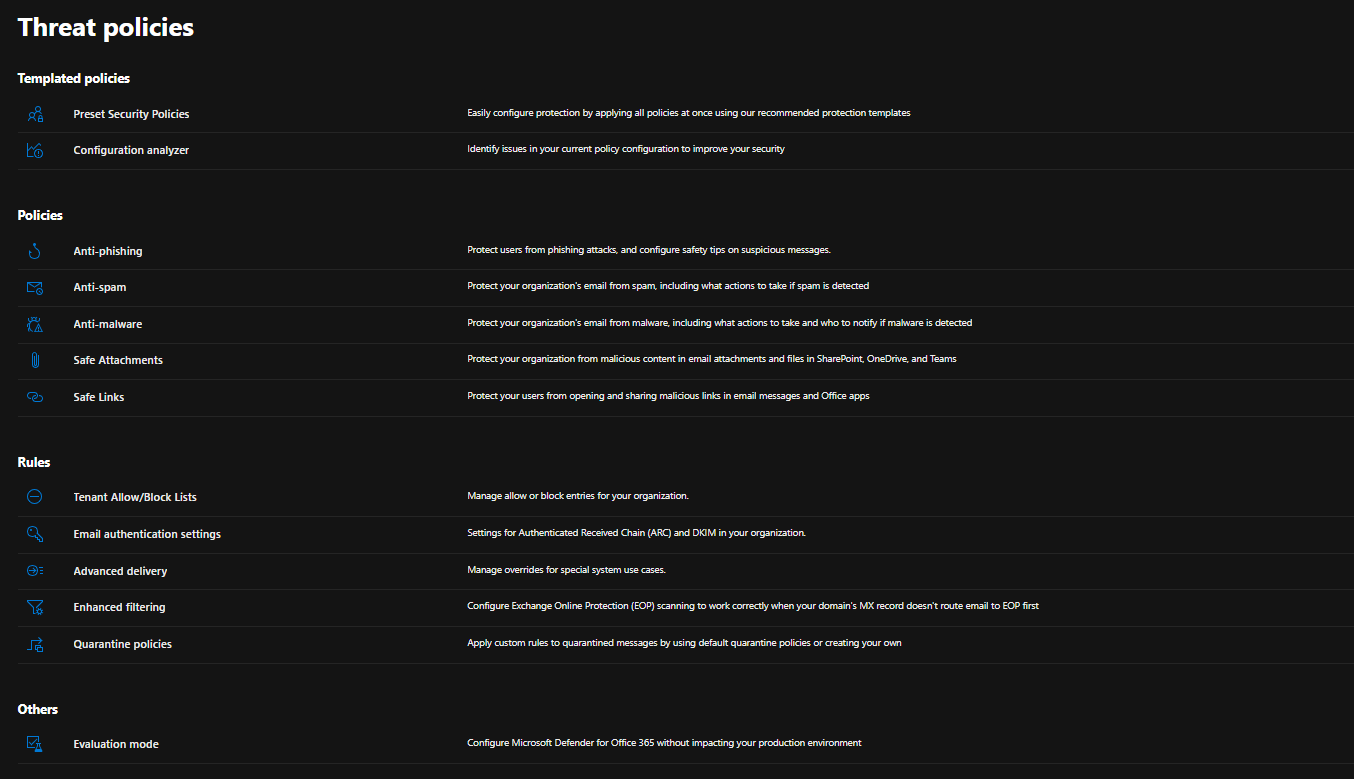
Threat Policies
Under Email & Collaboration → Policies & Rules, you'll find Threat Policies.
This page acts as the central hub for configuring Microsoft Defender's email protection features.
Here, you'll find policies related to:
Anti-Phishing
Anti-Spam
Anti-Malware
Safe Attachments
Safe Links
Quarantine
Email Authentication
Tenant Allow/Block Lists
These policies work together to protect your organization from email-based attacks.
Conclusion
This article provided a brief introduction to Microsoft Defender for Office 365 and the Microsoft Defender portal.
In the next article of this series, we'll begin exploring Threat Policies in detail, starting with Preset Security Policies, where we'll learn how Microsoft recommends securing your Microsoft 365 environment using built-in security templates.
0 Comments
Log in to join the conversation.No comments yet. Be the first to share your thoughts.