
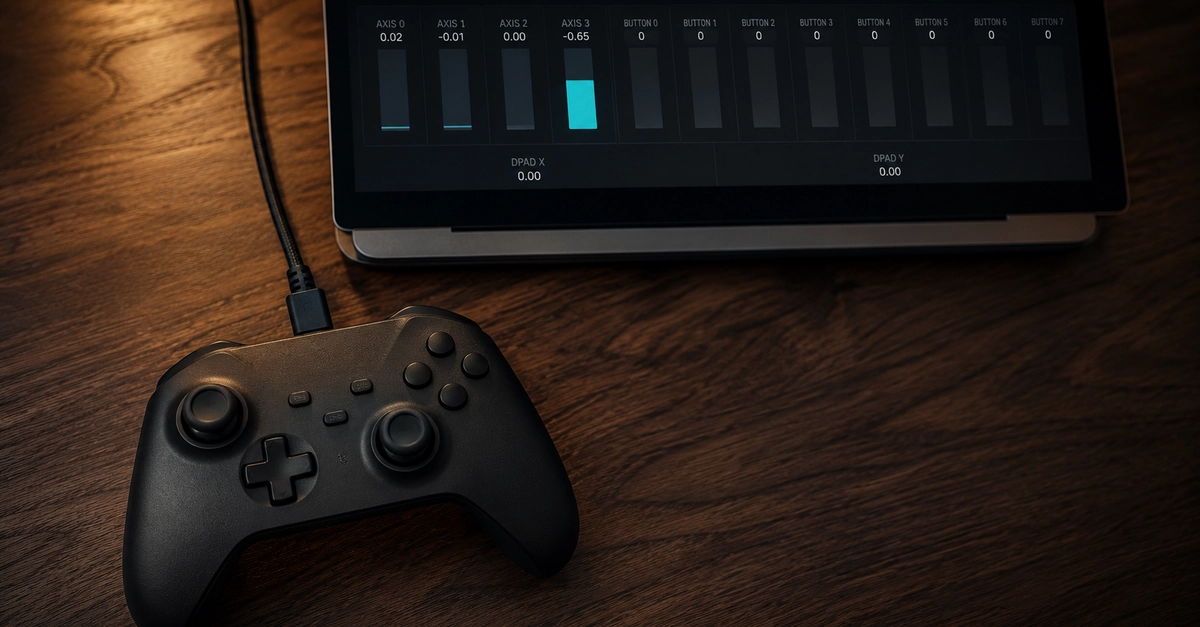
The first time you wire up a game controller in a browser, the API will almost certainly appear broken. You plug in an Xbox pad, call navigator.getGamepads(), and get back an array of four null values. Nothing is wrong. The API is just quieter and stranger than most browser APIs, and almost none of that strangeness is obvious from the method signature.
This is a walkthrough of how the Gamepad API actually behaves: how polling works, what buttons and axes really contain, why dead zones exist, and why the same controller reports different data over USB than over Bluetooth. There is working code for each part, and a section at the end on the mistakes that cost me the most time.
Browser-based controller testing is worth understanding for two separate reasons. The obvious one is that you want to build something with controller input: a WebGL game, a cloud gaming client, an accessibility control scheme, a kiosk. The less obvious one is diagnostics. A web page is the fastest way to inspect a piece of USB or Bluetooth hardware, because there is no installer, no driver, no signed binary, and no platform-specific build. You open a URL and the raw input is on screen. That property makes the browser a genuinely good place to answer questions like "is this stick drifting or is my game misconfigured?"
The short version
- The Gamepad API is poll-based, not event-based, for everything except connect and disconnect.
- Browsers hide gamepads until the user presses a button, which is a deliberate fingerprinting defence.
- Chromium requires a secure context, so
http://pages other than localhost get nothing. - Buttons are objects with a
pressedboolean and an analogvalue, not plain booleans. - Axes are floats from -1 to 1 that are almost never exactly 0, which is what dead zones exist to absorb.
What is the JavaScript Gamepad API?
The Gamepad API is a small browser interface that exposes the state of connected game controllers as read-only snapshots. It does not fire events when a button is pressed. Instead, you ask the browser for the current state of every pad, and you ask again on the next frame. Two events exist, gamepadconnected and gamepaddisconnected, and that is the entire event surface.
Why it polls instead of firing input events
This design surprises people, but it matches how the hardware works. A USB HID gamepad sends a full report of every button and axis at a fixed interval. It does not send "button 3 went down." It sends "here is the state of all 17 buttons and 4 axes," over and over, whether anything changed or not.
Turning that stream into DOM events would mean the browser generating hundreds of events per second per controller, most of them carrying identical data. Polling puts you in control of the sample rate instead, which matters when your render loop and the controller's report rate do not line up.
The practical consequence is that you need a loop. Almost always that loop is requestAnimationFrame, which runs roughly in step with the display refresh rate and pauses when the tab is hidden.
Buttons
gamepad.buttons is an array of GamepadButton objects, not booleans. Each one has three properties:
-
pressed: a boolean, true while the button is held. -
value: a float from 0 to 1. Digital buttons snap between 0 and 1. Analog triggers give you the full range. -
touched: a boolean that some controllers set when a finger rests on a button without depressing it. DualSense and DualShock 4 triggers report this. Most others just mirrorpressed.
Reading if (gamepad.buttons[0]) is always true, because an object is always truthy. That single mistake is responsible for a large share of "my controller input is stuck on" bug reports.
Axes
gamepad.axes is an array of floats from -1 to 1. Under the standard mapping there are four: left stick X, left stick Y, right stick X, right stick Y, in that order. Negative Y is up, which trips people up because it is the opposite of what a lot of engines assume.
Triggers are not in axes under the standard mapping. They live in buttons[6] and buttons[7] and you read their analog position from .value. On non-standard mappings the triggers frequently do show up as axes, sometimes with a resting value of -1 instead of 0.
Browser support and the rules around it
Support is broad. Chrome, Edge, Firefox, Safari, and Chromium derivatives all implement it. Three constraints matter more than raw support:
Secure context. The specification itself does not mark the API as secure-context-only, but Chromium shipped a restriction that requires one. In practice that means HTTPS, or localhost during development. Serving your test page over plain HTTP from a LAN IP will silently give you nothing in Chrome and Edge, and the failure looks identical to "no controller plugged in."
User gesture requirement. A pad that is already connected when the page loads stays hidden until the user presses a button or moves an axis while the page is focused. Until then, getGamepads() returns nulls and gamepadconnected never fires. Firefox documents this explicitly as a fingerprinting defence, since the list of attached HID devices is a strong identifier, and Chromium behaves the same way.
Permissions Policy. If your page runs inside an iframe, the parent must grant access with allow="gamepad", and the top-level document must not be blocking it with a Permissions-Policy header. Embedded widgets that work perfectly on their own origin and mysteriously fail when embedded are usually hitting this.
Here is the full lifecycle:
  Page loads on a secure origin
             |
             v
  navigator.getGamepads()  ->  [null, null, null, null]
             |
             |   user presses any button on the pad
             v
  "gamepadconnected" fires on window
             |
             v
  start requestAnimationFrame loop
             |
             v
  +------------------------------------------+
  |  every frame:                            |
  |    1. getGamepads()                      |
  |    2. read buttons and axes              |
  |    3. diff against the previous frame    |
  |    4. update state and render            |
  +------------------------------------------+
             |
             |   cable pulled or Bluetooth drops
             v
  "gamepaddisconnected" fires
             |
             v
  cancelAnimationFrame, clear cached state
Enter fullscreen mode Exit fullscreen mode
Detecting a gamepad
Start with feature detection and the two connection events. The snippets below are illustrative rather than one runnable file: showMessage, cleanUpState, readSticks, and applyThrottle are stand-ins for your own code. Everything else is real API surface.
if (!('getGamepads' in navigator)) {
  showMessage('This browser does not support the Gamepad API.');
}

window.addEventListener('gamepadconnected', (event) => {
  const pad = event.gamepad;
  console.log(
    `Connected at index ${pad.index}: "${pad.id}", ` +
    `mapping "${pad.mapping}", ` +
    `${pad.buttons.length} buttons, ${pad.axes.length} axes`
  );
  startLoop();
});

window.addEventListener('gamepaddisconnected', (event) => {
  console.log(`Disconnected at index ${event.gamepad.index}`);
  cleanUpState(event.gamepad.index);
  stopLoop();
});
Enter fullscreen mode Exit fullscreen mode
Going through it line by line:
'getGamepads' in navigator is the cheapest reliable check. Do not test for the Gamepad constructor, which some environments expose without a working implementation.
event.gamepad is a full Gamepad snapshot, not a bare id. You get the whole object at connect time, which is useful for setting up your UI before the first poll.
pad.index is the slot the browser assigned. It is stable while the pad stays connected and it is your key for any per-controller state you cache. Do not use pad.id as a key, because two identical controllers produce the same id string.
pad.id is a free-form vendor string. Chromium usually formats it as Vendor Product (STANDARD GAMEPAD Vendor: 045e Product: 02ea). Firefox uses a different shape entirely. Parsing it for vendor and product ids works, but treat it as a heuristic rather than a contract.
pad.mapping is the one field worth branching on. It is "standard" if the browser recognised the device and remapped it to the canonical layout, "xr-standard" for XR controllers, and an empty string when it did not recognise the device at all. An empty mapping means button indices are whatever the hardware happened to report, and your buttons[0] is A assumption is void.
Now the loop:
let rafId = null;

function startLoop() {
  if (rafId === null) rafId = requestAnimationFrame(poll);
}

function stopLoop() {
  if (rafId !== null) {
    cancelAnimationFrame(rafId);
    rafId = null;
  }
}

function poll() {
  const pads = Array.from(navigator.getGamepads());

  for (const pad of pads) {
    if (!pad) continue;
    readButtons(pad);
    readSticks(pad);
  }

  rafId = requestAnimationFrame(poll);
}
Enter fullscreen mode Exit fullscreen mode
Two details in there are load-bearing. The Array.from() wrapper exists because older engines returned a GamepadList rather than a real array, and it costs nothing. The if (!pad) continue guard exists because the returned array has a fixed length with empty slots as null, so index 0 being null while index 2 holds a controller is completely normal.
The important rule: call getGamepads() fresh every frame and never hold onto the returned objects. Whether a browser hands you an immutable snapshot or an object it mutates in place has varied across engines and versions. Code that caches a Gamepad reference outside the loop reads correctly in one browser and freezes on the first frame's values in another.
Reading button input
Raw pressed booleans are fine for "is the player holding the accelerator." They are wrong for "did the player just jump," because a held button reads as pressed on every frame of the loop. You need edge detection: comparing this frame against the last one.
const previousButtons = new Map(); // pad.index -> boolean[]

function readButtons(pad) {
  const last = previousButtons.get(pad.index) ?? [];
  const current = pad.buttons.map((button) => button.pressed);

  current.forEach((isDown, i) => {
    const wasDown = last[i] === true;

    if (isDown && !wasDown) onButtonDown(pad, i);
    if (!isDown && wasDown) onButtonUp(pad, i);
  });

  previousButtons.set(pad.index, current);
}

function onButtonDown(pad, index) {
  console.log(`Pad ${pad.index}: button ${index} down`);
}

function onButtonUp(pad, index) {
  console.log(`Pad ${pad.index}: button ${index} up`);
}
Enter fullscreen mode Exit fullscreen mode
previousButtons is keyed by pad.index so multiple controllers do not overwrite each other. The last[i] === true comparison rather than a truthiness check handles the first frame, where last is an empty array and every lookup is undefined.
For analog triggers, read value instead:
const rightTrigger = pad.buttons[7];

if (rightTrigger.value > 0.05) {
  applyThrottle(rightTrigger.value); // 0.0 to 1.0
}
Enter fullscreen mode Exit fullscreen mode
Under the standard mapping, the indices you will use most are:
| Index | Button | Index | Button |
|---|---|---|---|
| 0 | Bottom face (A / Cross) | 8 | Select / Share / View |
| 1 | Right face (B / Circle) | 9 | Start / Options / Menu |
| 2 | Left face (X / Square) | 10 | Left stick click |
| 3 | Top face (Y / Triangle) | 11 | Right stick click |
| 4 | Left bumper | 12 | D-pad up |
| 5 | Right bumper | 13 | D-pad down |
| 6 | Left trigger (analog) | 14 | D-pad left |
| 7 | Right trigger (analog) | 15 | D-pad right |
Index 16 is the guide button (Home, PS, Xbox button). The standard mapping defines all 17, but several platforms reserve that button for the OS and never pass it to the page, so a buttons.length of 16 instead of 17 is common and not necessarily a bug.
Reading analog sticks
Analog sticks do not rest at zero. Physical potentiometers and Hall effect sensors both have tolerance, the plastic has slack, and the ADC has noise. A stick sitting untouched on a desk typically reports something in the range of 0.01 to 0.08 on each axis, and it wanders.
If you feed those raw values straight into movement, the character walks on its own. The fix is a dead zone: a region near centre where you treat the input as exactly zero.
Do not use an axial dead zone
The naive version clamps each axis independently:
// Common, and wrong.
const x = Math.abs(pad.axes[0]) < 0.15 ? 0 : pad.axes[0];
const y = Math.abs(pad.axes[1]) < 0.15 ? 0 : pad.axes[1];
Enter fullscreen mode Exit fullscreen mode
This carves a square hole out of a circular input range. Push the stick to a shallow diagonal and one axis clears the threshold while the other is still suppressed, so movement snaps to the cardinal directions near centre. Players describe this as the stick feeling "sticky" or "notchy."
Measure the vector magnitude instead, then rescale the surviving range so output still starts at 0 and reaches 1:
function applyRadialDeadzone(x, y, deadzone = 0.12, ceiling = 0.95) {
  const magnitude = Math.hypot(x, y);

  if (magnitude < deadzone) {
    return { x: 0, y: 0, magnitude: 0 };
  }

  // Rescale [deadzone, ceiling] onto [0, 1].
  const clamped = Math.min(magnitude, ceiling);
  const normalised = (clamped - deadzone) / (ceiling - deadzone);
  const scale = normalised / magnitude;

  return { x: x * scale, y: y * scale, magnitude: normalised };
}
Enter fullscreen mode Exit fullscreen mode
The ceiling parameter handles the opposite problem. Many sticks cannot physically reach 1.0 at the edge of their gate, so without it, players never get full speed. Clamping slightly below the theoretical maximum means the outer edge of travel reliably reads as 100 percent.
Here is where that sits in the pipeline:
  raw axes from getGamepads()
             |
             v
  magnitude = Math.hypot(x, y)
             |
             v
      magnitude < deadzone ?
        |               |
       yes              no
        |               |
        v               v
    output        clamp to ceiling,
    (0, 0)        rescale onto 0..1
                        |
                        v
                 apply response curve
                        |
                        v
                  game or UI input
Enter fullscreen mode Exit fullscreen mode
The response curve is optional and worth knowing about. A linear stick feels twitchy for aiming, because small movements near centre produce proportionally large changes. Squaring the magnitude while preserving direction gives finer control near centre:
function applyCurve(value, exponent = 2) {
  return Math.sign(value) * Math.abs(value) ** exponent;
}
Enter fullscreen mode Exit fullscreen mode
| Approach | Diagonal behaviour | Best for |
|---|---|---|
| Axial (per-axis clamp) | Snaps to cardinals near centre | Nothing, avoid it |
| Radial, no rescale | Correct shape, but output jumps from 0 to deadzone | Quick prototypes |
| Radial with rescale | Smooth from 0 to 1 in every direction | Movement |
| Radial with rescale and curve | As above, with finer control near centre | Aiming, camera |
Drift, and how to actually measure it
Drift is what people call it when the rest position has moved far enough that it escapes the dead zone. It is a hardware wear problem, not a software one, but you can quantify it from JavaScript. The useful measurement is not a single reading; it is the maximum magnitude and the mean bias over a few seconds of the stick being left alone.
function sampleRestPosition(padIndex, durationMs = 3000) {
  return new Promise((resolve) => {
    const start = performance.now();
    let maxMagnitude = 0;
    let sumX = 0;
    let sumY = 0;
    let samples = 0;

    (function tick() {
      const pad = navigator.getGamepads()[padIndex];

      if (pad) {
        const [x, y] = pad.axes;
        maxMagnitude = Math.max(maxMagnitude, Math.hypot(x, y));
        sumX += x;
        sumY += y;
        samples++;
      }

      if (performance.now() - start < durationMs) {
        requestAnimationFrame(tick);
      } else {
        resolve({
          maxMagnitude,
          bias: { x: sumX / samples, y: sumY / samples },
          samples,
        });
      }
    })();
  });
}
Enter fullscreen mode Exit fullscreen mode
The two numbers tell you different things. A high maxMagnitude with a near-zero bias means electrical noise, and a slightly larger dead zone will hide it. A bias that is consistently offset in one direction means the stick's mechanical centre has moved, and no dead zone size will fix the lost range of motion on that side.
Common problems
The controller is not detected. In order of likelihood: the page is not on a secure origin; nobody has pressed a button yet, so the browser is still hiding it; the pad is in a mode the OS does not expose as a standard HID device, such as a Switch Pro Controller that is still in Bluetooth pairing mode; or another application has taken exclusive access. Steam's controller layer is the usual culprit on desktop, and disabling Steam Input for the device makes it reappear.
It works locally but not on staging. In Chrome and Edge this is almost always the secure context restriction. localhost is treated as secure, a LAN IP over HTTP is not.
It works standalone but not embedded. The iframe is missing allow="gamepad", or a Permissions-Policy response header on the parent document is blocking it.
Bluetooth and USB give different data. This one is real and catches everyone. A DualShock 4 or DualSense sends a different HID report descriptor over Bluetooth than over USB. The browser may recognise one and not the other, so the same physical controller can report mapping: "standard" on a cable and mapping: "" wirelessly, with button indices shifted and the triggers relocated into axes. Test both transports before you ship a mapping.
Bluetooth input feels late or stutters. Bluetooth adds latency and is sensitive to interference, and some pads reduce their report rate to save battery. If your loop reads a stale value twice in a row, pad.timestamp will not have advanced, which is a cheap way to detect it.
Some controllers behave differently for no obvious reason. Third-party pads, arcade sticks, racing wheels, and adapters frequently land outside the standard mapping. Wheels in particular report far more than four axes, and the pedal set often arrives as separate axes with a resting value of -1. Always branch on pad.mapping and write a fallback path rather than assuming the canonical layout.
Firefox reports different id strings. If you are parsing pad.id to detect a specific device, write per-engine parsing or you will match on Chromium only.
Best practices
Poll in your render loop, not on a timer. requestAnimationFrame aligns your reads with the frame you are about to draw and pauses automatically when the tab is hidden. A setInterval at 60 Hz keeps burning CPU on a background tab and drifts out of phase with rendering.
Understand what you cannot see. Many controllers report faster than your display refreshes, so at 60 Hz you are sampling a stream that is moving quicker than you can observe. For gameplay this is fine. For latency or polling rate measurement it is not, and you need to compare pad.timestamp deltas rather than counting frames.
Do minimal work inside the loop. The loop runs on every frame for every connected pad. Diff against previous state and only touch the DOM when something changed. Writing 17 button states into the DOM every frame will visibly cost you frames.
Never let a controller be the only input path. Treat gamepad support as an addition to keyboard and pointer input, never a replacement. Allow remapping, because fixed bindings exclude anyone using an adaptive controller or a one-handed layout. Reflect controller focus in the accessibility tree rather than only in your own visual state, and keep a visible focus indicator so keyboard and controller users see the same thing.
Feature detect every extension. Vibration is the common example. Support and API shape vary, so check before calling:
async function rumble(pad, { duration = 300, strong = 1, weak = 0.5 } = {}) {
  const actuator = pad.vibrationActuator;
  if (!actuator || typeof actuator.playEffect !== 'function') return false;

  try {
    await actuator.playEffect('dual-rumble', {
      startDelay: 0,
      duration,
      strongMagnitude: strong,
      weakMagnitude: weak,
    });
    return true;
  } catch {
    return false; // Effect type unsupported on this device.
  }
}
Enter fullscreen mode Exit fullscreen mode
Build a fake gamepad for your tests. This is the tip I would most want to have been given early. The Gamepad interface is plain data, so you can construct one and drive your entire input pipeline from it without hardware:
function fakePad(overrides = {}) {
  return {
    index: 0,
    id: 'Test Pad (STANDARD GAMEPAD)',
    mapping: 'standard',
    connected: true,
    timestamp: performance.now(),
    axes: [0, 0, 0, 0],
    buttons: Array.from({ length: 17 }, () => ({
      pressed: false,
      touched: false,
      value: 0,
    })),
    ...overrides,
  };
}

// Sweep a stick through a full circle and assert the dead zone holds.
for (let angle = 0; angle < Math.PI * 2; angle += 0.05) {
  const magnitude = 0.1; // Inside a 0.12 dead zone.
  const result = applyRadialDeadzone(
    Math.cos(angle) * magnitude,
    Math.sin(angle) * magnitude
  );
  console.assert(result.magnitude === 0, `Leaked at angle ${angle}`);
}
Enter fullscreen mode Exit fullscreen mode
That loop is the exact shape of test that catches axial dead zone bugs, because it checks the diagonals a human tester never thinks to try.
Building my own browser gamepad tester
I ended up going deep on this API because I wanted something specific and could not find it: a page that shows raw controller state, with no download, no account, and no telemetry. Every desktop tool I tried wanted an installer for what is fundamentally a read-only view of a HID report. So I built JoyCheck, a browser-based gamepad tester, which runs the polling loop described above and renders every button, axis, and trigger live in the browser.
Two things from building it are worth passing on.
The first is that synthetic input is not optional. I wrote a harness that feeds fabricated Gamepad objects through the real rendering path, in the same shape as the fakePad helper above. On the racing wheel view, that harness caught three genuine bugs that manual testing had not, all of them at input positions I would never have thought to hold a physical wheel at.
The second is that the interesting failures live at the edges of the mapping table, not in the middle. Face buttons and sticks work everywhere. Guide buttons, trigger touched states, D-pads that arrive as an axis instead of four buttons, and anything connected over Bluetooth are where the assumptions break. If you are building controller support, spend your testing budget there.
I am Taimoor Bamazai, founder of Elites Algorithm Limited, and I maintain the tool.
Conclusion
The Gamepad API is one of the smaller browser APIs, and most of the difficulty is not in the interface but in the assumptions it quietly breaks. It polls rather than emitting events, because that is what the hardware does. It hides devices until the user acts, because a device list is a fingerprint. It reports buttons as objects, because triggers are analog. And it hands you axis values that are noisy, because sticks are physical objects with tolerances.
Get those four things right and the rest is straightforward. Poll in requestAnimationFrame, diff against the previous frame for edge detection, use a radial dead zone with rescaling, branch on mapping instead of trusting button indices, and feature detect anything beyond buttons and axes.
The best way to build intuition here is to open a console, plug in whatever controller is nearest, and log navigator.getGamepads()[0] after pressing a button. Then do it again with a different pad, or the same pad over Bluetooth instead of USB. The differences between those readings are the whole problem, and seeing them once teaches more than any mapping table.
Sources and references
- MDN Web Docs, Gamepad API
- MDN Web Docs, Gamepad.mapping and the standard layout
- W3C Gamepad specification
- MDN Web Docs, the Permissions-Policy gamepad directive
The radial dead zone approach described here follows the technique popularised by Josh Sutphin's writeup on thumbstick dead zones, which remains the clearest explanation of why the axial version feels wrong.
0 Comments
Log in to join the conversation.No comments yet. Be the first to share your thoughts.