
To orchestrate their creations, visual effects artists need a sophisticated understanding of shape, lighting effects, color, volume of particle effects, speed of movement, and timing.
The VFX Graph is Unity’s node-based visual logic system for creating visual effects in games. It provides all the capabilities you need to create GPU-accelerated visual effects.
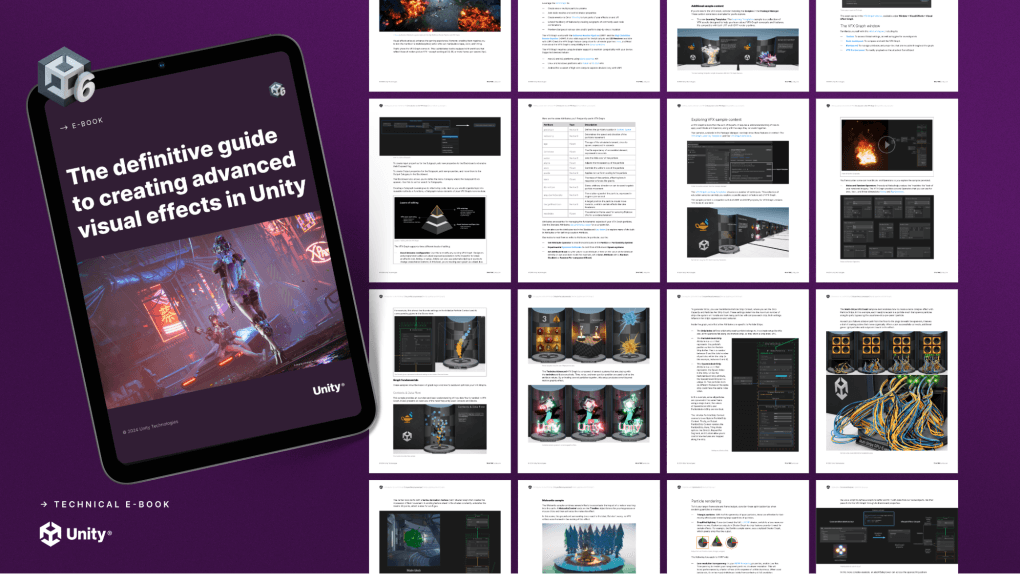
Fin tips and instructions for crafting high-quality and performant visual effects in your Unity projects.
Boost rendering performance and visual quality
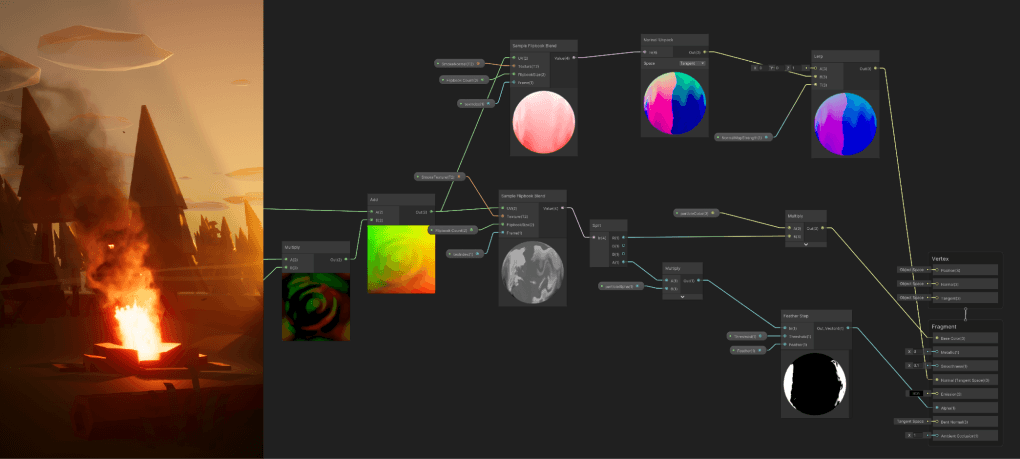
Use a Shader Graph with a VFX Graph to craft color transitions that can make an effect more dynamic.
The new features in VFX Graph for Unity 6 include profiling tools, six-way lighting for smoke effects, new learning templates, and more. These are part of a wide-ranging collection of new rendering and graphics features in Unity 6, like performance enhancements for URP and HDRP, potential reductions in CPU and GPU workload, and new optimization options.
And there’s more. Together with the Unity 6 VFX Graph e-book you can also watch a new video tutorial that explores the VFX Graph Learning Templates:
This content is hosted by a third party provider that does not allow video views without acceptance of Targeting Cookies. Please set your cookie preferences for Targeting Cookies to yes if you wish to view videos from these providers.
Get the latest tips for visual effects in Unity 6
New for Unity 6 creators in the VFX Graph
The VFX e-book includes key sections like:
- A detailed introduction to graph logic and all of the parts that make up a graph
- Working with VFX Graph in URP and HDRP
- Explanations of many different types of visual effects examples
- How to create interactivity
- Using VFX Graph and Shader Graph together for advanced shader effects
- Pipeline tools to use with VFX Graph
- Profiling, debugging, and optimization features
- Techniques for advanced creators
Let’s look in brief at some of the great new content in the guide.
UI improvements
Creating nodes or blocks now uses a hierarchical tree view, making it easier to browse the node library. Enhancements include custom colors and a favorites folder for a more efficient and personalized search experience. You can also use the advanced search filtering to select from the available nodes.
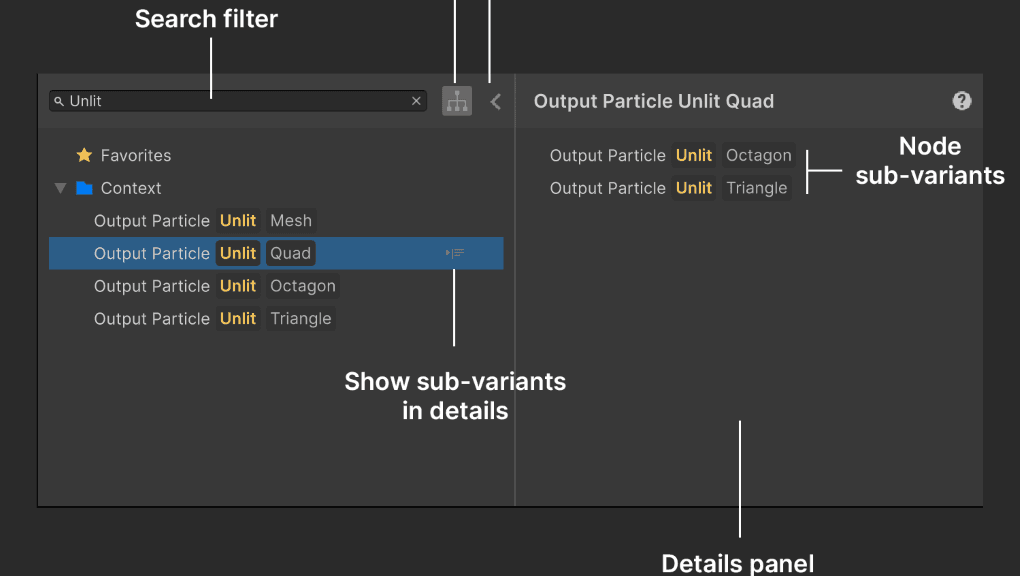
Creating nodes or blocks adds a side panel and search filtering.
New VFX Toolbar
The VFX Toolbar has been simplified and includes new options for quick access to documentation and samples.
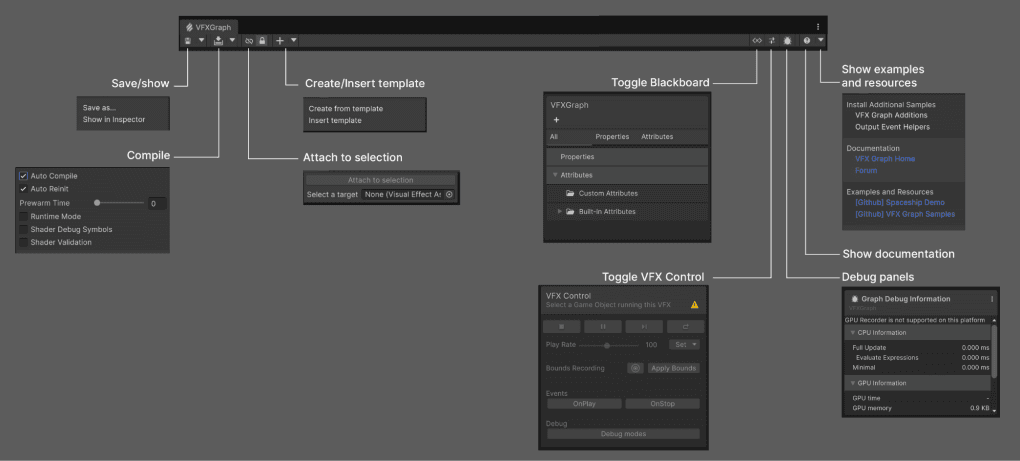
The VFX Toolbar for VFX Graph in Unity 6 has been simplified.
Keyboard shortcuts
The Shortcut Manager has a VFX Graph category that lets you modify the shortcut command available in the Visual Effect Graph window.
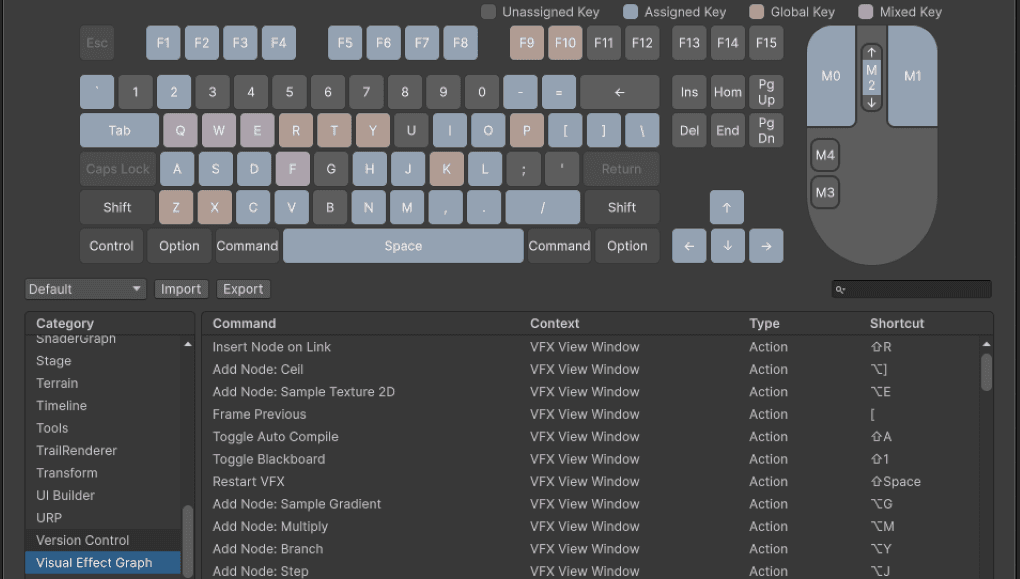
The Shortcut Manager now has a VFX Graph category.
VFX Graph Learning Templates
The VFX Graph Learning Templates is a collection of numerous different samples that help you explore a specific aspect and feature set of VFX Graph, and showcases many VFX techniques. The sample content is compatible with both URP and HDRP projects, for VFX Graph in Unity 6 and later.
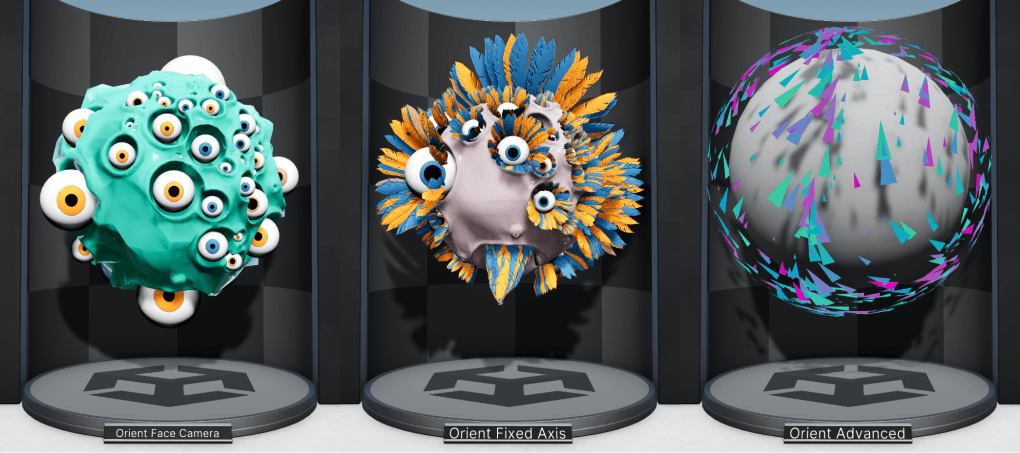
Samples from the VFX Graph Learning Templates that show different ways to orient particles
The sample graphs are small and focused, making them ideal learning resources. Dive into each template to master a new technique or use it as a starting point for your own effect. Each graph comes with detailed notes to help you understand their construction.
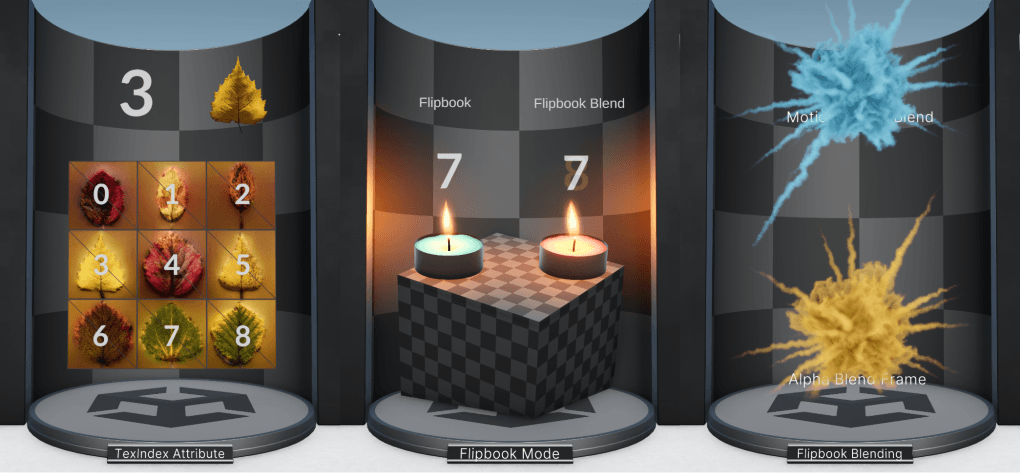
These samples show the use of flipbook textures.
You’ll find samples that cover:
- Graph fundamentals
- Particle orientation and rotation
- Texturing and flipbooks
- Particle pivots
- Mesh and texture sampling
- Collisions and interactivity
- Decal particles
- Particle strips
Six-way lighting for real-time smoke
A new section in the guide explains how to create six-way lighting, a method for smoke rendering based on baked simulations that works well across different lighting conditions. It can approximate the volumetric feel of smoke with a cost-effective process. Six-way lighting can be a useful technique in your effects toolkit, balancing visual quality, performance, and memory usage for rendering real-time smoke effects.
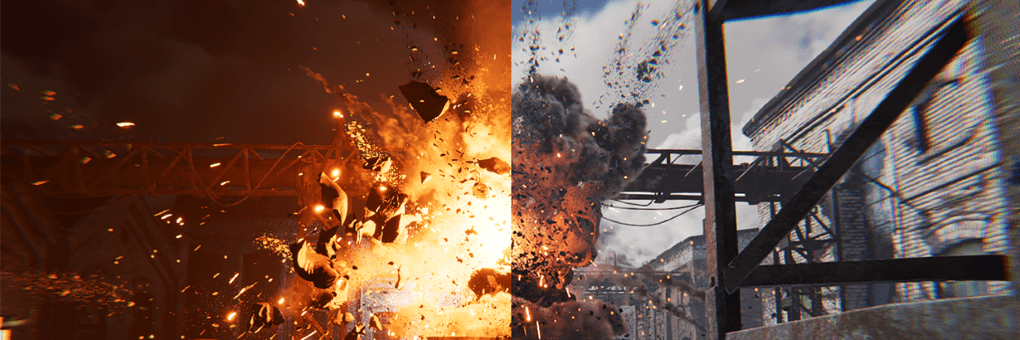
Six-way lighting, created with VFX Graph in Unity 6, enables varied smoke rendering under different lighting conditions.
Expanded section on Shader Graph integration
One of the key advantages of Shader Graph integration is the ability to drive shader behavior on a per-particle level. This allows for creating variations, color randomization, and other dynamic effects with different per-particle values, enabling highly complex visuals.
The e-book now includes a bigger section using examples from the Shader Graph Feature Examples sample content. This is a collection of Shader Graph assets that demonstrate how to achieve common techniques and effects in Shader Graph. The goal of this sample pack is to help users see what is required to achieve specific effects and provide examples to make it easier to learn.
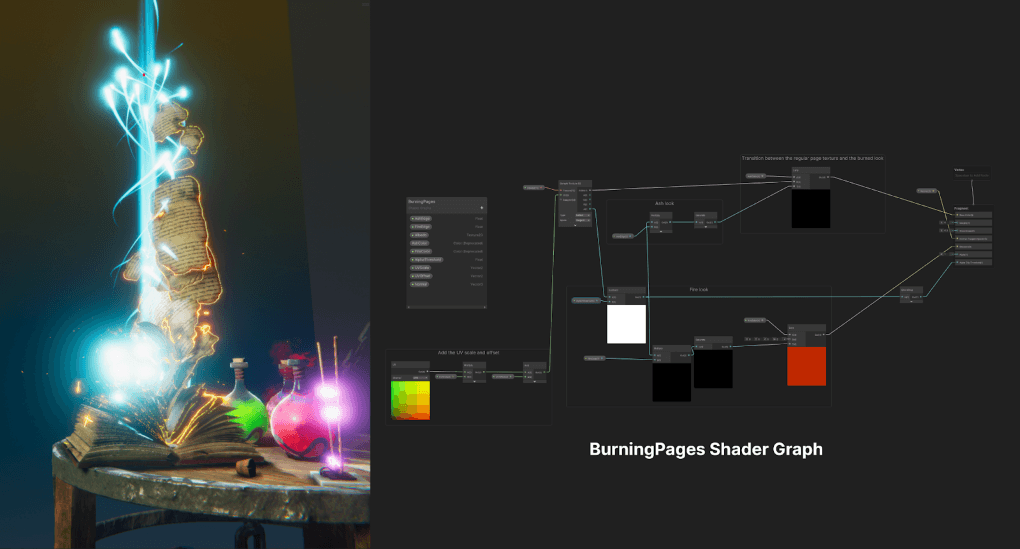
Shaders can create a dissolving effect.
Finally, VFX Graph in Unity 6 also includes integration with Shader Graph keywords. This allows you to create one Shader Graph for use in multiple VFX Graphs.
Download the complete guide to VFX in Unity 6
Profiling and debug panel
Unity 6 includes Profiling and Debug panels that provide essential information about your visual effects. These tools can provide information such as CPU and GPU timings, memory usage, texture usage, and various states. Use them to monitor and optimize performance for your VFX Graphs.
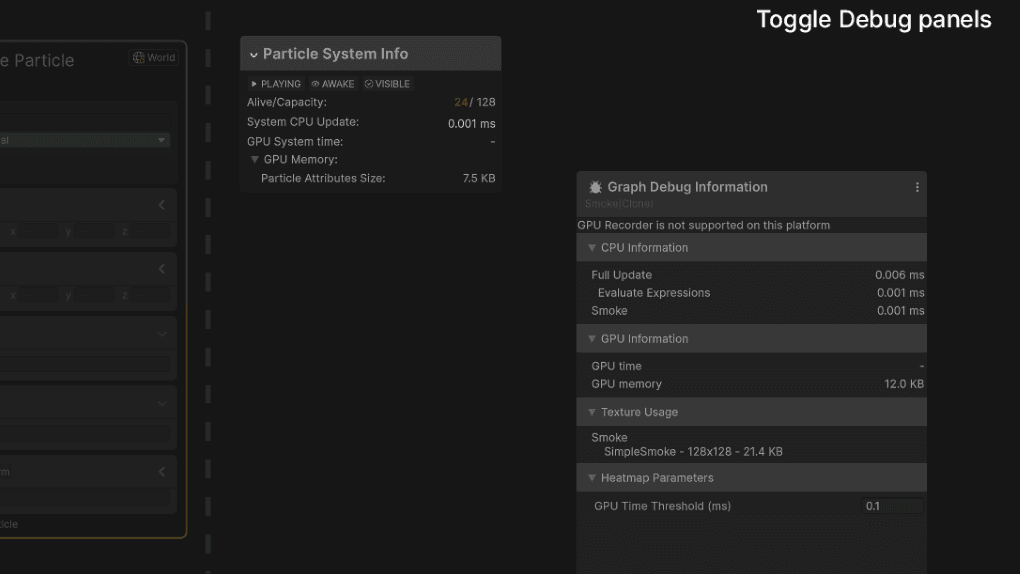
Use the Profiling and Debug panels to optimize your VFX Graph.
Seasoned VFX artists and developers can take advantage of the Custom HLSL Block. This feature allows you to create unique effects that may not yet be natively supported in Unity. With Custom HLSL, you can create advanced physics simulations, flocking behaviors, or real-time data visualizations.
Custom HLSL nodes allow you to execute custom HLSL code during particle simulation. You can use an Operator for horizontal flow or a Block for vertical flow within Contexts.
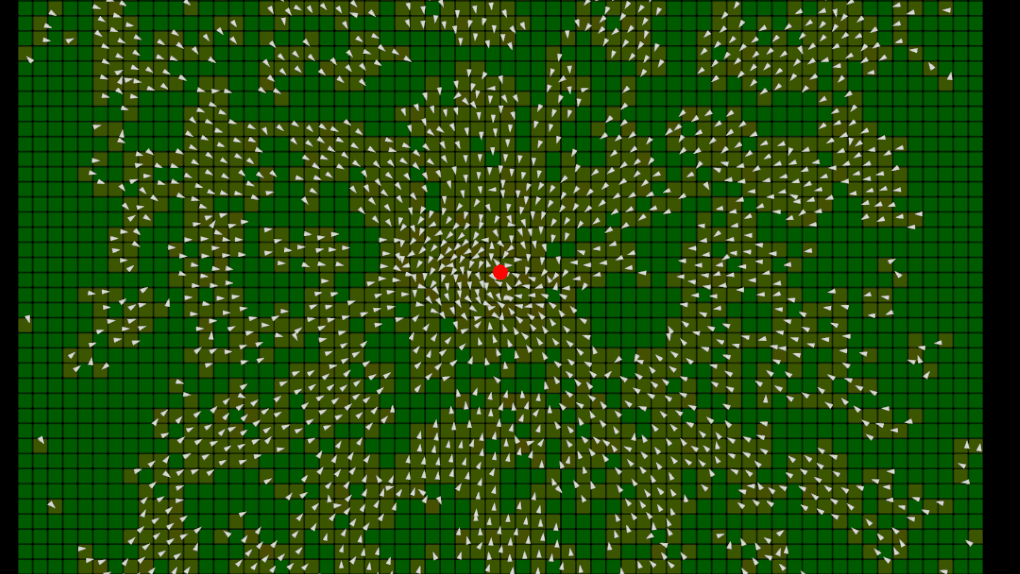
Custom HLSL can create procedural behavior.
More resources for artists
0 Comments
Log in to join the conversation.No comments yet. Be the first to share your thoughts.