
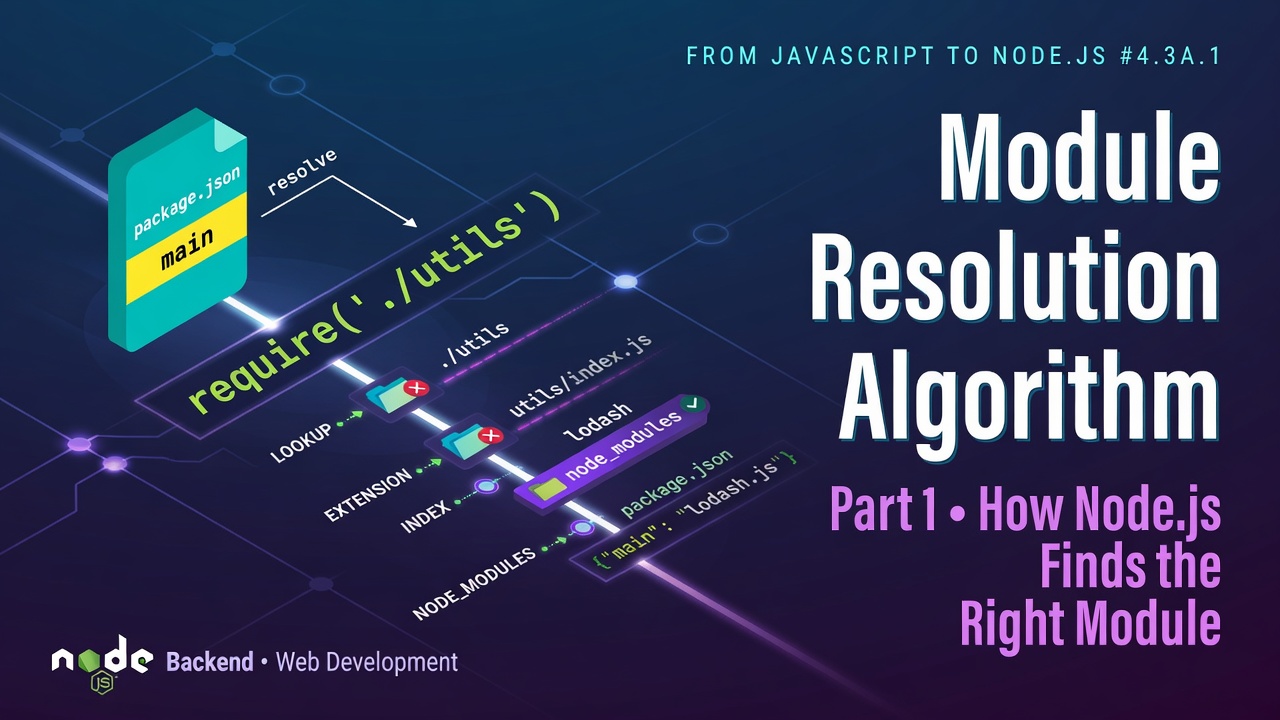
# Module Resolution Algorithm (Part 1): How Node.js Finds the Right Module
In the previous article, we explored one of the most fascinating parts of Node.js—the hidden Module Wrapper Function. We learned that every CommonJS module is wrapped inside a function before execution, and we also discovered that require() is not a JavaScript feature. It is provided by the Node.js runtime.
But a very important mystery still remains.
When we write:
const fs = require("fs");
Enter fullscreen mode Exit fullscreen mode
or
const math = require("./math");
Enter fullscreen mode Exit fullscreen mode
how does Node.js know where these modules are located?
How does it decide whether "fs" is a built-in module or a file inside your project?
Why does require("./math") work even if you don't write .js?
And what happens internally before your code starts executing?
The answer lies inside one of Node.js's most important systems:
The Module Resolution Algorithm
Understanding this algorithm is essential because every Node.js application uses it hundreds or even thousands of times while starting.
What is Module Resolution?
The word resolution simply means:
Finding the actual file represented by the string passed to
require().
Suppose you write:
require("./math");
Enter fullscreen mode Exit fullscreen mode
To you, "./math" looks like a file.
But for Node.js, it is initially nothing more than a string.
"./math"
Enter fullscreen mode Exit fullscreen mode
Node cannot execute a string.
It needs the real file.
So its first job is to answer one question:
"Which exact file should I load?"
The complete process of converting the string inside require() into an actual file on disk is called Module Resolution.
Why Does Node Need a Resolution Algorithm?
Imagine a project like this:
project/

├── app.js
├── math.js
├── database.js
├── auth.js
└── utils/
    ├── logger.js
    └── helper.js
Enter fullscreen mode Exit fullscreen mode
Now look at these statements.
require("./math");
Enter fullscreen mode Exit fullscreen mode
require("./database");
Enter fullscreen mode Exit fullscreen mode
require("./utils/logger");
Enter fullscreen mode Exit fullscreen mode
require("fs");
Enter fullscreen mode Exit fullscreen mode
require("express");
Enter fullscreen mode Exit fullscreen mode
All of them look similar.
But internally they are completely different.
Some point to your own files.
Some point to Node's built-in modules.
Some point to packages installed using npm.
Node cannot treat them all the same.
It must identify what type of module you are requesting before loading it.
This decision-making process is the first stage of Module Resolution.
Three Types of Modules
Node.js classifies modules into three categories.
Modules

│

├── Core Modules

├── Local Modules

└── Third-Party Modules
Enter fullscreen mode Exit fullscreen mode
Every require() call belongs to one of these categories.
Let's understand each one.
1. Core Modules
Core Modules are modules that come bundled with Node.js itself.
Examples include:
fshttphttpspathcryptostreameventsosurlzlibbuffer
These modules are already part of the Node.js runtime.
You never install them.
You simply write:
const fs = require("fs");
Enter fullscreen mode Exit fullscreen mode
and Node immediately understands what you mean.
Why Are They Called Core Modules?
Because they are part of Node's core source code.
If you install Node.js today,
modules like:
fs

path

http

crypto
Enter fullscreen mode Exit fullscreen mode
are already present inside the runtime.
This is why commands like:
npm install fs
Enter fullscreen mode Exit fullscreen mode
make no sense.
The module already exists.
How Does Node Recognize a Core Module?
Suppose your program contains:
require("fs");
Enter fullscreen mode Exit fullscreen mode
Node starts its resolution process.
First it checks:
"Is this the name of a Core Module?"
If the answer is YES...
the search stops immediately.
Node loads the internal implementation.
No filesystem search occurs.
No node_modules lookup occurs.
No disk traversal happens.
The module is loaded directly.
Conceptually the flow looks like this:
require("fs")

↓

Core Module?

↓

YES

↓

Load Internal Implementation

↓

Return module.exports
Enter fullscreen mode Exit fullscreen mode
This is one reason Core Modules load very quickly.
Is fs Written in JavaScript?
Not entirely.
Many Core Modules are implemented using a combination of:
- JavaScript
- C++
- Native Operating System APIs
For example:
fs.readFile()
Enter fullscreen mode Exit fullscreen mode
looks like an ordinary JavaScript function.
But internally the request travels through:
JavaScript

↓

Node API

↓

C++ Binding

↓

libuv

↓

Operating System

↓

Disk
Enter fullscreen mode Exit fullscreen mode
We've already studied this architecture in Part 2.
Module Resolution simply decides which module should receive your request.
2. Local Modules
Local Modules are modules that belong to your own project.
Example:
project/

├── app.js

└── math.js
Enter fullscreen mode Exit fullscreen mode
Inside app.js:
const math = require("./math");
Enter fullscreen mode Exit fullscreen mode
Notice something important.
The path begins with:
./
Enter fullscreen mode Exit fullscreen mode
That small symbol completely changes Node's behavior.
Instead of checking Core Modules,
Node immediately understands:
"This module is inside the current project."
What Does ./ Mean?
./
means:
Current Directory
Suppose your project looks like this:
project/

├── app.js

└── math.js
Enter fullscreen mode Exit fullscreen mode
Current file:
app.js
Enter fullscreen mode Exit fullscreen mode
Current directory:
project/
Enter fullscreen mode Exit fullscreen mode
Therefore:
require("./math");
Enter fullscreen mode Exit fullscreen mode
means:
project/math
Enter fullscreen mode Exit fullscreen mode
Node now begins searching for the file.
Parent Directory
Now consider another project.
project/

├── src/

│   ├── app.js

│   └── utils/

│       └── math.js
Enter fullscreen mode Exit fullscreen mode
Inside app.js:
require("./utils/math");
Enter fullscreen mode Exit fullscreen mode
Node interprets this as:
Current Folder

↓

utils

↓

math
Enter fullscreen mode Exit fullscreen mode
Everything is relative to the file that is currently executing.
Going One Level Up
Suppose you are inside:
src/routes/app.js
Enter fullscreen mode Exit fullscreen mode
and want to access:
src/utils/math.js
Enter fullscreen mode Exit fullscreen mode
You write:
require("../utils/math");
Enter fullscreen mode Exit fullscreen mode
Here:
..
Enter fullscreen mode Exit fullscreen mode
means:
Parent Directory
Internally Node performs:
routes

↓

Go Up

↓

src

↓

utils

↓

math.js
Enter fullscreen mode Exit fullscreen mode
Going Multiple Levels Up
You can continue moving upward.
require("../../config/database");
Enter fullscreen mode Exit fullscreen mode
means:
Current Folder

↓

Parent

↓

Parent

↓

config

↓

database
Enter fullscreen mode Exit fullscreen mode
This is exactly how your operating system navigates directories.
Node simply follows the filesystem hierarchy.
Relative Paths vs Absolute Paths
There are two ways to locate files.
Relative Path
require("./utils/math");
Enter fullscreen mode Exit fullscreen mode
Depends on the current module's location.
Absolute Path
require("C:/Projects/Bank/src/utils/math");
Enter fullscreen mode Exit fullscreen mode
or on Linux:
require("/home/user/project/src/utils/math");
Enter fullscreen mode Exit fullscreen mode
This specifies the complete location.
Although Node supports absolute paths, they are rarely used in production because they make applications difficult to move between systems.
Relative paths keep projects portable and maintainable.
How Does Node Decide?
At this point, Node has learned one important thing.
It asks a very simple question:
Does the string start with
./,../, or/?
If YES,
it is treated as a file path.
If NO,
Node first checks whether it is a Core Module.
Only if it is not a Core Module does Node continue searching elsewhere.
This tiny decision is the very first branch in the Module Resolution Algorithm.
It determines the entire loading strategy.
Key Takeaways
After reading this chapter, you should understand:
- Module Resolution converts the argument passed to
require()into an actual file. - Node classifies modules into Core, Local, and Third-Party modules.
- Core Modules are bundled with Node.js and are loaded immediately.
- Local Modules begin with
./,../, or/. -
./means the current directory. -
..means the parent directory. - Relative paths are preferred over absolute paths in production applications.
- The first step of the Module Resolution Algorithm is identifying what kind of module you are requesting.
Coming Next
In Part 4.3A.2, we'll continue the journey by answering questions that every backend developer eventually encounters:
- Why does
require("./math")work without writing.js? - How does Node search for
.js,.json, and.nodefiles? - What happens when you require a folder instead of a file?
- Why does
index.jsload automatically? - How does
package.jsoninfluence Module Resolution? - What is the exact resolution order followed internally by Node.js?
By the end of Part 4.3A.2, you'll understand the complete algorithm Node.js uses before a module is ever executed.
0 Comments
Log in to join the conversation.No comments yet. Be the first to share your thoughts.