
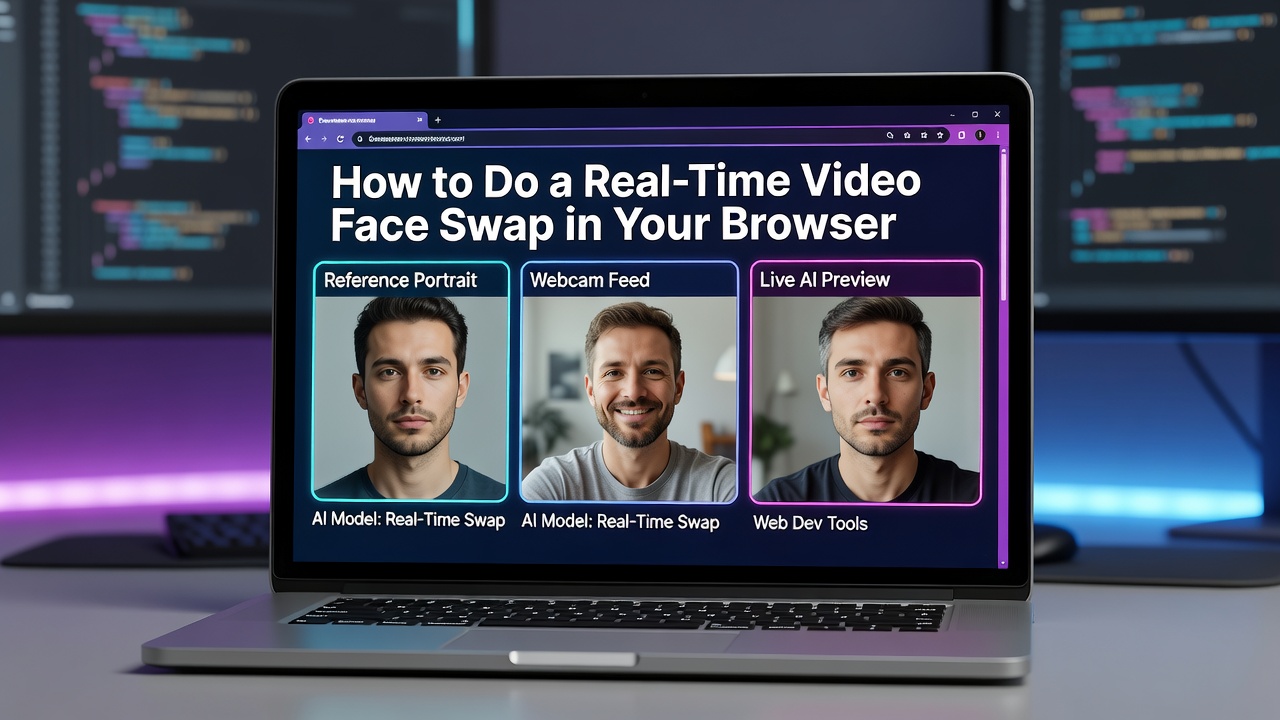

To swap faces in real time, you need a reference portrait, a webcam, and a live AI preview. The portrait supplies the new face; your webcam supplies the movement and expressions. Here is the shortest workflow using Vivify Realtime Face Swap.

The shortest browser workflow
Face Swap mode and a sample portrait are already selected.
- Keep the sample or upload an authorized face, check the displayed rate, then click Start live preview.
- Allow camera access when the browser asks.
- Compare Camera with AI output and make a few slow head turns.
What “real time” means here
An offline face swap returns a finished file. A live swap keeps processing new webcam frames with the reference face. One good frame is not enough: turn your head or change your expression, and confirm that the AI output continues updating.
If it does not work
- No camera image: check the site's camera permission and close another app if it is using the webcam.
- Camera works, but AI output does not: retry the live session; this is an output or connection problem, not a camera-permission problem.
- The first frame looks good, but motion breaks: use slower movement, a clear reference portrait, and even lighting.
Use it responsibly
Use your own face or an explicitly authorized reference. Do not use live face swap for impersonation, fraud, or bypassing identity checks, and disclose realistic synthetic media when the destination platform requires it.
The browser page is preview-only: it does not record, download, or save the transformed stream. To use the result in OBS, Zoom, or another app, you need a separate virtual-camera client.
0 Comments
Log in to join the conversation.No comments yet. Be the first to share your thoughts.