
By Suvankar Chakraborty | Principal Engineer — IAM, Modern Workplace & IT Operations
The Question That Confuses Every New Microsoft 365 Administrator
A new employee joins. Their manager submits an IT request: "Please add Jane to the Marketing team and give her access to the Marketing shared resources."
In a well-governed Microsoft 365 environment, this single request involves understanding at least four different grouping constructs — each with different capabilities, different governance implications, different licensing requirements, and different appropriate use cases.
Does "Marketing team" mean a Microsoft Teams team? A Microsoft 365 group? A distribution list? A mail-enabled security group? A SharePoint site group? Could be any of them. Often it is all of them simultaneously, which is where the confusion compounds.
I have been working in Microsoft environments for over 13 years. The single most consistent source of confusion in Microsoft 365 administration — for IT teams, for end users, and even for experienced Microsoft professionals moving between organisations — is the proliferation of group types in the M365 ecosystem and the non-obvious relationships between them.
This article is my attempt to cut through that confusion definitively. I will cover every major group type in Microsoft 365, explain what it is architecturally, what it does that the others cannot, when it is the right choice, when it is the wrong choice, and how to migrate from legacy constructs to modern ones.
The Problem: Microsoft 365 Has Too Many Group Types
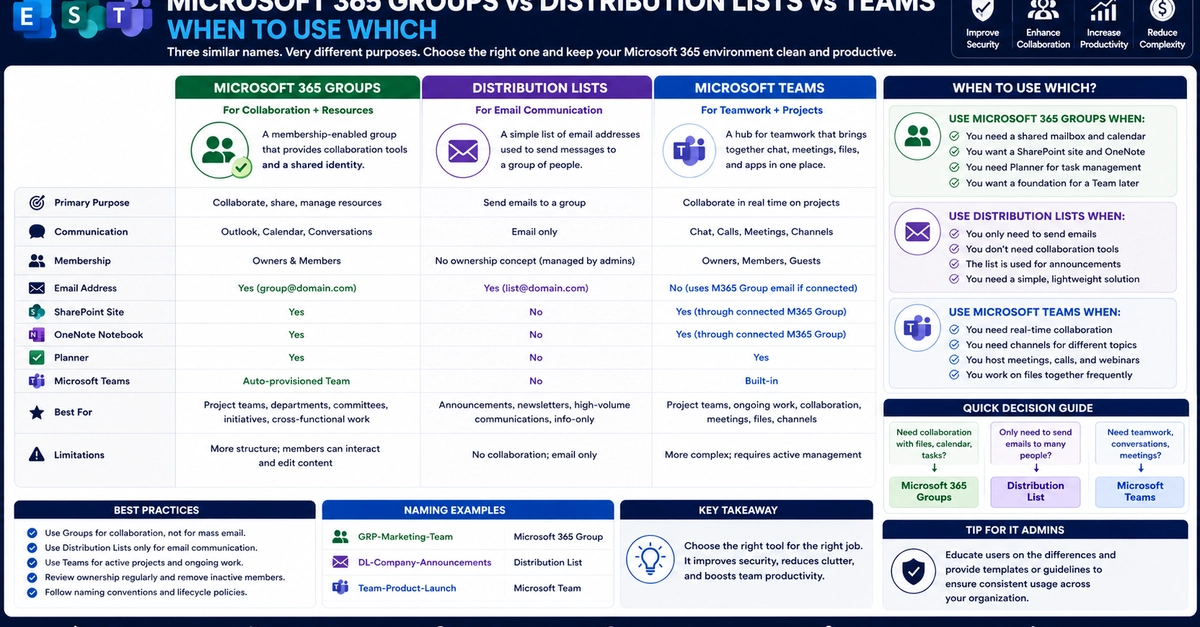
Before going into each type, let me name the full set you will encounter in a typical enterprise Microsoft 365 environment:
- Distribution Lists (DLs) — the oldest construct, email-only
- Mail-Enabled Security Groups (MESGs) — email + permissions
- Security Groups (without mail) — permissions only, no email
- Microsoft 365 Groups (M365 Groups) — the modern collaboration container
- Microsoft Teams — the conversation interface built on top of M365 Groups
- Dynamic Distribution Groups (DDGs) — query-based email distribution
- Dynamic Security Groups — query-based permissions
- SharePoint Groups — site-level permission groups within SharePoint
That is eight distinct group constructs in a single platform. They overlap in some capabilities, diverge in others, and interact with each other in ways that are not always intuitive.
The confusion is a product of history. Microsoft 365 grew from multiple products (Exchange, SharePoint, Skype for Business, Yammer, Office 365 Groups, Teams) that were developed somewhat independently and integrated progressively. Each product brought its own grouping model. The modern platform inherits all of them.
Understanding each type clearly is not academic. It has direct operational consequences: provisioning the wrong group type creates governance gaps, breaks expected functionality, causes security misconfiguration, and generates technical debt that is expensive to remediate later.
Distribution Lists — The Legacy Email Broadcasting Tool
What a distribution list is
A Distribution List (DL) — sometimes called a distribution group — is the oldest group construct in Microsoft messaging. It has been in Exchange since the beginning. A DL is a simple email address that, when you send to it, expands to deliver the message to all members.
That is essentially all it does. A distribution list:
- Has an email address
- Has a list of members (users, contacts, other groups)
- Delivers email to all members when the address receives mail
- Does not have a SharePoint site
- Does not have a Teams channel
- Does not have a shared calendar or shared mailbox
- Does not have a OneNote notebook
- Cannot be used for permissions on SharePoint, Azure resources, or applications
- Cannot be assigned Microsoft 365 licences
The types of distribution list members
A DL can contain:
- User mailboxes (the most common member type)
- Mail contacts (external email addresses stored in your directory)
- Mail users (external users with a presence in your directory)
- Other distribution groups (nested DLs — functional but creates management complexity)
- Resource mailboxes (rooms, equipment)
- Shared mailboxes
What DLs cannot contain:
- Guest users from other organisations (B2B guests) — you must add their email as a mail contact instead
- Security groups (unless mail-enabled)
When distribution lists are the right choice
Despite being a legacy construct that Microsoft is actively encouraging organisations to move away from, DLs still have legitimate use cases:
Large broadcast lists: All-company announcements, city-wide office communications, department-wide bulletins where the group is used exclusively for one-way email broadcasting and there is no need for collaboration. A [email protected] DL with 3,000 members is perfectly appropriate — converting it to a Microsoft 365 group would create unnecessary infrastructure (a SharePoint site, shared mailbox, shared calendar) for a purely email use case.
External-facing mailing lists: Newsletter distribution, customer announcement lists, partner communication lists. DLs can contain mail contacts (external addresses) directly. Microsoft 365 groups require external members to be added as guests, which carries additional governance overhead.
Integration with legacy systems: Some older applications, ticketing systems, and ITSM platforms integrate with Exchange via SMTP and expect a distribution group model. DLs are the safest choice for these integrations until the application is updated.
High-volume transactional email: When mail volume is very high and the group is purely a routing mechanism, a DL has lower overhead than an M365 group because there is no Microsoft Graph processing, no SharePoint activity, and no Teams notification overhead.
The limitations that make DLs inadequate for modern collaboration
No permissions use: You cannot assign SharePoint permissions to a DL. If you want members of the Marketing DL to have access to the Marketing SharePoint site, you need a separate security group with the same membership. Managing two groups with the same members — one for email, one for permissions — is operationally inefficient and creates a synchronisation problem.
No self-service management: DLs can be configured to allow owners to manage membership, but the management interface (Outlook's group management panel) is less capable than the M365 group management interface. End-user visibility and management is limited.
No collaboration workspace: Sending an email to a DL starts a conversation in 40 individual inboxes. There is no shared workspace, no threaded discussion, no file sharing, no meeting room.
No guest support: Adding an external collaborator to a DL requires creating a mail contact for them. This is a manual process with no lifecycle management.
Mail-Enabled Security Groups — The Workhorse Nobody Loves
What a mail-enabled security group is
A Mail-Enabled Security Group (MESG) is the hybrid between a distribution list (for email) and a security group (for permissions). It has both an email address and can be used in permission assignments — SharePoint, Azure RBAC, application roles, and so on.
This makes it the most versatile of the legacy group types and explains why it persists heavily in enterprise environments that predate Microsoft 365 modern groups.
When MESGs are the right choice
Legacy application permission management: Applications that were integrated before Microsoft 365 groups existed typically use security groups for permission assignments. MESGs are already in place and changing them introduces migration risk. Until the application can support Microsoft 365 group-based permission, maintain the MESG.
Hybrid environments: In organisations with on-premises Active Directory that sync to Entra ID, MESGs created on-premises sync to Entra ID and can be used for both email and cloud permissions. This is the standard approach in mature hybrid environments.
Precise permission scope with email notification: When you need a group that both controls access to a resource (SharePoint library, application) and receives email notifications related to that resource — for example, an "IT Security Team" group that receives security alerts via email and also has administrative access to the security management portal — a MESG provides both capabilities in a single object.
Licensing control: Before Microsoft introduced group-based licensing in Entra ID (which uses security groups), MESGs were used for licence assignment control. In some legacy configurations this pattern still exists.
The limitations of MESGs
No modern collaboration workspace: Like DLs, MESGs have no SharePoint site, no Teams channel, no shared calendar. They are purely administrative objects.
Cannot be created in Exchange Online: MESGs must be created in on-premises Active Directory (in hybrid environments) or via PowerShell/the Microsoft 365 admin center. They are not created through the modern group creation UX.
Cannot be converted to Microsoft 365 groups: Unlike distribution lists (which have a migration path to M365 groups), MESGs do not have a direct conversion path. If you want to migrate a MESG to an M365 group, you must create the M365 group separately and manually migrate membership, permissions, and email distribution — a non-trivial operational effort.
No dynamic membership from the Exchange side: Dynamic MESGs are not supported. Dynamic security groups in Entra ID can be mail-enabled only through specific configurations that are more complex than M365 group dynamic membership.
Security Groups (Without Mail) — The Clean Permission Container
What a security group is
A security group — without mail-enabling — is a clean permission assignment container. It has no email address, no distribution capability, no SharePoint site. It exists solely to group identities (users, service principals, devices, other groups) for permission assignment purposes.
In Entra ID, security groups are the primary mechanism for:
- Conditional Access policy scoping: Apply a Conditional Access policy to users in a specific security group
- Intune policy assignment: Assign device configuration and compliance policies to groups
- Azure RBAC: Grant Azure resource permissions to a group rather than individual users
- Application role assignment: Assign application roles to groups in enterprise applications
- Microsoft 365 licence assignment: Assign licences to users based on group membership (group-based licensing)
- Dynamic group membership: Security groups can be dynamic (membership defined by attribute query) enabling attribute-based access control
When security groups are the right choice
Policy and permission assignment only: When the group's purpose is purely for permission/policy assignment and email distribution is not needed or would be confusing. A group called "Intune-Windows-Security-Baseline-Policy" exists to receive an Intune policy assignment — giving it an email address would be misleading and potentially create unintended email delivery.
Conditional Access targeting: All Conditional Access policy include/exclude scopes should use security groups. This allows precise control over policy applicability and easy management when inclusion or exclusion needs to change.
Intune device and user policy targeting: Intune assignment groups should be security groups (or Microsoft 365 groups — both work) rather than DLs (which do not work for Intune policy assignment).
Group-based licensing in Entra ID: Licence assignment via group membership uses security groups. Creating a security group "LicenceGroup-M365-E5" and assigning the E5 licence to the group means any user added to the group automatically receives the licence — and loses it when removed.
Automation and service principal access: When granting Azure resource or application access to automation accounts, managed identities, or service principals, security groups provide a clean container that is separate from email-enabled groups.
Microsoft 365 Groups — The Modern Collaboration Container
What a Microsoft 365 Group actually is
Microsoft 365 Groups are the fundamental modern collaboration construct in the Microsoft 365 ecosystem. When you create an M365 group, you get a complete collaboration workspace as a single object:
| Component | What it provides |
|---|---|
| Group email address | Receive and send email as a group; appears in the GAL |
| Shared Exchange mailbox | Conversation history, email to the group stored here |
| SharePoint site | Document storage, wiki, lists — the group's file workspace |
| SharePoint document library | The default library in the SharePoint site |
| Shared calendar | Group calendar visible to all members |
| Planner plan | Optional task management board |
| OneNote notebook | Shared notes for the group |
| Teams channel | If Teams is connected — the conversation interface (optional) |
| Stream channel | Video storage and sharing for the group |
One group object. Six to eight interconnected workspaces.
How M365 Groups relate to Teams
This is the single most important relationship to understand in the modern Microsoft 365 ecosystem:
Every Microsoft Teams team is a Microsoft 365 Group. Not every Microsoft 365 Group is a Teams team.
When you create a Teams team:
- A Microsoft 365 Group is created automatically in the background
- The group provides the identity, membership, SharePoint site, mailbox, and calendar
- Teams provides the conversation interface on top of that foundation
- The SharePoint document library becomes the Files tab in Teams
When you create a Microsoft 365 Group without Teams:
- All the group infrastructure is created
- No Teams interface is provisioned
- You can add Teams to an existing M365 Group at any time
When you delete a Teams team:
- The underlying Microsoft 365 Group is deleted
- The SharePoint site, mailbox, calendar, and all content is deleted (subject to retention policies)
This relationship means that Teams governance and M365 Group governance are the same thing. The Group lifecycle policy (expiration), the Group naming policy, the Group creation restriction — all of these affect Teams as much as they affect standalone M365 Groups.
Microsoft 365 Group membership types
Owners: Can manage the group — add and remove members, change settings, delete the group. Every group should have at least two owners. A group with a single owner becomes ungoverned when that owner leaves.
Members: Standard collaboration access — can access the group email, SharePoint site, calendar, and Teams (if connected). Members cannot manage membership or settings.
Guests: External users added to the group as B2B guests in Entra ID. Guests can access the group's collaboration resources (SharePoint, Teams conversations, calendar) within the limits of the guest access policy.
When Microsoft 365 Groups are the right choice
Team collaboration with shared resources: Any scenario where a defined group of people need shared files (SharePoint), shared conversations (Teams or group email), and a shared calendar. Project teams, department teams, cross-functional working groups.
Replacing DLs where collaboration is needed: When an existing DL has evolved from pure email broadcasting into a group that collaborates on shared documents, has recurring meetings, and needs a file workspace — upgrade to an M365 Group.
When you plan to add Teams: If there is a reasonable probability that the group will need a Teams interface in the future, start with an M365 Group. Converting a DL to Teams requires an intermediate M365 Group step; starting with M365 Group eliminates that step.
Guest collaboration: M365 Groups have robust guest support — external users can be added as guests with Entra ID B2B integration, subject to your guest access policies and access reviews.
What Microsoft 365 Groups cannot do
Cannot be used for Conditional Access scoping without a corresponding security group: An M365 Group can be used in Conditional Access include/exclude scopes, but only in certain configurations. The recommended practice for Conditional Access targeting is security groups, which have no collaboration overhead.
Cannot contain mail contacts as members: Unlike DLs, M365 Groups cannot add external email addresses as mail contacts. External parties must be invited as B2B guests — which requires them to have a work or school account (or accept a Microsoft account). Pure external email addresses (Gmail, Yahoo personal accounts) that are not guests cannot be direct members of an M365 Group.
Have governance overhead: Creating an M365 Group creates six interconnected objects. For use cases that only need email distribution, this overhead is unjustified. Not every "group" concept needs a SharePoint site and a Teams channel.
Microsoft Teams — The Conversation Interface
What Teams is (and is not) as a group construct
Microsoft Teams is not a separate group type at the infrastructure level. It is a conversation interface and collaboration hub built on top of Microsoft 365 Groups. However, because end users experience Teams as a group ("I'm in the Marketing team"), it is important to address it explicitly in the context of group type decisions.
What Teams adds to an M365 Group:
- Channels — structured conversation threads within the team. Standard channels (accessible to all team members), Private channels (subset of members, own SharePoint site), Shared channels (includes external users without guest accounts)
- Tabs — integrated applications pinned to channels (SharePoint document libraries, Planner, Power BI, third-party apps)
- Meetings — Teams-native meeting scheduling integrated with the group calendar
- Voice and video — calling within Teams channels and direct messages
- Apps and bots — the Teams app ecosystem for workflow automation and productivity
What Teams does not add to an M365 Group:
- A separate identity container (the M365 Group is still the container)
- Separate SharePoint storage (the M365 Group's SharePoint site is the storage backend)
- A separate calendar (the M365 Group's Exchange calendar is the Teams calendar)
When to create a Teams team vs a plain M365 Group
Create a Teams team when:
- The group will have ongoing, active collaboration requiring conversation threads
- Multiple workstreams or topics benefit from separate channels
- The group needs real-time communication (calls, video meetings)
- Members will collaborate on documents in real-time
- The group needs tabs for integrated applications (Planner, Power BI, etc.)
Create a plain M365 Group (without Teams) when:
- The group is primarily email-based collaboration supplemented by shared documents
- The group's communication cadence does not justify a Teams channel (low-frequency collaboration)
- The group is a distribution target with a SharePoint document library — email to the group address, access files in SharePoint — but real-time chat is not needed
- You want the group infrastructure without the collaboration overhead of active Teams management
The practical reality: In most organisations, if an M365 Group is created for an active team, Teams will be added to it within weeks anyway — either by the group owner or by users requesting it. The practical decision is often whether to start with Teams enabled or add it later.
Dynamic Groups — Attribute-Based Membership at Scale
Dynamic distribution groups
Dynamic Distribution Groups (DDGs) calculate membership at send time based on a query against your Exchange recipient attributes. The "membership" is never stored — it is evaluated fresh every time the group receives an email.
# Create a DDG for all employees in the Mumbai office
New-DynamicDistributionGroup -Name "All Mumbai Employees" `
    -Alias "all-mumbai" `
    -RecipientFilter {RecipientType -eq 'UserMailbox' AND Office -eq 'Mumbai'}

# Preview the current membership
$ddg = Get-DynamicDistributionGroup -Identity "All Mumbai Employees"
Get-Recipient -RecipientPreviewFilter $ddg.RecipientFilter
Enter fullscreen mode Exit fullscreen mode
When DDGs are the right choice:
- Large broadcast groups where membership is attribute-defined (all users in a city, all users in a department, all users in a job title range)
- Groups where manual membership management would be a continuous administrative burden
- Mailing lists that must automatically include new joiners who match the criteria and automatically exclude leavers
DDG limitations:
- Cannot be used for permissions — only for email distribution
- Cannot be managed by non-administrators (no owner self-service)
- Membership is calculated at send time, so very large DDGs can slow email delivery
- Cannot be converted directly to M365 Groups
Dynamic security groups in Entra ID
Dynamic security groups in Entra ID use membership rules based on Entra ID user or device attributes. Unlike DDGs, dynamic security groups can be used for permissions — Conditional Access, Intune policy assignment, Azure RBAC, application roles, group-based licensing.
# Example dynamic membership rule in Entra ID:
# All users with department "Finance" and employment type "Employee"
(user.department -eq "Finance") and (user.employeeType -eq "Employee")

# All managed Windows devices
(device.deviceOSType -eq "Windows") and (device.managementType -eq "MDM")
Enter fullscreen mode Exit fullscreen mode
Dynamic security group use cases:
Licence assignment: Create a dynamic group for each licence tier and assign the licence to the group. New users who match the attribute criteria automatically receive the licence:
-
LicenceGroup-M365-E5:(user.department -in ["IT", "Security", "Finance", "Legal"]) -
LicenceGroup-M365-E3:(user.employeeType -eq "Employee") and (user.department -notIn ["IT", "Security", "Finance", "Legal"])
Conditional Access scoping: Target Conditional Access policies to attribute-defined populations without manual group management:
- "All Contractor Accounts":
(user.employeeType -eq "Contractor") - "All Executive Accounts":
(user.jobTitle -in ["CEO", "CFO", "CISO", "COO", "CTO"])
Intune policy targeting: Assign device policies to device groups defined by attribute — all Windows 11 devices, all devices enrolled in the last 30 days, all devices assigned to users in a specific department.
Important limitation: Dynamic M365 Groups (not security groups) can be created with dynamic membership, but they cannot be connected to Teams. Teams teams require static (assigned) M365 Groups. Dynamic M365 Groups are useful for shared mailbox scenarios and SharePoint permission assignment but not for active Teams collaboration.
The Governance Decision: Which Group Type Creates Which Objects?
Understanding exactly what each group type creates is essential for governance decision-making. Here is the complete object creation matrix:
| Group Type | Exchange Mailbox | SharePoint Site | Teams Channel | Calendar | Can Assign Permissions | Dynamic Membership |
|---|---|---|---|---|---|---|
| Distribution List | Group mailbox only | ❌ | ❌ | ❌ | ❌ | Via DDG |
| Mail-Enabled Security Group | Group mailbox | ❌ | ❌ | ❌ | ✅ | ❌ |
| Security Group (no mail) | ❌ | ❌ | ❌ | ❌ | ✅ | ✅ (Entra ID) |
| Microsoft 365 Group | ✅ Shared mailbox | ✅ | Optional | ✅ | ✅ | ✅ (limited) |
| Teams Team | ✅ (via M365 Group) | ✅ (via M365 Group) | ✅ | ✅ (via M365 Group) | ✅ (via M365 Group) | ❌ |
| Dynamic Distribution Group | Group mailbox (calculated) | ❌ | ❌ | ❌ | ❌ | ✅ (Exchange filter) |
The Common Scenarios — Prescriptive Recommendations
Scenario 1: Department-wide announcements email address
Need: An email address ([email protected]) that delivers to all 200 Marketing department employees. Purely one-way broadcasting. No collaboration needed.
Recommendation: Dynamic Distribution Group
Rationale: DDG membership stays current automatically as employees join and leave Marketing. No manual membership management. No SharePoint site, Teams channel, or shared calendar created unnecessarily. If occasional two-way communication is needed (replies to the group go to the sender, not to a shared inbox), a standard DL with Reply-To configured is equally appropriate.
Scenario 2: Project team that needs files, chat, and email
Need: A 12-person cross-functional project team that needs to share documents, have ongoing conversations, schedule meetings, and receive project-related emails at a group address.
Recommendation: Microsoft Teams team (which creates a Microsoft 365 Group)
Rationale: The project team needs the full collaboration workspace — channels for workstreams, SharePoint document library for files, group email address for notifications and communications, shared calendar for project meetings. Teams provides all of this in a single governed object. Configure a sensitivity label appropriate to the project's confidentiality level. Set an expiry policy aligned to the project timeline.
Scenario 3: Conditional Access policy for all contractors
Need: Apply a Conditional Access policy requiring managed device to all contractor accounts.
Recommendation: Dynamic Security Group in Entra ID
Rationale: (user.employeeType -eq "Contractor") — dynamic membership ensures new contractors are covered automatically and offboarded contractors are removed without manual group management. Security group (not M365 Group) because this is purely a policy assignment container — no email, no SharePoint, no Teams needed.
Scenario 4: Helpdesk shared email inbox
Need: A shared email inbox ([email protected]) that five helpdesk agents can access, respond from, and manage collaboratively. Email volume is high.
Recommendation: Shared mailbox with Full Access and Send As permissions
Rationale: This is a mailbox use case, not a group use case. A shared mailbox provides the inbox, allows all five agents to access and respond to email using the helpdesk@ address, and has no unnecessary SharePoint or Teams overhead. If the helpdesk team also needs a collaborative workspace, create a separate Teams team for internal helpdesk communication — but the shared mailbox handles the customer-facing email function.
Scenario 5: Monthly executive newsletter to all employees
Need: The CEO sends a monthly company update to all 4,000 employees.
Recommendation: Distribution List (static) or Dynamic Distribution Group (if "all employees" has a precise attribute definition)
Rationale: Pure broadcasting. The CEO sends one email; 4,000 people receive it. There is no need for a shared SharePoint site, a Teams channel, or a shared calendar. If the company has a precise attribute for "all active employees" (e.g., employeeType = Employee), a DDG eliminates the maintenance burden. If the definition is more nuanced (multiple employment types, contractors included conditionally), a managed DL with governance discipline is appropriate.
Scenario 6: SharePoint site access for the Finance department
Need: All Finance employees need access to the Finance SharePoint site.
Recommendation: Dynamic Security Group in Entra ID, used as the SharePoint site permission group
Rationale: (user.department -eq "Finance") — the dynamic security group automatically includes new Finance joiners and excludes mover/leavers. Assign this group to the Finance SharePoint site with the appropriate permission level (Member or Visitor). No email address needed. No Teams channel. A clean permission container that manages itself.
If Finance also needs a collaborative workspace, create a separate Teams team (M365 Group) for Finance collaboration, and use the M365 Group's membership to also govern the SharePoint site access — one group, one membership list, two functions.
Scenario 7: Microsoft 365 licence assignment for all E3 users
Need: Assign Microsoft 365 E3 licences to all permanent employees who are not in IT or Security (those get E5).
Recommendation: Dynamic Security Group in Entra ID with group-based licensing
Dynamic rule: (user.employeeType -eq "Employee") and (user.department -notIn ["IT", "Security"])
Enter fullscreen mode Exit fullscreen mode
Assign the M365 E3 licence to this group in Entra ID (Entra admin center → Groups → [Group] → Licences). New employees matching the rule receive E3 automatically. Employees who move to IT or Security have E3 removed and (if a separate E5 dynamic group is configured) gain E5 automatically.
Scenario 8: Legacy DL migration — should we upgrade this?
Need: Evaluate a distribution list [email protected] with 350 members. Members occasionally reply-all with questions. Some members share documents by attaching them to emails.
Recommendation: Evaluate for Microsoft 365 Group upgrade
Indicators that suggest upgrading:
- Members are actively replying and having conversations via the group (email threads)
- Members are sharing documents as attachments (signal: need shared document workspace)
- The group is used for planning or coordination, not just broadcasting
Indicators that suggest keeping as a DL:
- The group is purely for receiving broadcasts from management
- The group includes mail contacts (external addresses) that cannot be made guests
- The group has more than 100 members and the collaboration signal is low
If upgrading, use the Microsoft 365 admin center's DL upgrade tool or PowerShell:
# Check eligibility
Get-DistributionGroup -Identity "[email protected]" |
    Select-Object Name, ManagedBy, Members, GroupType

# Upgrade (requires the group to be eligible — no nested DLs, no external members)
Upgrade-DistributionGroup -DLIdentities "[email protected]"
Enter fullscreen mode Exit fullscreen mode
After upgrade, the group has all M365 Group capabilities. Add Teams if the group needs it.
Naming Conventions — The Governance Layer That Prevents Chaos
Without naming conventions, a Microsoft 365 tenant with multiple group types in active use becomes an unusable mess within two years. The Global Address List fills with ambiguously named groups. Users cannot tell which "Marketing" group is the email list, which is the Teams team, which is the SharePoint permissions group, and which is the Conditional Access target.
Recommended naming convention framework
Distribution Lists:
DL-[Department/Function]-[Purpose]
Examples: DL-Marketing-AllStaff, DL-Finance-Announcements, DL-IT-Alerts
Mail-Enabled Security Groups:
MESG-[Department/Application]-[Permission Level]
Examples: MESG-Finance-FullAccess, MESG-ERP-Viewers
Security Groups (no mail):
SG-[Purpose]-[Scope]
Examples: SG-CA-AllContractors, SG-Intune-WindowsBaseline, SG-Licence-M365E3
Microsoft 365 Groups (without Teams):
M365-[Department]-[Function]
Examples: M365-Finance-Leadership, M365-HR-PolicyDocuments
Teams teams: Use friendly, business-meaningful names without technical prefixes. The Teams team name is what end users see. Teams names should be named for their business purpose, not their technical type.
Examples: Marketing - APAC Campaign 2025, Finance - Monthly Close, IT - Infrastructure Team
SharePoint permission groups: Use SharePoint's built-in naming ([Site Name] - Members, [Site Name] - Visitors) where possible, or adopt a consistent convention for custom groups.
Enforcing naming policies in Entra ID
Entra ID supports naming policies for Microsoft 365 Groups (and by extension, Teams teams):
Navigate to Entra admin center → Groups → Naming policy:
- Prefix/Suffix policy: Automatically prepend or append strings to all group names (e.g., prefix with department, suffix with location)
- Custom blocked words: Prevent specific words from appearing in group names (inappropriate terms, competitor names, regulatory-sensitive terms)
# View the current naming policy
Get-AzureADDirectorySetting | Where-Object { $_.DisplayName -eq "Group.Unified" } |
    Select-Object -ExpandProperty Values

# Naming policies require the DirectorySettings configuration
# (Configuration via Entra admin portal is the recommended approach)
Enter fullscreen mode Exit fullscreen mode
Note: Naming policies apply only to Microsoft 365 Groups (and Teams). They do not apply to Distribution Lists, Security Groups, or Mail-Enabled Security Groups — those require a separate naming convention governance process.
The Governance Operating Model for Group Types
Defining the right group types and naming conventions is necessary but not sufficient. A governance operating model ensures the configuration stays clean over time.
Group creation governance
Who can create which group type:
| Group Type | Who can create (recommended) |
|---|---|
| Distribution List | IT team only (via ticket) |
| Mail-Enabled Security Group | IT team only (via ticket) |
| Security Group (no mail) | IT team and designated IAM team members |
| Dynamic Security Group | IAM team only (requires attribute rule expertise) |
| Microsoft 365 Group / Teams | Restricted user population (Power users, team leads, managers) via request process |
Restrict M365 Group / Teams creation as described in the Teams Governance article. The group creation restriction in Entra ID applies specifically to M365 Groups — DLs and security groups are managed through their respective admin interfaces.
Lifecycle governance
Distribution Lists:
- Annual review of membership and continued relevance
- Ownership review — is the listed owner still in the organisation and responsible for the list?
- Archiving of DLs with no send activity in 12+ months
Security Groups:
- Quarterly review for privileged-scope groups (Conditional Access, Intune policy)
- Annual review for standard permission groups
- Dynamic group rule audit — verify rules still produce the intended membership
Microsoft 365 Groups / Teams:
- Group expiration policy (180-day lifecycle, auto-renewed for active groups)
- Quarterly access review for guest members
- Ownership audit — every M365 Group must have two active owners
The group type migration backlog:
- Identify DLs that have evolved into collaboration groups and are candidates for M365 Group upgrade
- Identify MESGs that can be replaced by M365 Groups for modern workloads
- Track the migration of Exchange on-premises groups to Entra ID-native groups
Quick Reference: The Decision Tree
When a request comes in to "create a group," use this decision tree:
Q1: Does it need email delivery (receive email at a group address)?
- No → Security Group (plain) or Dynamic Security Group
- Yes → Continue to Q2
Q2: Does it need permissions assignment (SharePoint, Azure, applications)?
- No → Continue to Q3 (email only)
- Yes → Continue to Q4 (email + permissions)
Q3: Is membership defined by attributes (department, job title, location)?
- Yes → Dynamic Distribution Group
- No → Distribution List
Q4: Does it need a collaboration workspace (files, calendar, channels)?
- No → Mail-Enabled Security Group
- Yes → Continue to Q5
Q5: Does it need real-time conversation (chat, calls, video)?
- No → Microsoft 365 Group (without Teams)
- Yes → Microsoft Teams team (which creates an M365 Group)
Q6 (if Teams): Will it include external users?
- No → Standard Teams team
- Yes → Teams team with guest access enabled (subject to your guest access policy)
Conclusion: Design Intentionally, Not Accidentally
The Microsoft 365 group type ecosystem is complex because the platform is complex — a 25-year evolution of email, collaboration, identity, security, and productivity capabilities converging into a single integrated suite.
But the complexity is manageable when you understand the architecture clearly and make group type decisions deliberately rather than by default.
The default — leaving group creation unrestricted and letting users choose whichever group type appears first in whichever interface they happen to be using — produces the mixed, ungoverned, ambiguous group landscape that every IT administrator who has inherited a mature Microsoft 365 environment has experienced.
The governed approach — clear decision criteria for each group type, enforced naming conventions, creation restrictions, lifecycle policies, and a migration path for legacy constructs — produces an environment where every group has a defined type, a clear purpose, an active owner, and a planned lifecycle.
That environment is easier to audit, easier to secure, easier to troubleshoot, and easier to explain to the business stakeholders who periodically ask "why do we have 47 different Marketing groups in the address book?"
Because somebody made intentional decisions. That is the answer. And it starts with understanding the difference between the group types well enough to make those decisions correctly.
Suvankar Chakraborty is a Principal Engineer with 13+ years of experience in Identity & Access Management, Microsoft 365, Intune/Endpoint Management, and IT Operations. Connect with him on LinkedIn for more technical content on IAM, Zero Trust, and enterprise IT operations.
Read next:
- Teams Governance — Why Most Enterprises Get It Wrong
- SharePoint Permissions — The Audit That Will Surprise You
- Exchange Online Administration — The Complete Guide for Modern IT Teams
- M365 Tenant Hardening — A Security Checklist for IT Managers
0 Comments
Log in to join the conversation.No comments yet. Be the first to share your thoughts.