
If you're learning DevOps, Cloud, or Backend Development, Linux is a skill you simply can't avoid.
Most production servers run Linux. Docker containers run on Linux. Kubernetes is built around Linux. Even many cloud services are powered by Linux.
As part of my DevOps learning journey, I started with the Linux fundamentals. In this article, I'll share the concepts and commands every beginner should know.
What is Linux?
Linux is an open-source operating system kernel that acts as the bridge between software and hardware.
It manages resources like:
- CPU
- Memory
- Storage
- Devices
- Running processes
Whenever you execute a command, Linux communicates with the hardware on your behalf.
Popular Linux Distributions
Linux comes in many distributions (often called distros), each designed for different use cases.
Debian-Based
Examples:
- Ubuntu
- Debian
Package Manager:
apt
Enter fullscreen mode Exit fullscreen mode
These distributions are popular among developers because they're easy to use and have excellent community support.
Red Hat-Based
Examples:
- Red Hat Enterprise Linux (RHEL)
- CentOS
- Fedora
- Amazon Linux
Package Managers:
yum
Enter fullscreen mode Exit fullscreen mode
or
dnf
Enter fullscreen mode Exit fullscreen mode
These are commonly used in enterprise environments.
Alpine Linux
Package Manager
apk
Enter fullscreen mode Exit fullscreen mode
Alpine is extremely lightweight and is widely used for Docker containers.
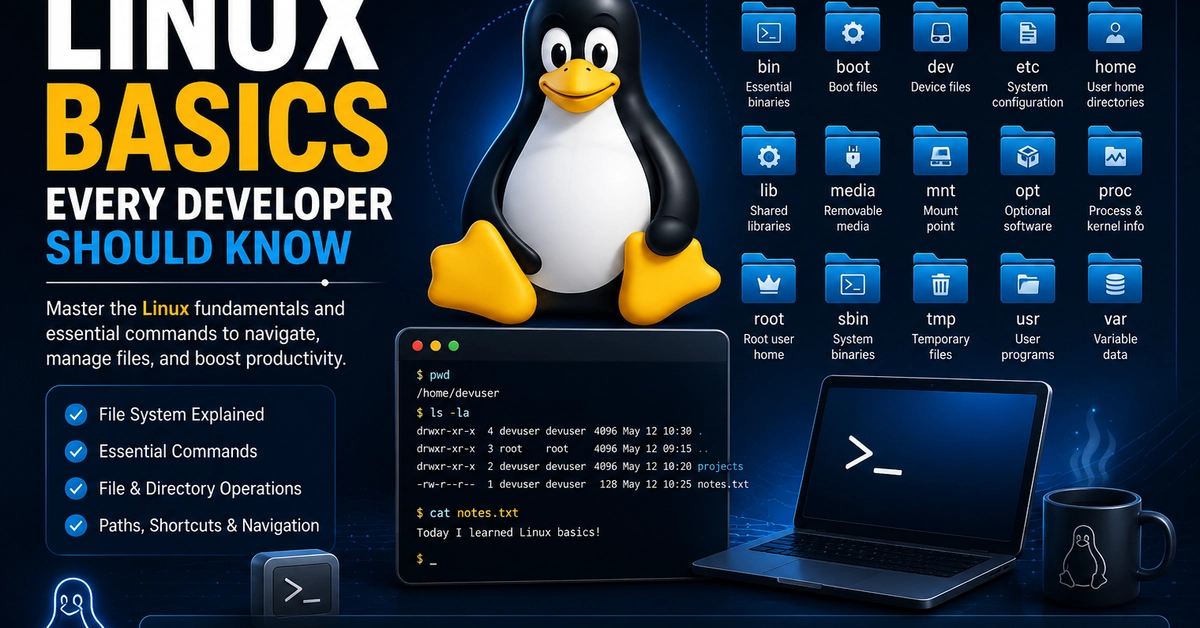
Understanding the Linux File System
Unlike Windows, Linux has a single directory tree that starts from the root directory.
/
├── bin/
├── boot/
├── dev/
├── etc/
├── home/
├── lib/
├── media/
├── mnt/
├── opt/
├── proc/
├── root/
├── sbin/
├── tmp/
├── usr/
└── var/
Enter fullscreen mode Exit fullscreen mode
Here's what each directory is used for.
| Directory | Purpose |
|---|---|
/bin |
Essential command binaries like ls, cp, and cat
|
/boot |
Bootloader and Linux kernel |
/dev |
Device files (USB, disks, terminals, etc.) |
/etc |
System configuration files |
/home |
Home directories for normal users |
/lib |
Shared libraries used by applications |
/media |
Automatically mounted removable media |
/mnt |
Temporary mount point |
/opt |
Optional third-party software |
/proc |
Information about running processes |
/root |
Home directory of the root user |
/sbin |
System administration commands |
/tmp |
Temporary files |
/usr |
User applications and documentation |
/var |
Logs, caches, databases, and changing data |
Navigating the File System
Show Current Directory
pwd
Enter fullscreen mode Exit fullscreen mode
Displays your current working directory.
List Files
ls
Enter fullscreen mode Exit fullscreen mode
Lists files and folders.
Detailed list:
ls -l
Enter fullscreen mode Exit fullscreen mode
Include hidden files:
ls -la
Enter fullscreen mode Exit fullscreen mode
Change Directory
Go to another directory:
cd /var/log
Enter fullscreen mode Exit fullscreen mode
Go back one level:
cd ..
Enter fullscreen mode Exit fullscreen mode
Go to your home directory:
cd ~
Enter fullscreen mode Exit fullscreen mode
Return to the previous directory:
cd -
Enter fullscreen mode Exit fullscreen mode
Understanding Paths
Absolute Path
Always starts from the root directory.
Example:
/home/mohiuddin/projects/app.py
Enter fullscreen mode Exit fullscreen mode
No matter where you currently are, this path always points to the same file.
Relative Path
Relative paths depend on your current location.
Example:
projects/app.py
Enter fullscreen mode Exit fullscreen mode
If you're already inside:
/home/mohiuddin
Enter fullscreen mode Exit fullscreen mode
then both paths point to the same file.
Useful Shortcuts
| Shortcut | Meaning |
|---|---|
. |
Current directory |
.. |
Parent directory |
~ |
Home directory |
cd - |
Previous directory |
Basic File Operations
Create a Directory
mkdir project
Enter fullscreen mode Exit fullscreen mode
Create nested directories:
mkdir -p project/src/components
Enter fullscreen mode Exit fullscreen mode
Copy Files
cp file.txt backup.txt
Enter fullscreen mode Exit fullscreen mode
Copy directories recursively:
cp -r folder1 folder2
Enter fullscreen mode Exit fullscreen mode
Move or Rename Files
Rename:
mv old.txt new.txt
Enter fullscreen mode Exit fullscreen mode
Move:
mv notes.txt /tmp/
Enter fullscreen mode Exit fullscreen mode
Remove Files
Delete a file:
rm file.txt
Enter fullscreen mode Exit fullscreen mode
Delete a directory:
rm -r folder
Enter fullscreen mode Exit fullscreen mode
Force delete:
rm -rf folder
Enter fullscreen mode Exit fullscreen mode
⚠️ Warning:
rm -rfpermanently deletes files without asking for confirmation. Always double-check the path before running it.
Create an Empty File
touch notes.txt
Enter fullscreen mode Exit fullscreen mode
Display File Contents
cat notes.txt
Enter fullscreen mode Exit fullscreen mode
Example output:
Today I learned Linux basics.
Enter fullscreen mode Exit fullscreen mode
Quick Command Reference
| Command | Description |
|---|---|
pwd |
Show current directory |
ls |
List files |
ls -la |
Show all files including hidden |
cd |
Change directory |
mkdir |
Create directory |
cp |
Copy files |
mv |
Move or rename files |
rm |
Remove files |
touch |
Create empty file |
cat |
Display file contents |
Final Thoughts
Linux is one of the most valuable skills for software developers, especially if you're interested in DevOps, Cloud Computing, Docker, Kubernetes, or Backend Development.
These commands may seem simple, but you'll use them every day when working with servers and containers.
I'm currently documenting my DevOps learning journey, and I'll continue sharing beginner-friendly guides on Git, Docker, Kubernetes, Jenkins, Terraform, AWS, and more.
If you have any tips for Linux beginners, feel free to share them in the comments.
Happy Learning! 🐧
0 Comments
Log in to join the conversation.No comments yet. Be the first to share your thoughts.