
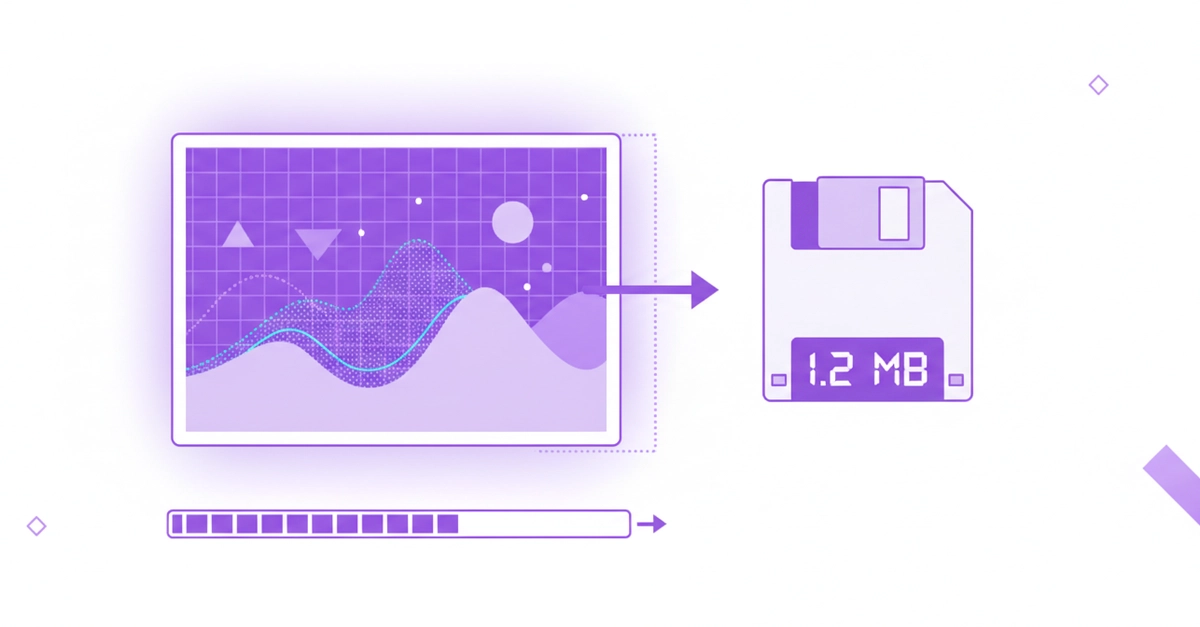
There's a deceptively simple bug hiding in plain sight on almost every government form, university portal, and job application site: "Upload a photo under 50KB." No API, no error message explaining why, no tolerance — just silent rejection if you're 2KB over.
It sounds like a trivial constraint until you actually try to satisfy it programmatically. File size in bytes isn't a variable you can set directly; it's a derived value — a function of pixel dimensions, image entropy, and compression quality — which makes "resize this to exactly 51,200 bytes" a surprisingly nontrivial optimization problem, not a one-line canvas.toBlob() call.
A few months ago, my cousin ran into this on a state exam portal that capped passport photos at 50KB. She spent two hours bouncing between random "photo compressor" sites, most of which just apply a fixed compression ratio and let you deal with whatever number comes out. None of them actually solve for a target size. By the time she landed on something that worked, the registration window had closed for the day.
So here's the actual technical problem underneath this UX annoyance — and how to solve it properly instead of guessing quality percentages by hand.
It's Not You. File Size Is Genuinely Unpredictable.
Here's the thing nobody tells you: file size in kilobytes isn't something you can just "set." It's the result of several things happening at once — how detailed the image is, what dimensions it's saved at, and how aggressively it's compressed. Change any one of those, and the final number shifts unpredictably.
A plain white background compresses down to almost nothing. A busy, detailed photo — a face with visible texture, a signature with lots of fine ink strokes — resists compression much harder, because there's more actual information in the pixels. Two photos that look similarly sized on your screen can land at wildly different file sizes once compressed, simply because of what's in them.
Then there's the format problem, which trips up almost everyone. If your image is a PNG (which is what a lot of screenshot tools and scanning apps default to), you're fighting an uphill battle. PNG is a lossless format — it never throws away any pixel detail, no matter how much you compress it. That's exactly why it's terrible for hitting a tiny KB target. JPEG, on the other hand, is built to selectively discard detail the human eye barely notices, which is precisely the kind of flexible compression you need to land on an exact number. This is also why almost every exam portal explicitly asks for a JPG, not a PNG — they know PNG can't reliably hit their limit.
The Numbers Aren't Random Either
Once you start looking at these limits across different portals, a pattern shows up:
- 20KB shows up almost exclusively for signature scans.
- 30KB is usually a thumb impression or biometric scan.
- 50KB is the classic passport-style photo limit — SSC, UPSC, IBPS, most competitive exams.
- 100KB covers ID document scans like Aadhaar cards, where legible text matters more than photographic detail.
- 150–200KB shows up for visa photos and certificate scans, which need sharper detail or more content per image.
None of these are arbitrary. They exist because these systems were built to handle enormous submission volumes — millions of applicants uploading files during a narrow registration window — and tiny file sizes keep the servers from falling over.
Knowing why the number exists doesn't make hitting it easier, though. That still comes down to process.
The Actual Fix: Work Backwards From the Number
Here's what finally worked for my cousin, and what I'd tell any dev building or using one of these tools: stop treating this as "apply compression and check the result." Treat it as a search problem. You have a target byte count, and a monotonic (roughly) relationship between JPEG quality and output size — so a binary search over quality levels, re-encoding via canvas on each iteration, converges on the right setting in a handful of steps instead of one lucky guess. If quality alone can't hit the target even at the low end, the next lever is scaling down pixel dimensions in small increments, not crushing quality further.
That's the approach behind a browser-based tool like ResizeHub's exact-KB image resizer — pick a preset (20KB, 50KB, 100KB, whatever the form asks for) or type a custom number, and it runs that iterative compress-check-adjust loop for you instead of you doing it by hand in Photoshop. If a PNG comes in, it converts to JPG automatically, since PNG's lossless encoding can't be tuned down to an arbitrary byte target the way JPEG can. And because the whole thing runs in-browser via the Canvas API — no server round-trip — a signature or ID scan never actually leaves the device, which matters more than people think when the file in question is a government ID.
A few things that make a real difference no matter which tool you use:
Crop first, compress second. If the form wants a small passport-style photo and you upload a full 12-megapixel original, the compression algorithm has to work much harder — and throw away far more detail — to hit the target. Get close to the required dimensions before you compress.
JPG over PNG, every time, when a KB limit is involved. This one rule alone solves half the frustration people run into.
Always preview before submitting. Especially with signatures, where a few compressed pixels can turn a legible signature into a smudge.
The Small Number That Actually Matters
It's a strange feature of modern bureaucracy that a random number like "50KB" can decide whether someone makes a deadline. But once you understand why that number exists and how file compression actually works, it stops being a mystery and becomes a five-minute task instead of a two-hour one.
My cousin re-registered the next cycle. Photo compressed correctly, uploaded on the first try, in about thirty seconds. Not a dramatic ending, but that's kind of the point — it shouldn't have taken two hours in the first place.
If you're stuck on a similarly oddly-specific file size requirement, I wrote a more detailed breakdown of target sizes and formats here — happy to answer questions in the comments if your form has a weird limit I haven't covered.
0 Comments
Log in to join the conversation.No comments yet. Be the first to share your thoughts.