
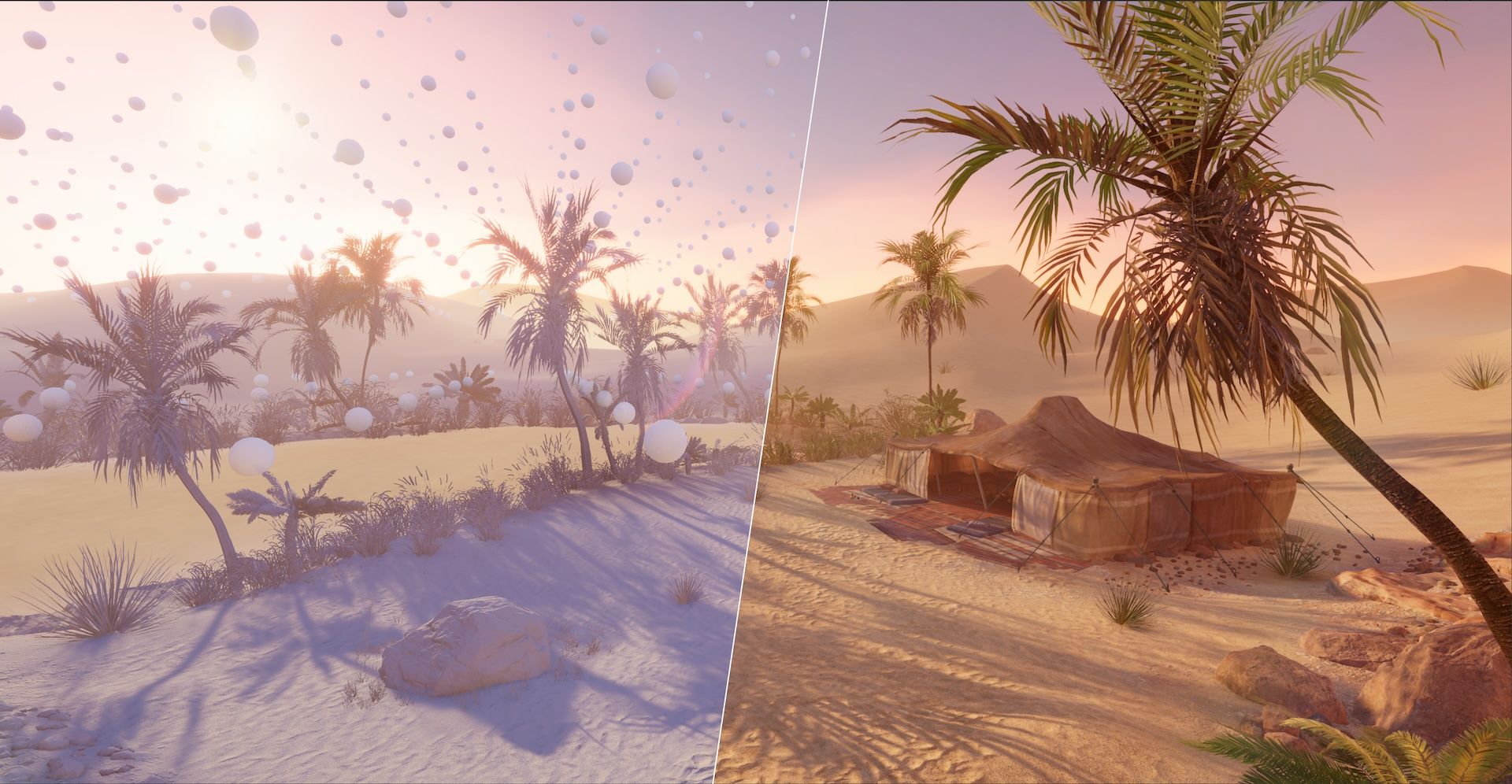
We’re thrilled to share more details about the new lighting features coming to Unity 6 later this year.
With the new and robust light baking architecture and the innovative approach to authoring light-probe lit environments using Adaptive Probe Volumes (APV), you'll enjoy a more streamlined light creation process. This will significantly enhance your visuals while ensuring high performance at runtime.
Light your world with global illumination
If you’ve worked with precomputed lighting data before, you’ll know how tedious the process can be. The precomputing process for Lightmaps can take a long time; Lightmap UVs need to be authored, Probes need to be placed for dynamic objects to be lit correctly, and you’ll need to deal with large textures that can place a heavy burden on your applications’ runtime memory.
In Unity 6 we’ve added a new way for you to author higher quality, light-probe lit environments through Adaptive Probe Volumes (APV), and delivered foundational improvements to the light baking backend for greater stability.
An Adaptive Probe Volume is a group of Light Probes that Unity places automatically based on the geometry density in your Scene, to build baked indirect lighting.
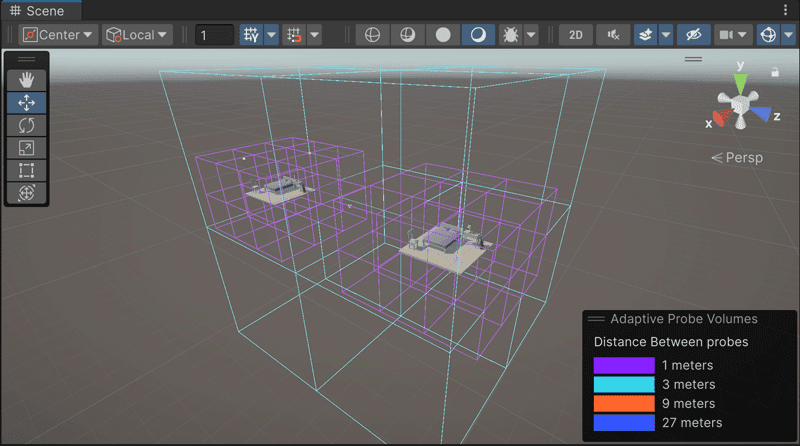
Adaptive Probe Volumes are automatically filled with a 3D structure of 'bricks'. Each brick contains 64 Light Probes, arranged in a 4 × 4 × 4 grid.
Due to its adaptive nature, APV will generate more densely placed probes in areas with more geometry, and fewer probes in areas with less densely placed objects, like the background of a Scene.
Adaptive Probe Volumes also provide you with a complete suite of powerful features for authoring beautifully lit environments.
- Delivers simpler workflows for probe placement workflows and faster iteration for light-probe-based indirect diffuse lighting.
- APV per-pixel lighting offers significantly higher quality than Light Probe Groups and provides better directionality compared to Lightmaps, resulting in excellent overall lighting quality.
- Seamlessly integrates with atmospherics, making effects like Volumetric Fog in HDRP and VFX Graph particles in URP and HDRP beautifully lit by indirect lighting.
- Enables visually stunning lighting transition through Sky Occlusion and Lighting Scenarios, suitable for achieving time-of day and lights on/off situations.
- Provides more control over optimizations for runtime performance, based on your use of render pipeline and target hardware.
- Runs a suite of streaming features, enabling light probe data to be streamed from Disk to CPU, and from the CPU to the GPU.
- Provides a powerful toolset for reducing light leaking.
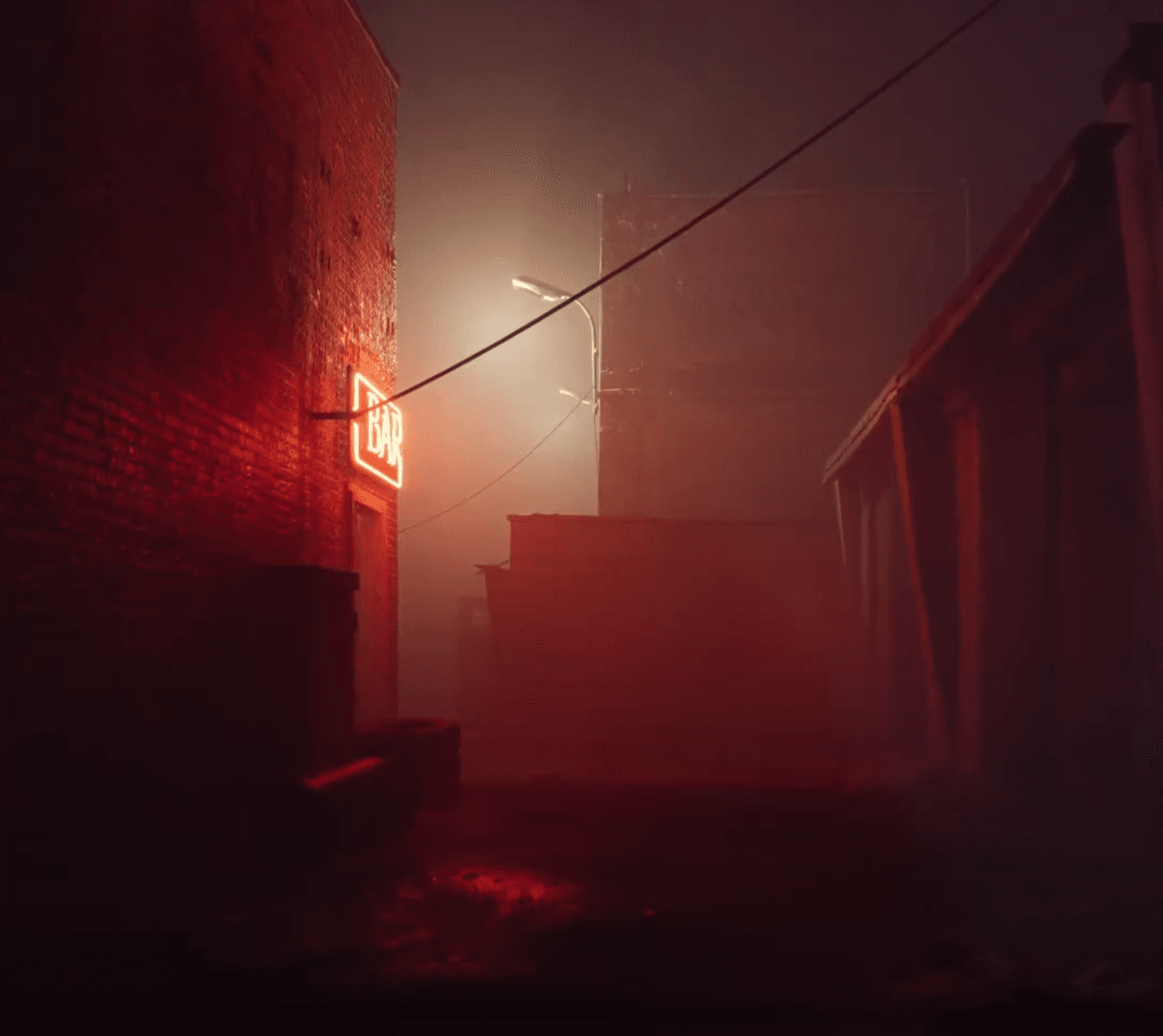
APV seamlessly integrates with atmospherics, this means that effects like Volumetric Fog in HDRP and VFX Graph particles in URP & HDRP are now beautifully lit by indirect lighting Using the [HDRP] Gate Backyard project from the Asset Store.
Here’s how we converted the URP Oasis Scene to use APV
The URP 3D Sample project currently uses the latest 2022 LTS features.
For demonstration purposes in this blog post, we've upgraded the URP 3D Sample scenes from 2022 LTS to Unity 6 Preview and the Adaptive Probe Volumes feature.

The Oasis Scene converted from 2022 LTS to Unity 6, applying Adaptive Probe Volumes for indirect lighting.
Placing Probes with Adaptive Probe Volumes
APV is a volume-based system that automates the placement of probes rather than placing them by hand.
The general settings tab for APV lets you control parameters like Min and Max Probe Spacing to drive the creation of multiple subdivision levels based on the surrounding geometry. By default, dense areas will use the highest resolution, while areas with less geometry will use lower density levels. This automatic and adaptive behavior ensures efficient resource allocation, focusing on areas where they are most needed.
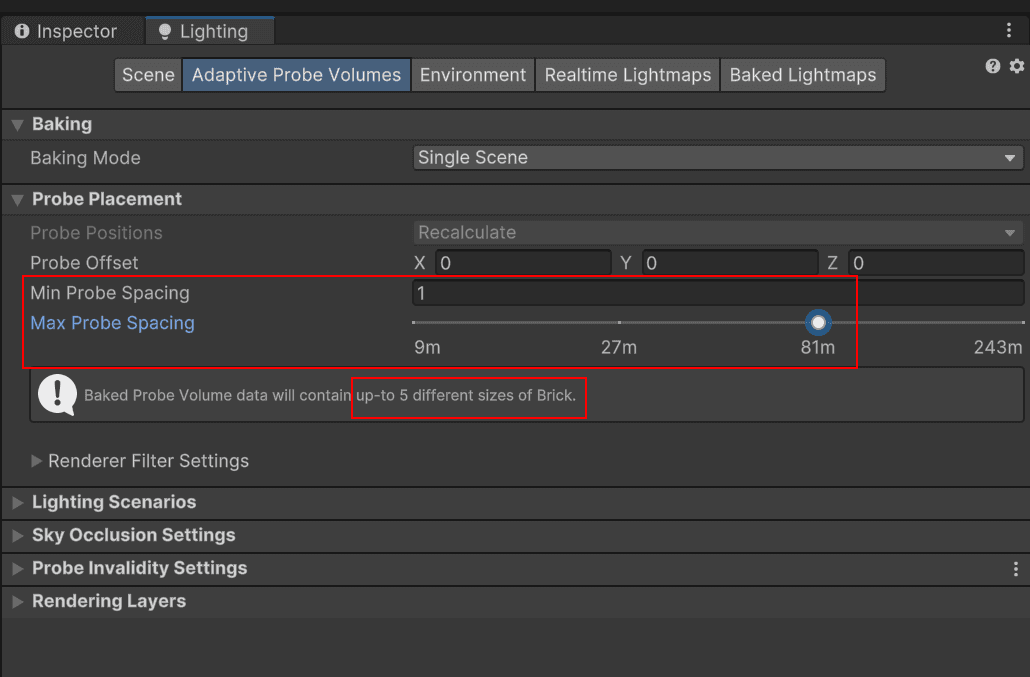
In the Lighting Window and Adaptive Probe Volume Tab, you can specify which subdivision levels APV should use.
To automatically generate probes, you can create an Adaptive Probe Volume. While you’re working, you can see live updates, allowing you to preview probe placement without baking. These updates are based on bricks and the subdivision levels you previously defined, which then adjusts according to the proximity of nearby geometry.
The Live Updates debug mode can help previsualize the different bricks of probes in real-time before baking.
Generate Lighting precomputes all lighting data, including light probes, which you can visualize in your scene. As previewed using bricks, you can see the various subdivision levels that have been applied when placing probes.
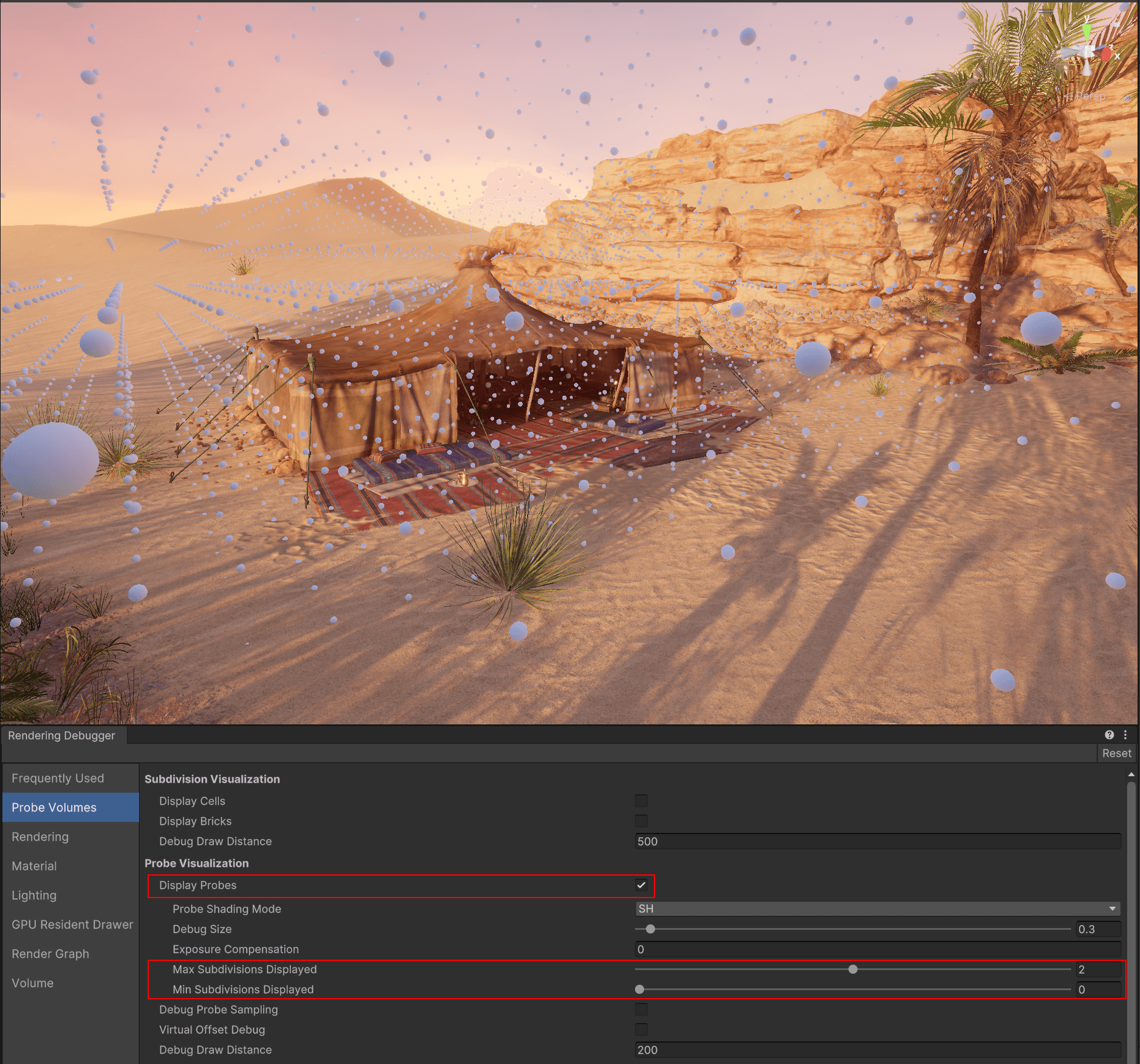
Probes and the multiple subdivision levels can be displayed using the Rendering Debugger.
Addressing light leaking challenges
If you have worked with light probe data, you may be aware of the common challenges with light leaking. When developing APV, we added a whole toolbox to help address light leaking issues, like Virtual Offset, Dilation, Probe Adjustment Volumes, Rendering Layers and Light Leaking Prevention Modes “Performance” and “Quality”.
Here’s an example. Using lighting debug views, we can observe a problematic use case for light leaking. In this situation, the bright light from the exterior is visible through the walls and the ground of the building. Outside sees the opposite problem, with dark lighting leaking from the interior. This is likely due to the low resolution (1 meter between probes) and the thin walls. Let's explore how we can address this.
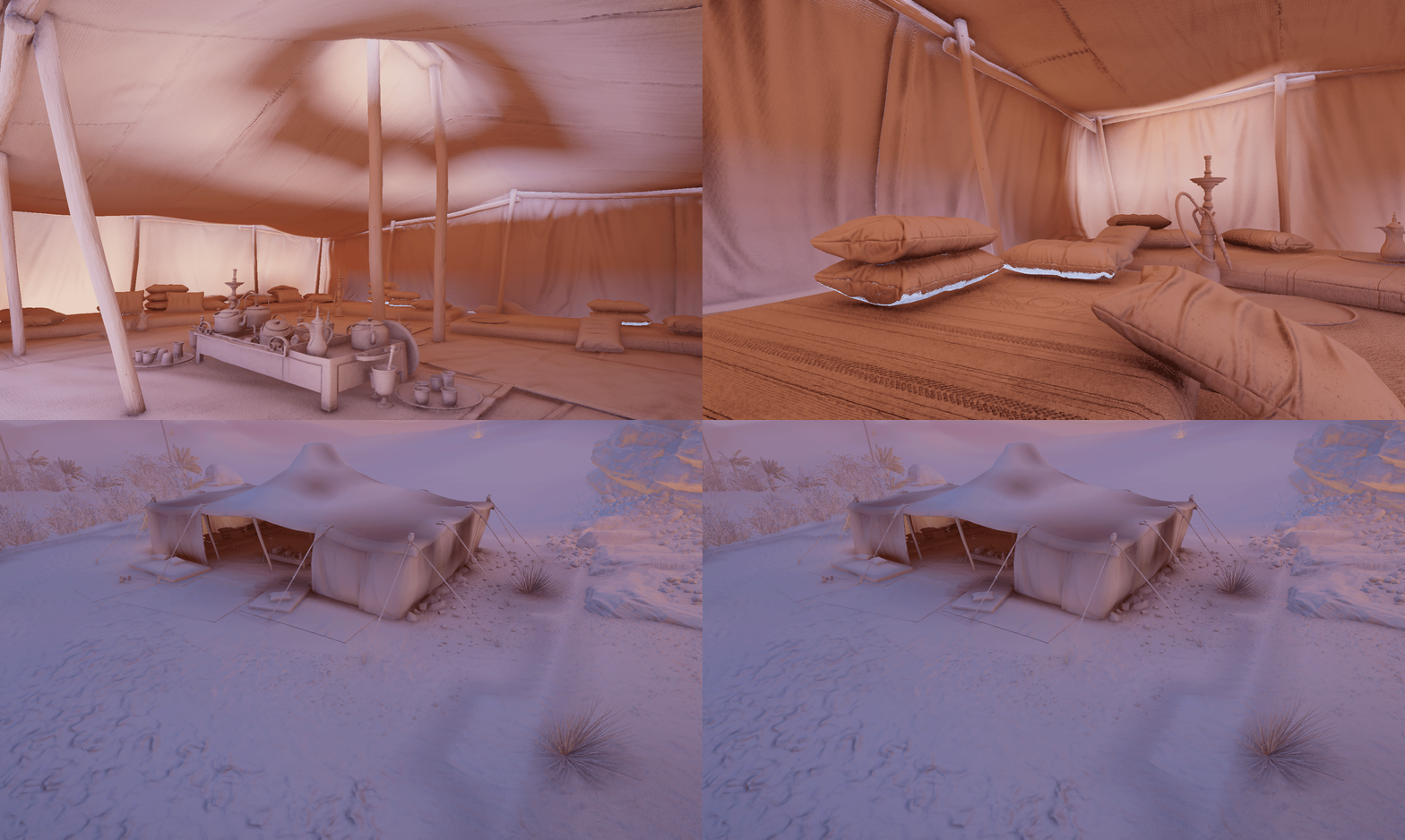
When inspecting the Global Illumination debug view, light leaking is particularly visible in areas where the lighting changes drastically and the walls are thin.
To investigate this issue, the Debug Probe Sampling option allows you to display each of the sampled probes along with their relevant weights. In our case, we can see that the result is interpolated between the bright probes from the outside and the dark ones from the inside. Ideally, the interior of the tent should only sample the interior probes.
The Debug Probe Sampling option is excellent for understanding how probes are sampled at runtime and identifying potential issues.
Rendering Layers for APV (landed in 6000.1f.1) allows you to create up to four different masks and restrict sampling to those specific masks for certain objects. This can be incredibly useful to prevent interior objects from sampling exterior probes, or vice versa.
When generating lighting, the system will automatically assign layers to the probes during the bake process based on the nearby objects, eliminating the need to manually assign layers per probe. Once this is done, you can Generate Lighting and observe that leaking is reduced for the tent, thanks to manually creating separate interior and exterior masks.
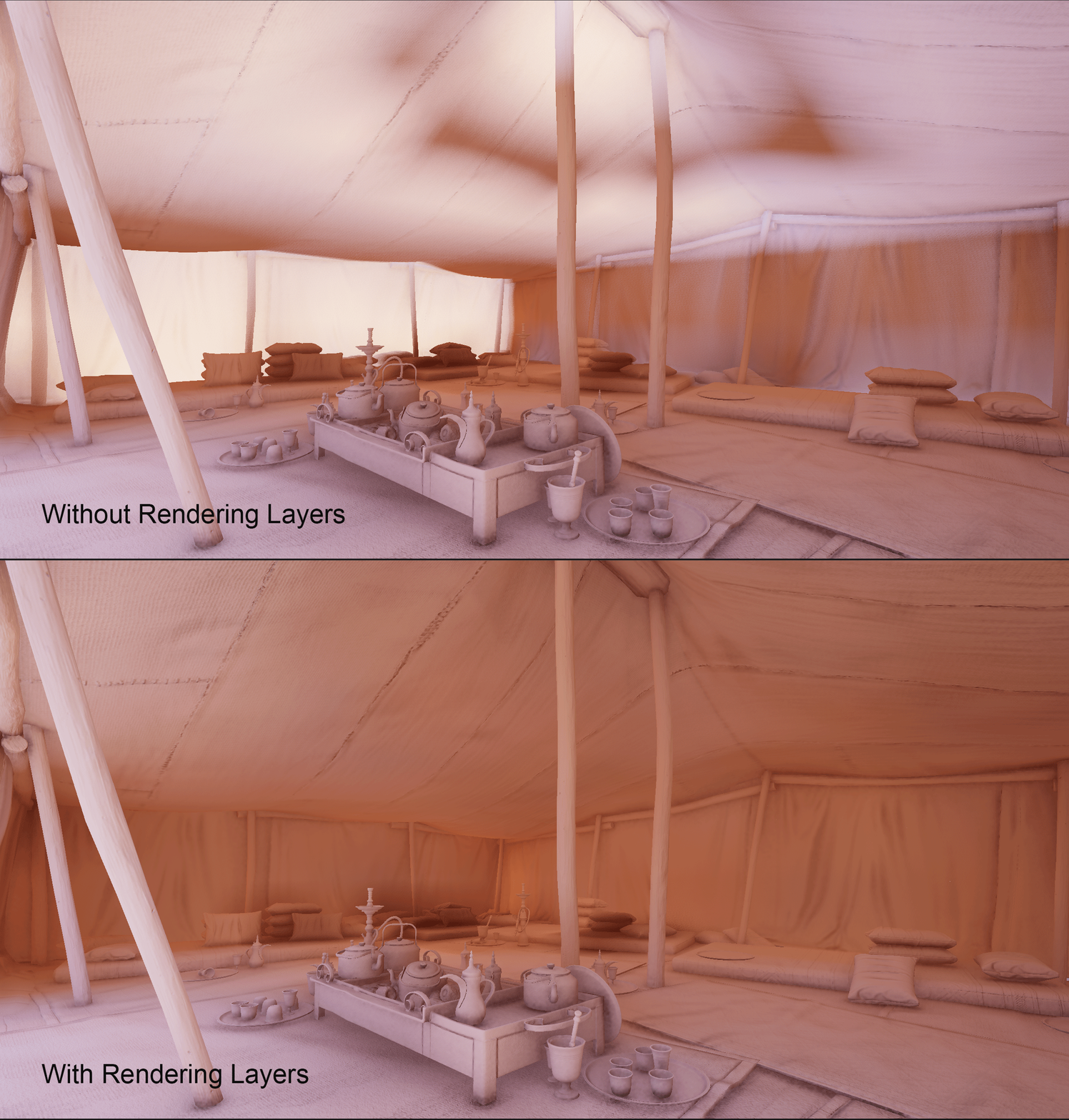
At runtime, objects will sample probes based on the layer they are assigned to, improving light leaking challenges regardless of the probe resolution.
For even more control over light leaking prevention, you can leverage Unity’s Leak Reduction Modes “Performance” and “Quality.”
Performance Mode addresses leak reduction by shifting the sampling location away from invalid probes. This generally works well in straightforward scenarios, where a suitable sampling location for all valid probes can be identified, while sidestepping any invalid ones. However, depending on the probe configuration, such an optimal sampling location may not be available. This then results in sampling of invalid probes and potential leaks.
Quality Mode (landed in 6000.0.3f1) now enabled by default, employs up to three sampling attempts to help ensure that only valid probes are utilized. This mode may introduce a slight overhead on runtime performance, which can be especially noticeable on lower-end platforms.
You can combine Leak Reduction and Rendering Layers to prevent light leaking even further. This mode helps ensure that invalid probes, whether due to Validity issues or being on a different Layer, are not sampled.
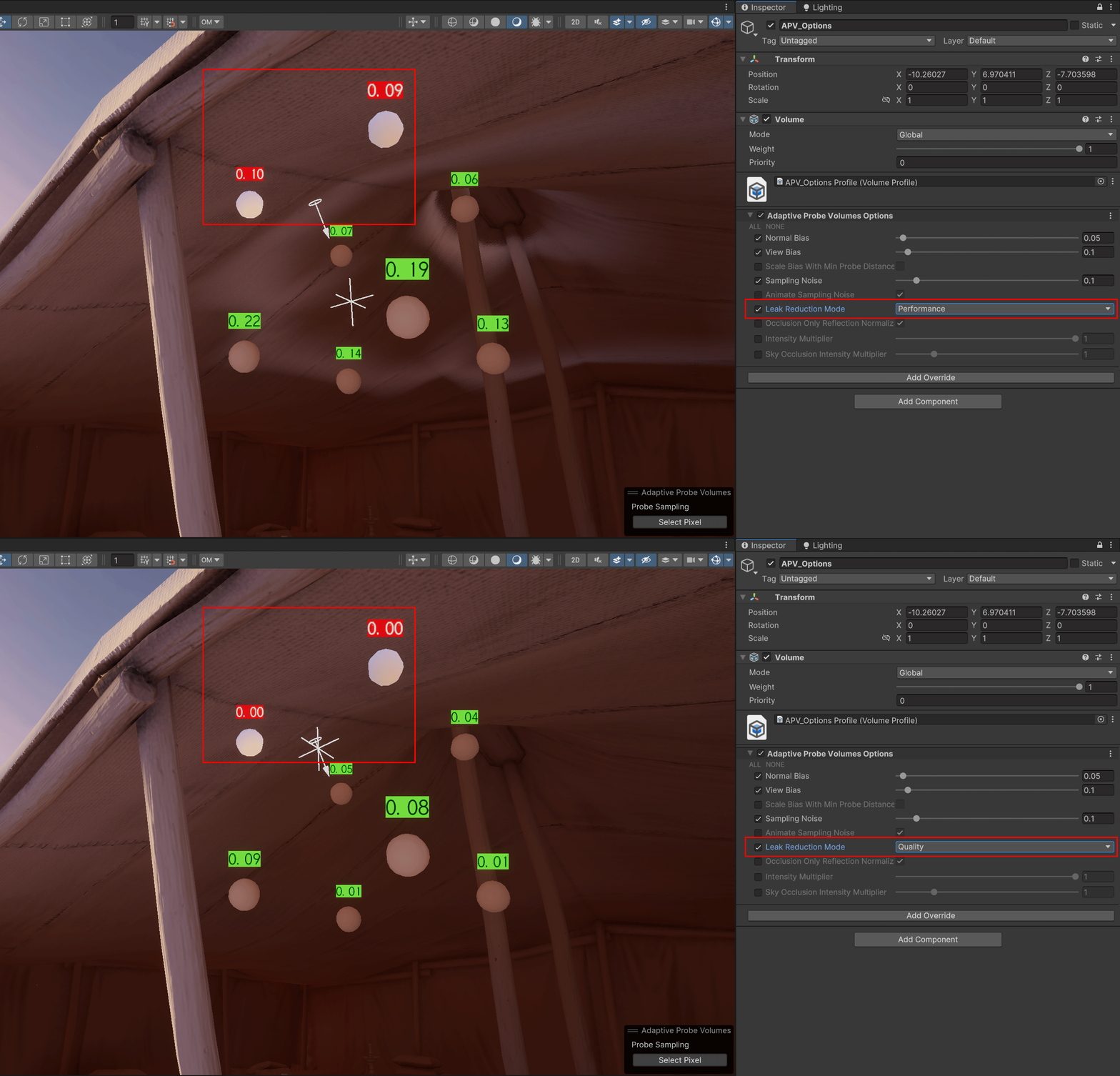
Unlike the Performance Mode, the new Quality Mode helps ensure fewer cases of light leaking.
Addressing challenges with seams
Additionally, we've improved the multiple subdivision levels by reducing potentially visible seams between different levels (landed in 6000.0.4f1). This is achieved automatically by replacing the values of frontier probes located between two levels with pre-interpolated values. Since this process occurs at bake time, there is no performance cost associated with it at runtime.

In the Global Illumination debug view, it's evident how this automatic seam removal helps to conceal the subdivision levels by creating smooth transitions between them.
Achieve more dynamic visual experiences with APV Lighting Transitions
With APV you can achieve visually stunning lighting transition through Sky Occlusion and Lighting Scenarios, suitable for achieving time-of-day and lights on/off situations.
Next you’ll find two examples of lighting transitions, first through Lighting Scenarios with APV in the URP 3D Sample project’s Oasis scene, then through Sky Occlusion with APV in the Garden scene.
Add Lighting Scenarios with APV in the Oasis
APV facilitates various lighting scenarios by enabling switching or blending between baked lighting data. This feature is particularly useful for simulating times of day or toggling between lights being on and off within the same scene or Baking Set.
Lighting scenarios only manage baked APV light probe data; other elements need to be handled manually. To provide an example in the Oasis scene, we created a script to update the sky, lights, fog parameters, and reflection probes. APV baked scenarios can be managed at runtime using the ProbeReferenceVolume API, an example can be found in the documentation.
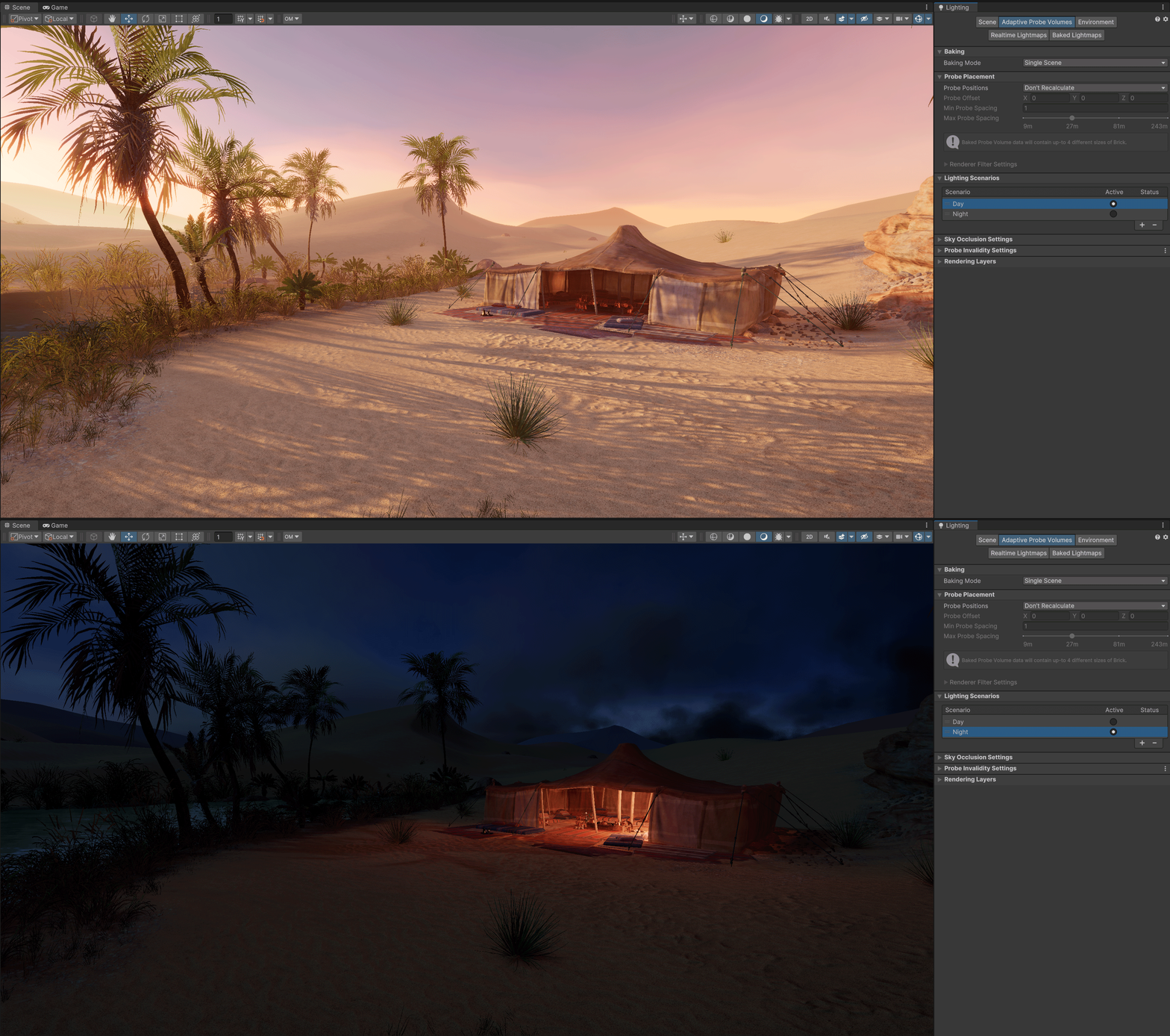
This scene utilizes a Day and Night scenario to bake multiple versions of the indirect diffuse lighting created with APV
Indirect diffuse lighting from multiple scenarios can be blended to create smooth transitions between day and night. This is achieved by using the ProbeReferenceVolume API to expose a blending variable that can be animated, for example, using Timeline.
Leverage Sky Occlusion with APV in the Garden
Sky occlusion offers an alternative to lighting scenarios for managing lighting transitions in the scene. It involves a simpler setup with just a single bake, where no multiple scenarios are required. Instead, sky occlusion exclusively handles sky lighting and therefore does not extend to managing indirect lighting for directional or punctual lights.
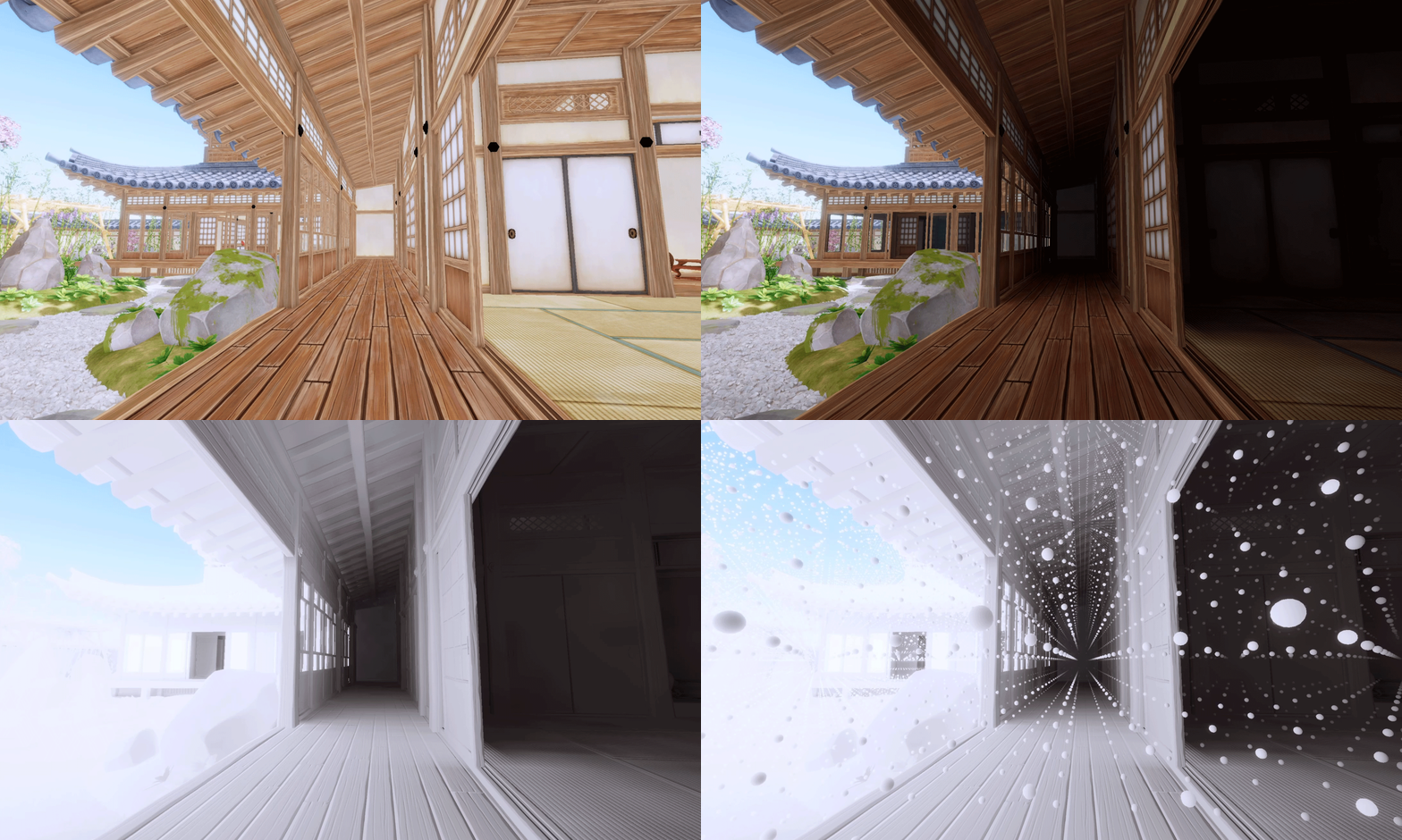
The Garden scene using the Sky Occlusion feature. In this sequence of images you can observe first the ambient probe alone, followed by the combined lighting from both the ambient probe and sky occlusion, then specifically the contribution from sky occlusion itself. Finally, we’ve provided the debug representation of APV occlusion.
Sky occlusion uses additional baked data to manage sky lighting differently, which is separate from standard APV sky baking. This data stores the amount of sky light each area of the scene should receive, allowing for runtime adjustments to sky lighting color and intensity. By utilizing a dynamic ambient probe at runtime alongside this baked and static occlusion data, it provides a good approximation of sky lighting, while enabling dynamic adjustments to scene lighting.
Sky occlusion is supported in both URP and HDRP. In HDRP, the ambient probe is updated automatically from the HDRP Physical Sky. In URP, however, when using the Skybox mode, the ambient probe cannot automatically update in real-time as the sky changes. Instead, this requires manually animating the color using the Gradient or Color mode to match the animated sky visuals, as Unity won't automatically adjust to the changing sky color.
Using the Garden scene as an example, the Gradient Mode in the Environment settings enables manual animation of the ambient probe color. When paired with occlusion data, this setup can create a compelling approximation for animating the sky diffuse lighting, suitable for depicting changing times of day. This utilizes a single bake without multiple lighting scenarios, and can provide a wide range of color variations.
Occlusion data paired with the Gradient Mode in the Environment settings enables manual animation of the ambient probe color. Using the Azure[Sky] Dynamic Skybox from the Asset Store for the sky shader.
More information about APV
With Unity’s New Light Baking Architecture delivered in Unity 6, the GPU Light Baker is now out of preview
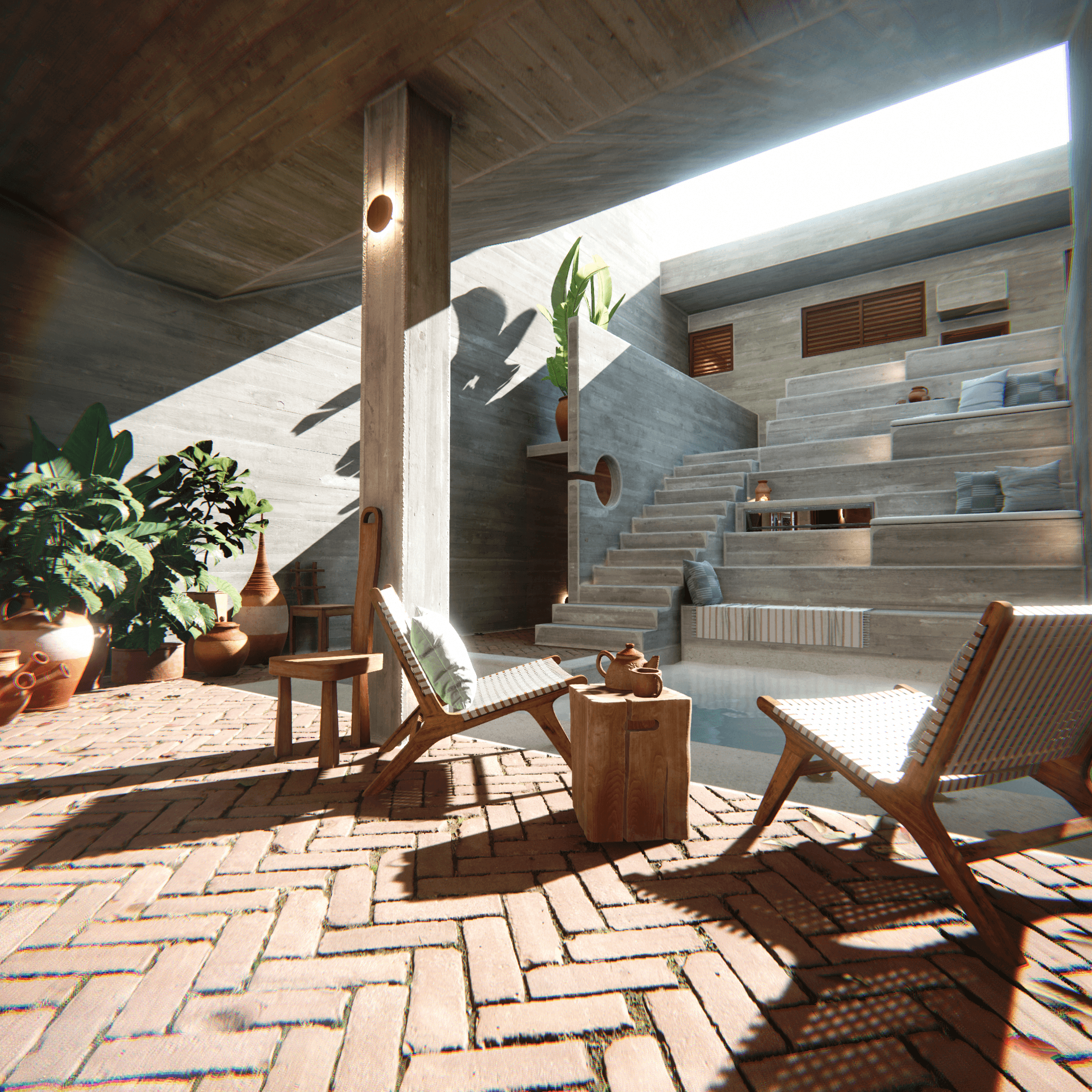
Lightmapped architectural interior environment. Content credit: ArchvizPRO Interior Vol.10
The new light baker is built with Editor responsiveness and baking speed in mind. This means that when using on-demand baking, Unity now takes a “snapshot” of the Scene state when the Generate button is clicked. Unity no longer checks the Scene state every frame, which previously undermined Editor performance.
This redesigned baking backend has significantly simplified our code base, making it easier and faster to fix bugs, and lowering the risk of introducing new ones.
We’re also providing you with a new baking profile that allows you to choose your appropriate workflow intent.
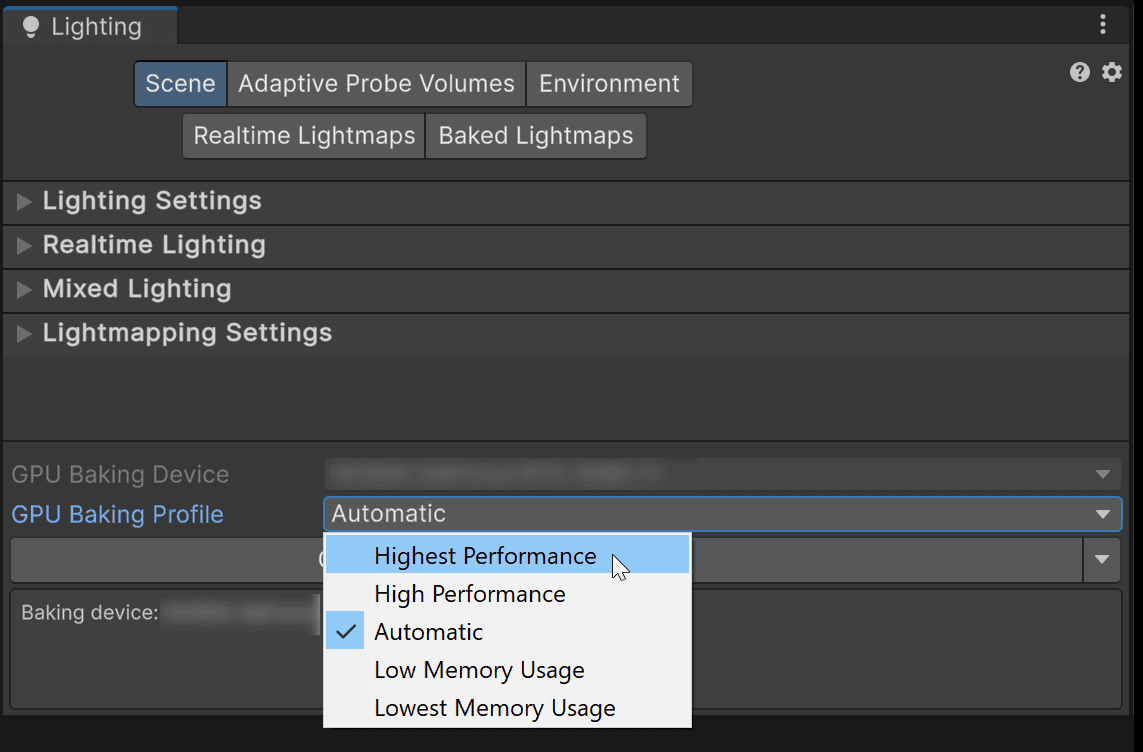
The new light baker enables you to choose your workflow intent, from lowest memory usage to higher performance
You can choose a range from “lowest memory usage” - ideal if you want to continue working in the Editor and want the best overall Editor responsiveness - to “highest performance” which is useful if you want to get the job done as soon as possible and don’t need to work on anything else in the Editor during baking time.
Auto Generate is now the Interactive GI Debug Preview Mode
Iteratively authoring and troubleshooting baked lighting data is an important use case for creators using baked Global Illumination (GI).
For this reason, we have added a new interactive preview functionality to various GI-related Scene View Draw Modes, replacing Unity’s Auto Generate with a dedicated Interactive GI Debug Preview Mode for previewing lighting data.
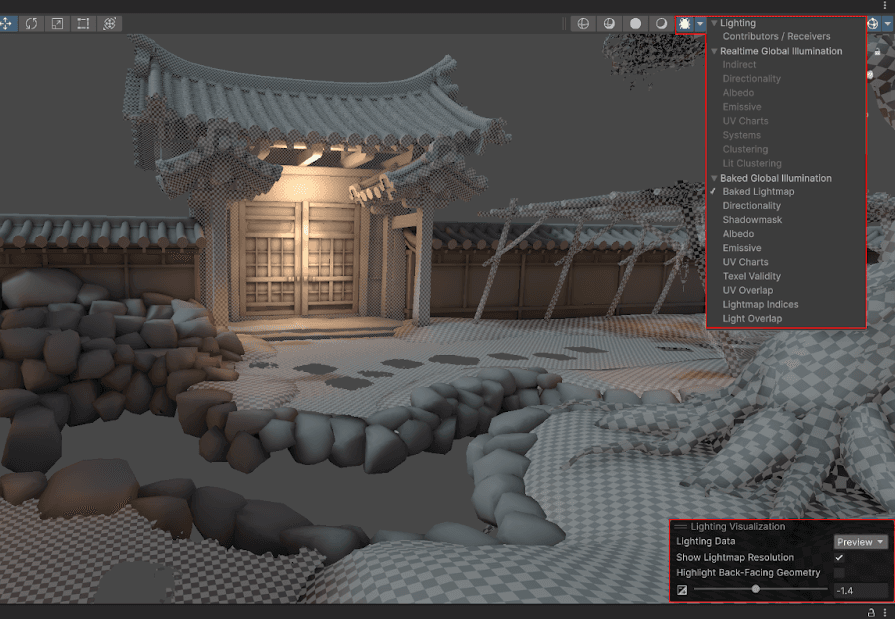
Interactive GI Debug Preview mode in Unity 6
This allows debug views to be updated interactively as the Scene is modified. The preview is non-destructive, since it does not replace baked lighting data.
Moving away from Unity's old Auto-Generate architecture means that we can optimize the baking pipeline for greater stability.
Enlighten Realtime GI deprecation path notice
Learn more about lighting features delivered with Unity 6
0 Comments
Log in to join the conversation.No comments yet. Be the first to share your thoughts.