
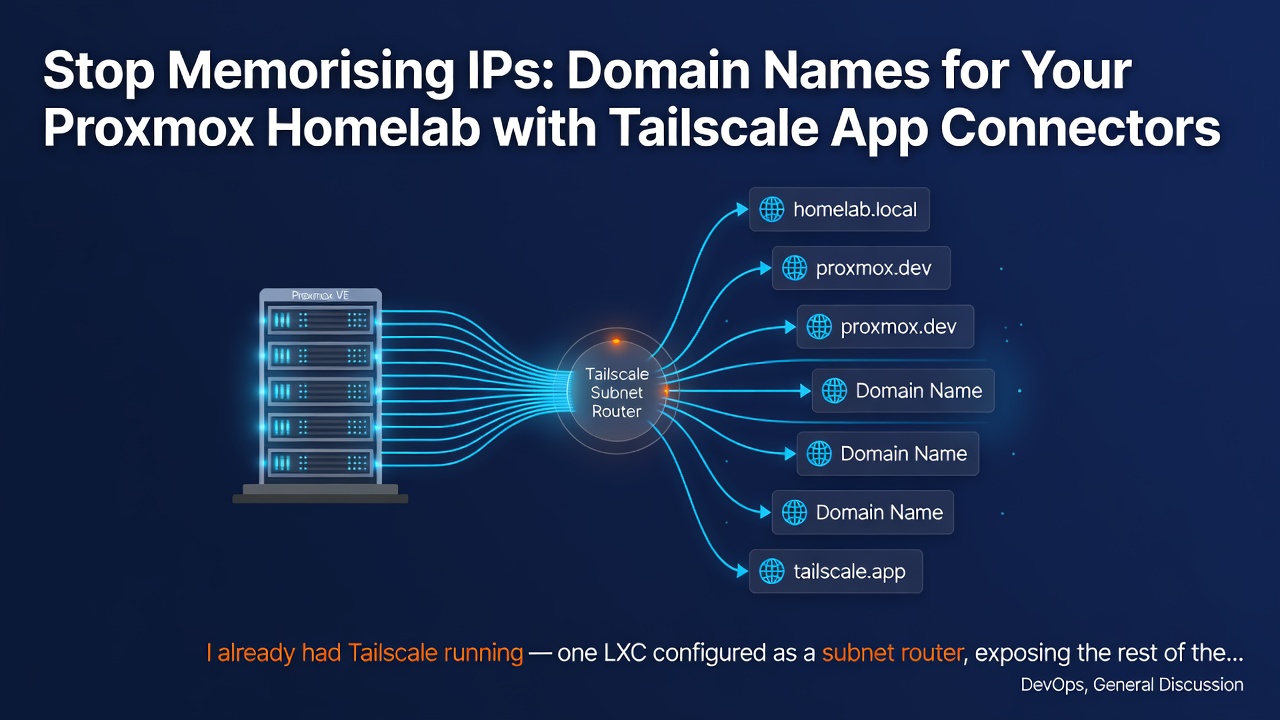
I already had Tailscale running — one LXC configured as a subnet router, exposing the rest of the containers over the tailnet. So I could reach them remotely. I just still had to remember the IPs.
I wanted https://proxmox.home.lab:8006. I wanted to type a name, not a number.
Tailscale App Connectors turned out to be the answer. Getting there took longer than it should have, so here's what actually works.
What You'll End Up With
One LXC doing three jobs: subnet router, app connector, and DNS server. Any device on your tailnet resolves <service>.home.lab to the right container IP and routes traffic through automatically. App Connectors are available on all Tailscale plans — check the pricing page to confirm, as plans change.
This guide assumes you already have a Tailscale LXC acting as a subnet router. If you don't, this video walks through setting one up — then come back to Step 2 which adds the app connector role on top.
Three values thread through the entire configuration. If any one of them drifts between steps, something silently breaks:
| Value | Where it must match |
|---|---|
Tag name (e.g. tag:app-connector) |
ACL tagOwners, ACL nodeAttrs, ACL autoApprovers, tailscale up command |
Domain suffix (e.g. home.lab) |
ACL domains list, dnsmasq entries, Tailscale Apps page, split DNS restriction |
LAN subnet (e.g. 192.168.1.0/24) |
ACL autoApprovers, tailscale up command, dnsmasq IPs |
Step 1: Update the Tailscale ACL Policy
Go to the Tailscale admin console → Access Controls. You'll see a huJSON editor with your current policy. Don't replace it — merge these sections in as top-level keys. If you already have an grants block, add the new rule inside it rather than creating a second one.
{
  "tagOwners": {
    "tag:app-connector": []
  },

  "grants": [
    { "src": ["*"], "dst": ["*"], "ip": ["*"] }
  ],

  "autoApprovers": {
    "routes": {
      "0.0.0.0/0": ["tag:app-connector"],
      "::/0":      ["tag:app-connector"]
    }
  },

  "nodeAttrs": [
    {
      "target": ["*"],
      "app": {
        "tailscale.com/app-connectors": [
          {
            "name": "[CHOOSE_NAME_FOR_THE_APP_CONNECTOR]",
            "connectors": ["tag:app-connector"],
            "domains": [
              // whatever domains you need to expose
              "proxmox.home.lab",
              "homeassistant.home.lab"
            ]
          }
        ]
      }
    }
  ]
}
Enter fullscreen mode Exit fullscreen mode
Gotcha: target in nodeAttrs must be ["*"]. I tried ["tag:app-connector"] first and it didn't work. Tailscale throws: tailscale.com/app-connectors: can only be specified with target "*". The connectors field inside the app definition is where you control which node does the work. target controls which nodes receive this configuration, and for app connectors it must be everyone.
Step 2: Configure the LXC as App Connector
Before installing dnsmasq, check whether systemd-resolved is holding port 53 — if it is, dnsmasq will fail to start:
systemctl is-active systemd-resolved
Enter fullscreen mode Exit fullscreen mode
If active, disable its stub listener:
sed -i 's/#DNSStubListener=yes/DNSStubListener=no/' /etc/systemd/resolved.conf
systemctl restart systemd-resolved
Enter fullscreen mode Exit fullscreen mode
Now SSH into your Tailscale LXC and advertise its new roles:
tailscale up \
  --advertise-connector \
  --advertise-tags=tag:app-connector \
  --advertise-routes=192.168.1.0/24
Enter fullscreen mode Exit fullscreen mode
Replace 192.168.1.0/24 with your actual LAN subnet.
Gotcha: The node has to explicitly opt in with --advertise-connector. I spent time looking for a button in the admin console to designate a node as a connector — there isn't one. The node advertises its own role via the CLI. Until you run this, nothing shows up as selectable in the Apps UI.
Verify it worked: Go to Admin console → Machines. Your LXC should now show an app connector badge next to it.
Step 3: Install and Configure dnsmasq
App Connectors handle routing — but they don't resolve domain names to IPs. You need a local DNS server for that. dnsmasq on the same LXC is the simplest option.
apt update && apt install -y dnsmasq
Enter fullscreen mode Exit fullscreen mode
Edit /etc/dnsmasq.conf and append:
# Without this, dnsmasq rejects queries from the Tailscale interface.
# The systemd unit passes --local-service which restricts to local subnets;
# adding interface=tailscale0 overrides that behaviour.
interface=tailscale0
bind-interfaces

# One line per container — use your actual LAN IPs
address=/proxmox.home.lab/192.168.1.2
address=/homeassistant.home.lab/192.168.1.3
Enter fullscreen mode Exit fullscreen mode
Already using dnsmasq for DHCP or other purposes? Just add the
interface=tailscale0line alongside your existinginterface=lines rather than replacing them.
Start and verify:
systemctl enable --now dnsmasq
systemctl status dnsmasq   # should be active, no "limited to local subnets"

dig @127.0.0.1 proxmox.home.lab
# ANSWER SECTION should show your container's IP
Enter fullscreen mode Exit fullscreen mode
Gotcha: After the first start, status may show DNS service limited to local subnets. This comes from --local-service baked into the systemd unit file — there's no config file option to override it. The fix is interface=tailscale0, which tells dnsmasq to accept queries on the Tailscale interface. After restarting, the warning disappears.
Step 4: Register the App in the Admin Console
Admin console → Apps → Add an app:
- Name: anything descriptive
- Type: Custom
- Domains: your
home.labdomains, comma-separated (same ones from Step 1) - Connector tag:
tag:app-connector - Save
You'll notice the domains appear in both the ACL nodeAttrs and here. They serve different purposes: the ACL controls routing policy (which node handles which traffic), while the Apps UI registers the connector association Tailscale uses for DNS-over-HTTPS forwarding. Both need the same domains.
Step 5: Add a Split DNS Nameserver
Admin console → DNS → Add nameserver:
- Nameserver: your LXC's tailnet IPv4 address — the
100.x.y.zone (runtailscale ip -4on the LXC) - Check Restrict to domain
- Domain:
home.lab - Save
Also make sure Magic DNS is toggled on on the same page. Split DNS doesn't work without it.
This tells Tailscale: for anything under home.lab, ask this specific nameserver. Everything else uses normal DNS.
Step 6: Configure Clients
Linux:
tailscale set --accept-routes=true --accept-dns=true
Enter fullscreen mode Exit fullscreen mode
macOS with the GUI app:
Tailscale menu bar → Preferences → enable Use Tailscale DNS. Done.
macOS CLI only (no GUI app):
Gotcha: The Tailscale CLI on macOS cannot manage system DNS. tailscale set --accept-dns=true accepts the flag silently but does nothing — the CLI has no mechanism to install the required Network Extension without the GUI app. tailscale debug resolve your-domain.home.lab will return no such host even though the netmap shows routes correctly configured.
Workaround — point your Wi-Fi DNS manually at the LXC:
sudo networksetup -setdnsservers Wi-Fi <LXC tailnet IPv4>
Enter fullscreen mode Exit fullscreen mode
To revert:
sudo networksetup -setdnsservers Wi-Fi "Empty"
Enter fullscreen mode Exit fullscreen mode
Accessing Your Services
https://proxmox.home.lab:8006
http://homeassistant.home.lab:8123
Enter fullscreen mode Exit fullscreen mode
App Connectors don't do anything about ports — the browser defaults to 80. Include the port for anything that doesn't run on 80 or 443. If you want to drop ports entirely, put a reverse proxy (Caddy or nginx) in front of your services.
One More Gotcha: Chrome's DNS-over-HTTPS
This one is cross-platform, not just macOS. Chrome has its own DoH that bypasses system DNS entirely. If dig resolves correctly but Chrome says "page can't be reached", that's why.
Disable it: Settings → Privacy and security → Security → Use secure DNS → off.
Adding a New Container
Three places, all using the exact same domain name:
-
dnsmasq config — add
address=/newservice.home.lab/<LAN IP>thensystemctl restart dnsmasq -
ACL nodeAttrs — add
"newservice.home.lab"to thedomainslist, save - Admin console → Apps — edit your homelab app, add the domain
Troubleshooting
| Symptom | Fix |
|---|---|
can only be specified with target "*" |
Change "target": ["tag:app-connector"] to "target": ["*"] in nodeAttrs |
| dnsmasq shows "limited to local subnets" | Add interface=tailscale0 + bind-interfaces to /etc/dnsmasq.conf, restart |
| dnsmasq fails to start | Port 53 conflict — disable systemd-resolved stub: sed -i 's/#DNSStubListener=yes/DNSStubListener=no/' /etc/systemd/resolved.conf && systemctl restart systemd-resolved
|
dig @<LXC IP> service.home.lab works but system DNS doesn't |
macOS CLI can't manage split DNS — use GUI app or sudo networksetup -setdnsservers Wi-Fi <LXC tailnet IPv4>
|
Chrome: "page can't be reached" despite dig resolving |
Disable Chrome secure DNS: Settings → Privacy and security → Security → Use secure DNS → off |
| Browser: "page can't be reached" for any browser | Missing port — try https://service.home.lab:<port>
|
| LXC not showing as app connector in admin console | Run tailscale up --advertise-connector --advertise-tags=tag:app-connector on the LXC |
0 Comments
Log in to join the conversation.No comments yet. Be the first to share your thoughts.