
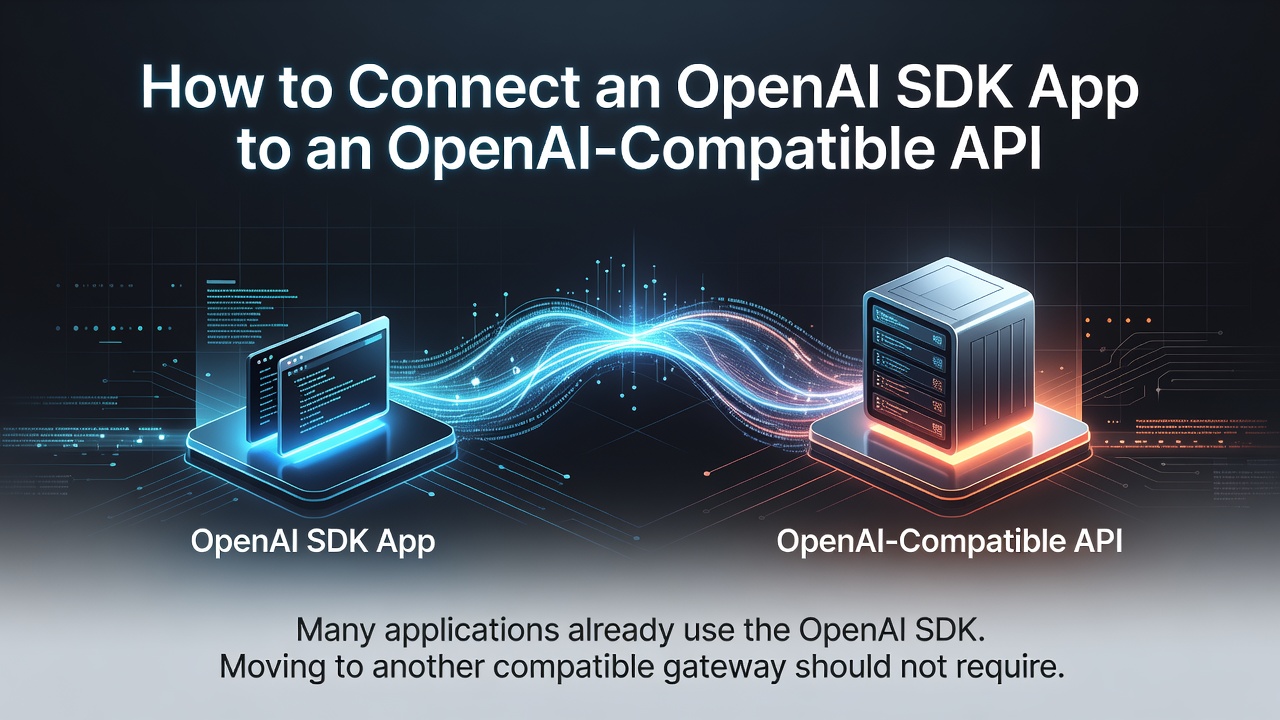

Many applications already use the OpenAI SDK. Moving to another compatible gateway should not require rewriting the whole application. In most cases, the main changes are the API key, base URL, and model ID.
This guide shows the basic migration flow with Route Key, an OpenAI-compatible AI API gateway and multi-model router.
What you need
Before starting, prepare:
- An OpenAI-compatible SDK
- A Route Key API key
- A supported model ID
- A test environment where you can safely send a small request
You can review the current supported models and pricing signals in the Route Key model catalog.
1. Install the OpenAI SDK
For Python:
pip install openai
Enter fullscreen mode Exit fullscreen mode
For Node.js:
npm install openai
Enter fullscreen mode Exit fullscreen mode
Keep the API key in an environment variable. Do not put it directly in source code or commit it to a public repository.
export ROUTEKEY_API_KEY="your-api-key"
export ROUTEKEY_MODEL="your-supported-model-id"
Enter fullscreen mode Exit fullscreen mode
2. Change the base URL
The request format can stay familiar. Point the SDK to the Route Key compatible endpoint:
import os
from openai import OpenAI

client = OpenAI(
    api_key=os.environ["ROUTEKEY_API_KEY"],
    base_url="https://api.routekey.ai/v1",
)

response = client.chat.completions.create(
    model=os.environ["ROUTEKEY_MODEL"],
    messages=[
        {"role": "user", "content": "Explain API routing in one paragraph."}
    ],
)

print(response.choices[0].message.content)
Enter fullscreen mode Exit fullscreen mode
The exact model ID must come from the current catalog. Do not assume that every provider model supports the same endpoint, tool schema, context length, or streaming behavior.
3. Send a small test request
Start with a short non-streaming request. Check:
- HTTP status
- Response format
- Selected model
- Input and output tokens
- Latency
- Usage logs
- Reported cost
If the request fails, verify that the API key is active, the model ID is supported, and the /v1 path has not been duplicated by the SDK configuration.
4. Add streaming and production controls
After the basic request works, test streaming separately. Then add:
- Request timeouts
- Retry limits
- Concurrency limits
- A fallback policy
- Separate API keys for development and production
- Usage monitoring
A compatible gateway makes it easier to change routing policy without changing every application integration. However, you should still verify tool calls, structured output, image or audio endpoints, and provider-specific behavior before moving production traffic.
Final checklist
Before switching production traffic:
- Create a dedicated production API key.
- Confirm the exact model ID in the live catalog.
- Test a short request and a streaming request.
- Compare response quality and cost with the current provider.
- Keep the original provider configuration available for rollback.
- Monitor errors, latency, tokens, and cost after the change.
For the full setup flow, see the Route Key integration guide. The official Route Key website includes the model catalog, documentation, and additional integration resources.
0 Comments
Log in to join the conversation.No comments yet. Be the first to share your thoughts.