
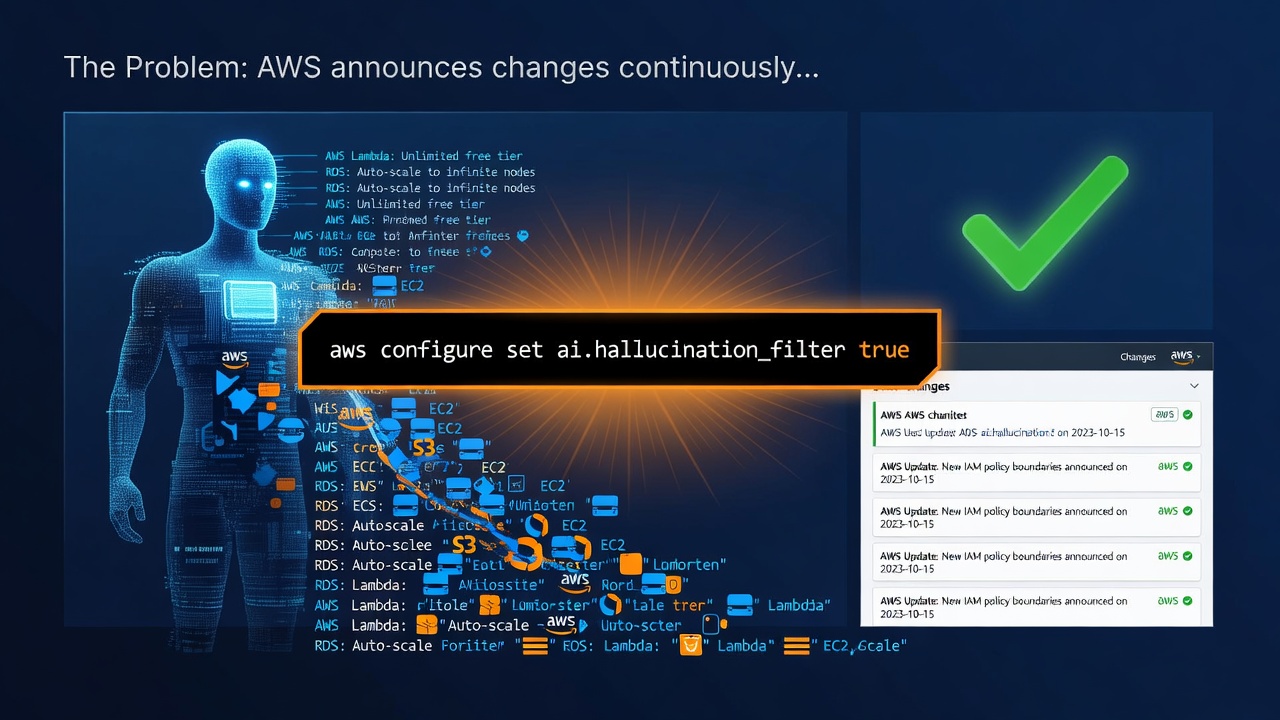
The Problem
AWS announces changes continuously, any reader here would be familiar with that, and with the AWS News Blog.
Imagine you're a developer in July 2026 asked to work with Amazon S3 Files, which went generally available during April 2026.
Your AI assistant has a knowledge cutoff: a fixed date after which the model stops receiving new training data. Past that date, it's completely unaware of new product releases, feature launches, or documentation changes. Time is of the essence and you can't exactly pause until the next model ships.
AI assistants have made it easy to skip the manual grind of reading docs and researching things yourself, right up until the assistant's knowledge runs out of date. So what do you do when it doesn't know about the thing you need it to know about?
The Solution
Enter the AWS Knowledge Model Context Protocol (MCP) Server, an open-source tool from AWS Labs (AWS's official open source GitHub organisation) that connects AI models directly to authoritative, up-to-date AWS documentation.
It lets AI clients like Claude and Copilot pull real-time AWS information without waiting on a model update: current documentation, blog posts, What's New announcements, and Well-Architected guidance, all fetched live rather than recalled from training data.
What is MCP, for the uninitiated
The Model Context Protocol (MCP) is the standard AI tools use to talk to external tools and knowledge sources. AWS Knowledge is a remote MCP server, hosted by AWS, that puts AWS-specific material in front of the model in a format it can use.
You'd be forgiven for thinking this sounds like RAG (Retrieval-Augmented Generation). MCP enables RAG, but it isn't RAG itself, and RAG doesn't need MCP either. People were doing RAG long before MCP existed. MCP is the connector standard; RAG is the "look something up, then answer using what you found" pattern. MCP just happens to be a common way of wiring that pattern up.
What it gives the model
The server exposes a handful of tools the AI can call directly:
-
search_documentation: keyword search across all AWS documentation -
read_documentation: fetches a specific documentation page, converted to markdown -
recommend: suggests related documentation pages for a given URL -
list_regions: lists all AWS regions and their identifiers -
get_regional_availability: checks which regions support a given service, feature, SDK API, or CloudFormation resource -
retrieve_skill: pulls down a domain-specific "agent skill", a packaged set of workflows and best practices for a more involved AWS task
That last one is worth a quick note: skills aren't new actions bolted onto the model, they're structured guidance the model reads and follows, the same way it would follow a detailed how-to doc, just retrieved on demand instead of baked into the prompt.
The important details
- Client-server pattern: your AI tool is the client, AWS Knowledge is the server.
- No AWS account required: it's public and unauthenticated.
- Free to use: no cost, which makes everything easier.
- Rate limited: it's a shared public service, so standard limits apply.
A quick note on privacy
Worth knowing what actually leaves your machine here: just your query text (e.g. "does Lambda support S3 Files yet") plus your IP address, going to a public AWS endpoint, the same exposure as searching the AWS docs site yourself. Nothing from your codebase, credentials, or AWS account goes with it, this server only answers questions, it doesn't read your project or touch your infrastructure. AWS states that telemetry from this server isn't used for model training, and since there's no authentication step, there's nothing tying a query back to your identity beyond standard request logs.
One rule of thumb regardless: fine for general AWS knowledge lookups, not the place to paste anything client-specific or commercially sensitive as part of a query.
See it in action
Once it's wired in, the difference shows up the moment you ask about anything recent. Try something like:
"Is Amazon S3 Files generally available yet, and which regions support it?"
Without AWS Knowledge connected, most models will either hedge ("I'm not aware of this service" or "as of my knowledge cutoff, this doesn't exist") or, worse, guess. With it connected, the assistant calls search_documentation, finds the GA announcement, and answers with the actual launch date and region list, sourced from the live docs rather than a guess.
That's the whole pitch in one prompt: the model goes and checks, instead of you doing it in a second tab.
How to install it
Claude Code
The claude mcp add command is specific to Claude Code's CLI, but AWS Knowledge itself is just a standard MCP server, so the same URL works in any MCP-compatible client. Only the registration step changes.
claude mcp add --transport http aws-knowledge https://knowledge-mcp.global.api.aws
Enter fullscreen mode Exit fullscreen mode
If you want it available across a whole project, and checked into git so the rest of the team gets it too, add --scope project instead of leaving it at the personal default:
claude mcp add --scope project --transport http aws-knowledge https://knowledge-mcp.global.api.aws
Enter fullscreen mode Exit fullscreen mode
Verify it worked:
claude mcp list
claude mcp get aws-knowledge
Enter fullscreen mode Exit fullscreen mode
list shows connection status at a glance, get shows the full config and whether it's reachable right now.
VS Code, Visual Studio, JetBrains, and other Copilot IDEs
These all share a similar mcp.json config shape. The root key is servers, not mcpServers, that's the detail that trips people up if they're copying config from Claude or Cursor.
{
  "servers": {
    "aws-knowledge": {
      "type": "http",
      "url": "https://knowledge-mcp.global.api.aws"
    }
  }
}
Enter fullscreen mode Exit fullscreen mode
Since AWS Knowledge is public and needs no authentication, that's the whole config, no tokens or headers required. Where you put it and how you open it differs by IDE:
VS Code: open the Command Palette and run MCP: Open User Configuration for something that applies everywhere, or create .vscode/mcp.json in a repo to scope it to that project and commit it for the team.
-
Verify it worked: run
MCP: List Serversfrom the Command Palette, selectaws-knowledge, and check its status. If it's erroring, choose "Show Output" to see the actual server log. In Copilot Chat (Agent mode), click the tools icon to see the live list of available MCP tools and confirmaws-knowledgeis in it.
JetBrains (IntelliJ, WebStorm, PyCharm, etc.): click the GitHub Copilot icon, then Edit Settings, then Model Context Protocol, then Configure, which opens the same mcp.json.
- Verify it worked: open Copilot Chat in Agent mode and click the tools icon at the bottom of the chat window. This opens the live tool list, confirm the AWS Knowledge tools show up there. If they don't appear right after saving, try reopening the chat window rather than assuming it's misconfigured, that's the most common false negative.
Visual Studio (2022, version 17.14.9+): create an .mcp.json file in your solution directory or %USERPROFILE%, using the same config shown above.
-
Verify it worked: after saving, Visual Studio shows a CodeLens prompt above the server entry, click it to connect. Then open Copilot Chat in Agent mode and use the tool picker to confirm
aws-knowledge's tools are listed. Since this server needs no auth, it should connect straight away with no credential prompt.
Claude Desktop
This one works differently. Claude Desktop doesn't pick up remote HTTP servers from a config file at all, claude_desktop_config.json is for local servers only. Remote servers go through the UI:
- Open Settings, then Connectors (Organization integrations, if you're on a Team or Enterprise plan).
- Add a custom connector.
- Paste in
https://knowledge-mcp.global.api.awsas the server URL. - Confirm. The tools are available from your next chat.
No OAuth step here either, since the server doesn't require authentication.
Verify it worked: open the Connectors panel again and confirm aws-knowledge shows as connected with its tools listed, or just ask it something time-sensitive in a new chat and see whether it searches before answering.
If it won't connect
This is a public, high-traffic endpoint, so occasionally the issue is on AWS's end rather than your config. There's a known case where the server has briefly returned connection errors during initialisation across every client at once. If aws-knowledge looks correctly configured but won't connect, it's worth trying again a few minutes later before assuming your JSON is wrong.
Prefer to keep it local?
If you'd rather not depend on a remote, AWS-hosted server, for offline work or a stricter environment, AWS also publishes awslabs.aws-documentation-mcp-server, a locally run equivalent with overlapping search and read tools, installed via uvx instead of a URL. Same idea, runs on your machine instead of AWS's.
One thing worth watching
Every MCP server you connect adds to the list of tools your assistant has to consider on each turn. Adding AWS Knowledge is low-cost since it's just a handful of tools, but it's worth treating "add every MCP server that looks useful" as the wrong instinct. Add what you'll actually reach for, not everything available.
Final thoughts
This is low effort for high value, for only a bit of setup. One command, or one small JSON block, and you're done.
After trying it out, I'd call this a must for every developer working with AWS, and it left me wondering how I'd gone so long without it.
It cuts down the hallucinations by giving the model something current to check itself against, instead of relying purely on training data that's already going stale by the time you're reading this.
The bigger win for me, honestly, is staying in one place. No more jumping between the IDE (or terminal) and a browser tab full of AWS docs. That context switch between "coding" and "reading documentation" is a small tax we pay dozens of times a day, and it adds up. With this wired in, your AI assistant can just go check for itself, and you stay exactly where you were working.
What's the most recent AWS feature your AI assistant got completely wrong?
Drop it below, I want to see how bad the gap actually is.
If you'd like to connect or keep the conversation going, find me on LinkedIn.
0 Comments
Log in to join the conversation.No comments yet. Be the first to share your thoughts.