
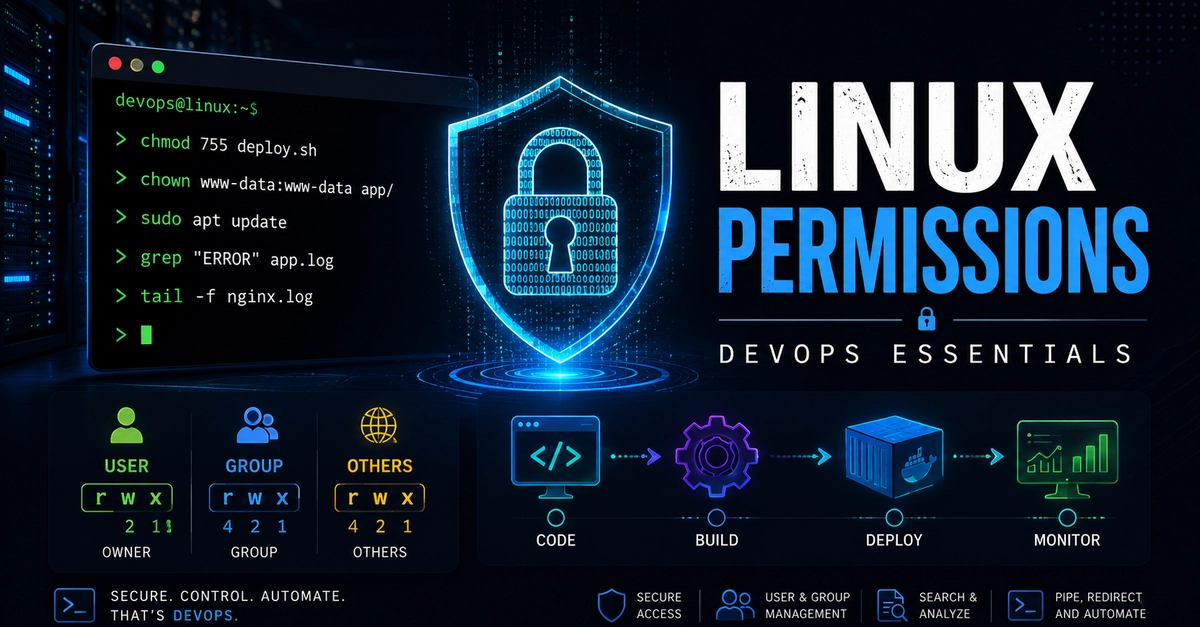
If you're learning Linux for DevOps, sooner or later you'll encounter errors like:
Permission denied
Enter fullscreen mode Exit fullscreen mode
or
Could not read private key
Enter fullscreen mode Exit fullscreen mode
or
Operation not permitted
Enter fullscreen mode Exit fullscreen mode
At first, these errors can feel confusing. But once you understand Linux permissions, ownership, file searching, and command chaining, troubleshooting becomes much easier.
In this article, I'll cover some of the most practical Linux concepts that DevOps engineers use every day:
- ✅ Linux permissions
- ✅ chmod
- ✅ chown
- ✅ sudo
- ✅ cat, head, and tail
- ✅ grep and find
- ✅ Piping and redirection
Let's dive in.
Why Permissions Are a Big Deal in DevOps
Linux was designed as a multi-user operating system. Multiple users and processes can run on the same machine at the same time.
Permissions exist to answer one important question:
Is this user or process allowed to read, write, or execute this file?
As a DevOps engineer, permissions appear everywhere:
- SSH won't allow login if your private key permissions are too open.
- Nginx needs permission to read your application's files.
- Docker containers often run as specific users, causing permission mismatches.
- CI/CD pipelines frequently fail because of permission issues.
Understanding permissions can save hours of debugging.
Understanding Linux Permissions
Run the following command:
ls -l
Enter fullscreen mode Exit fullscreen mode
Example output:
-rwxr-xr-- 1 ana developers 220 Jul 27 10:00 deploy.sh
Enter fullscreen mode Exit fullscreen mode
The first section contains the permission information:
-rwxr-xr--
Enter fullscreen mode Exit fullscreen mode
Let's break it down.
File Types
The first character indicates the file type.
| Symbol | Meaning |
|---|---|
- |
Regular file |
d |
Directory |
l |
Symbolic link |
Permission Groups
The next nine characters are divided into three groups.
rwx     r-x     r--
---     ---     ---
Owner   Group   Others
Enter fullscreen mode Exit fullscreen mode
Each group represents permissions for a different category of users.
Permission Meanings
For Files
| Permission | Meaning |
|---|---|
r |
Read the file |
w |
Modify the file |
x |
Execute the file |
For Directories
| Permission | Meaning |
|---|---|
r |
List directory contents |
w |
Create or delete files |
x |
Enter the directory using cd
|
Example
Consider:
-rwxr-xr--
Enter fullscreen mode Exit fullscreen mode
This means:
Owner (rwx)
- Read
- Write
- Execute
Group (r-x)
- Read
- Execute
- Cannot modify
Others (r--)
- Read only
Understanding the Full Output
-rwxr-xr-- 1 ana developers 220 Jul 27 10:00 deploy.sh
Enter fullscreen mode Exit fullscreen mode
| Value | Meaning |
|---|---|
1 |
Number of hard links |
ana |
Owner |
developers |
Group |
220 |
File size |
Jul 27 10:00 |
Last modified |
deploy.sh |
File name |
chmod — Changing Permissions
The chmod command is used to modify permissions.
There are two common approaches.
Method 1: Symbolic Notation
Add execute permission for the owner:
chmod u+x deploy.sh
Enter fullscreen mode Exit fullscreen mode
Remove write permission from the group:
chmod g-w deploy.sh
Enter fullscreen mode Exit fullscreen mode
Set others to read-only:
chmod o=r deploy.sh
Enter fullscreen mode Exit fullscreen mode
Add read permission for everyone:
chmod a+r deploy.sh
Enter fullscreen mode Exit fullscreen mode
Symbol Meanings
| Symbol | Meaning |
|---|---|
u |
User (owner) |
g |
Group |
o |
Others |
a |
All |
Method 2: Numeric (Octal) Notation
This is the method you'll see most often in DevOps.
Each permission has a value:
| Permission | Value |
|---|---|
| Read | 4 |
| Write | 2 |
| Execute | 1 |
| None | 0 |
Common Permission Values
| Number | Permission |
|---|---|
| 7 | rwx |
| 6 | rw- |
| 5 | r-x |
| 4 | r-- |
| 0 | --- |
Example
chmod 754 deploy.sh
Enter fullscreen mode Exit fullscreen mode
This translates to:
Owner  = 7 = rwx
Group  = 5 = r-x
Others = 4 = r--
Enter fullscreen mode Exit fullscreen mode
Common chmod Values Used in DevOps
SSH Private Keys
chmod 600 id_rsa
Enter fullscreen mode Exit fullscreen mode
Only the owner can read and write the file.
SSH often refuses to use private keys with weaker permissions.
Configuration Files
chmod 644 config.yaml
Enter fullscreen mode Exit fullscreen mode
Owner can modify the file.
Everyone else can read it.
Scripts and Executables
chmod 755 deploy.sh
Enter fullscreen mode Exit fullscreen mode
Everyone can run the script.
Only the owner can modify it.
Sensitive Files
chmod 400 secrets.txt
Enter fullscreen mode Exit fullscreen mode
Owner can read the file.
Nobody else has access.
chown — Changing Ownership
While chmod controls permissions, chown controls ownership.
Change Owner
chown ana deploy.sh
Enter fullscreen mode Exit fullscreen mode
Changes the file owner to ana.
Change Owner and Group
chown ana:developers deploy.sh
Enter fullscreen mode Exit fullscreen mode
Changes both owner and group.
Recursive Ownership Change
chown -R ana:developers app/
Enter fullscreen mode Exit fullscreen mode
Applies ownership changes to all files and directories inside the folder.
Real-World Example
Suppose a web application runs under:
www-data
Enter fullscreen mode Exit fullscreen mode
If the files are owned by another user, the application may fail with:
Permission denied
Enter fullscreen mode Exit fullscreen mode
A common fix is:
sudo chown -R www-data:www-data /var/www/myapp
Enter fullscreen mode Exit fullscreen mode
sudo — Temporary Administrator Access
sudo allows a user to run commands with administrator privileges.
Update Packages
sudo apt update
Enter fullscreen mode Exit fullscreen mode
Open a Root Shell
sudo -i
Enter fullscreen mode Exit fullscreen mode
Use carefully.
Change Ownership
sudo chown root:root file.txt
Enter fullscreen mode Exit fullscreen mode
Why Use sudo?
Accountability
Every sudo command is logged.
Security
You only elevate privileges when necessary.
Control
Administrators can grant limited access without giving full root permissions.
Reading Files in Linux
When troubleshooting systems, reading logs and configuration files is a daily task.
cat
Display the entire file.
cat app.log
Enter fullscreen mode Exit fullscreen mode
head
Display the first few lines.
head app.log
Enter fullscreen mode Exit fullscreen mode
Display the first 20 lines:
head -n 20 app.log
Enter fullscreen mode Exit fullscreen mode
tail
Display the last few lines.
tail app.log
Enter fullscreen mode Exit fullscreen mode
Display the last 50 lines:
tail -n 50 app.log
Enter fullscreen mode Exit fullscreen mode
tail -f
Monitor a file in real time.
tail -f /var/log/nginx/access.log
Enter fullscreen mode Exit fullscreen mode
This is one of the most frequently used commands in DevOps.
It's perfect for watching logs while debugging applications or deployments.
grep — Searching Inside Files
The grep command searches file contents for a specific pattern.
Find Errors
grep "ERROR" app.log
Enter fullscreen mode Exit fullscreen mode
Case-Insensitive Search
grep -i "error" app.log
Enter fullscreen mode Exit fullscreen mode
Search Recursively
grep -r "TODO" ./src
Enter fullscreen mode Exit fullscreen mode
Count Matches
grep -c "ERROR" app.log
Enter fullscreen mode Exit fullscreen mode
Show Line Numbers
grep -n "ERROR" app.log
Enter fullscreen mode Exit fullscreen mode
Exclude Matches
grep -v "DEBUG" app.log
Enter fullscreen mode Exit fullscreen mode
find — Searching for Files
Unlike grep, the find command searches for files and directories.
Find Log Files
find . -name "*.log"
Enter fullscreen mode Exit fullscreen mode
Files Modified Within One Day
find /var/log -type f -mtime -1
Enter fullscreen mode Exit fullscreen mode
Find Specific Directories
find . -type d -name "node_modules"
Enter fullscreen mode Exit fullscreen mode
Find Large Files
find . -size +100M
Enter fullscreen mode Exit fullscreen mode
grep vs find
This is a common beginner confusion.
grep
Searches inside file contents.
grep "ERROR" app.log
Enter fullscreen mode Exit fullscreen mode
find
Searches for files and directories.
find . -name "*.log"
Enter fullscreen mode Exit fullscreen mode
Piping Commands
One of Linux's greatest strengths is combining commands together.
The pipe operator (|) sends the output of one command as the input to another.
Find Error Messages
cat app.log | grep "ERROR"
Enter fullscreen mode Exit fullscreen mode
Count Error Messages
cat app.log | grep "ERROR" | wc -l
Enter fullscreen mode Exit fullscreen mode
Find Running Nginx Processes
ps aux | grep nginx
Enter fullscreen mode Exit fullscreen mode
Search Command History
history | grep docker
Enter fullscreen mode Exit fullscreen mode
Output Redirection
Redirection allows you to save command output into files.
Overwrite Output
echo "Deployment started" > deploy.log
Enter fullscreen mode Exit fullscreen mode
Creates a new file or replaces existing content.
Append Output
echo "Step completed" >> deploy.log
Enter fullscreen mode Exit fullscreen mode
Adds content to the end of the file.
More Examples
Save directory contents:
ls -la > files.txt
Enter fullscreen mode Exit fullscreen mode
Save only error messages:
grep "ERROR" app.log > errors.log
Enter fullscreen mode Exit fullscreen mode
Important Warning
Be careful when using:
>
Enter fullscreen mode Exit fullscreen mode
It overwrites the file completely.
If you want to preserve existing content, use:
>>
Enter fullscreen mode Exit fullscreen mode
Many engineers have accidentally overwritten important files by using the wrong operator.
Quick Command Reference
| Command | Purpose |
|---|---|
chmod |
Change permissions |
chown |
Change ownership |
sudo |
Run commands as administrator |
cat |
Display file contents |
head |
View beginning of a file |
tail |
View end of a file |
tail -f |
Follow logs in real time |
grep |
Search inside files |
find |
Search for files and directories |
| ` | ` |
> |
Overwrite file output |
>> |
Append file output |
Final Thoughts
Linux permissions, ownership, file searching, and command chaining are fundamental skills for every DevOps engineer.
The better you understand these concepts, the easier it becomes to troubleshoot servers, debug deployments, manage containers, and automate infrastructure.
I'm currently documenting my DevOps learning journey and will continue sharing beginner-friendly guides on Linux, Docker, Git, Kubernetes, Jenkins, Terraform, AWS, and more.
If you have any tips or favorite Linux commands, feel free to share them in the comments.
Happy Learning! 🐧🚀
0 Comments
Log in to join the conversation.No comments yet. Be the first to share your thoughts.