

Let’s get into web application setup for Cloudflare Workers on SvelteKit. I’ve written about Cloudflare where we introduced workers, and then where we showed some of the one-off development considerations needed for getting Workers to work in TanStack Start.
This will be similar to the latter, except we’ll look at SvelteKit rather than TanStack.
I’ve found the Cloudflare/SvelteKit integration not quite as seamless as TanStack’s, but it’s still outstanding and doesn’t take too much effort to get up and running.
What are Cloudflare Workers?
Cloudflare Workers are conceptually similar to AWS Lambda functions. They’re cloud functions that spin up on demand, as much or as little as your application’s traffic demands at any given moment. Except Cloudflare Workers have very, very low latency. The “cold starts” Lambda is known to have are virtually non-existent with Workers.
What’s the Catch?
Not much, really. There was a time when Cloudflare Workers had a runtime that was a subset of Node, but those days are over. Cloudflare Workers now have a Node compat mode that solves those problems.
The main limitation with Workers is that they have special rules requiring you to clean up after yourself in ways other runtimes don’t. Namely, you cannot have long-running I/O objects surviving between requests. In particular, you cannot simply have a module export a db object that connects to your database. Each request must spin that connection up fresh.
Introducing Hyperdrive
Spinning up a fresh database connection was always a bad idea in any cloud function runtime, such as AWS Lambda. These functions spin up as needed, and during periods of bursting traffic, the number of Lambda functions being created could easily overwhelm your database.
But with Workers requiring a fresh connection per request, this is even more dangerous. To say nothing of the fact that we’d hardly want to ruin Workers’ low latency by requiring them to perform the time-consuming operation of establishing a fresh TCP connection to our database, let alone once per request.
To solve these problems, Cloudflare has a tool called Hyperdrive, which keeps a pool of pre-warmed connections to our database open. Our Workers then quickly connect to Hyperdrive and gain immediate access to these pre-warmed connections.
Getting Started
Let’s scaffold an essentially empty SvelteKit application. We’ll go to the directory we want our app, and then kick things off.
npx sv create .Code language: Bash (bash)Enabling Cloudflare
Let’s set up basic Cloudflare infrastructure for our project.
npx wrangler deployCode language: Bash (bash)We’ll be asked a few questions, to which the defaults should be fine.
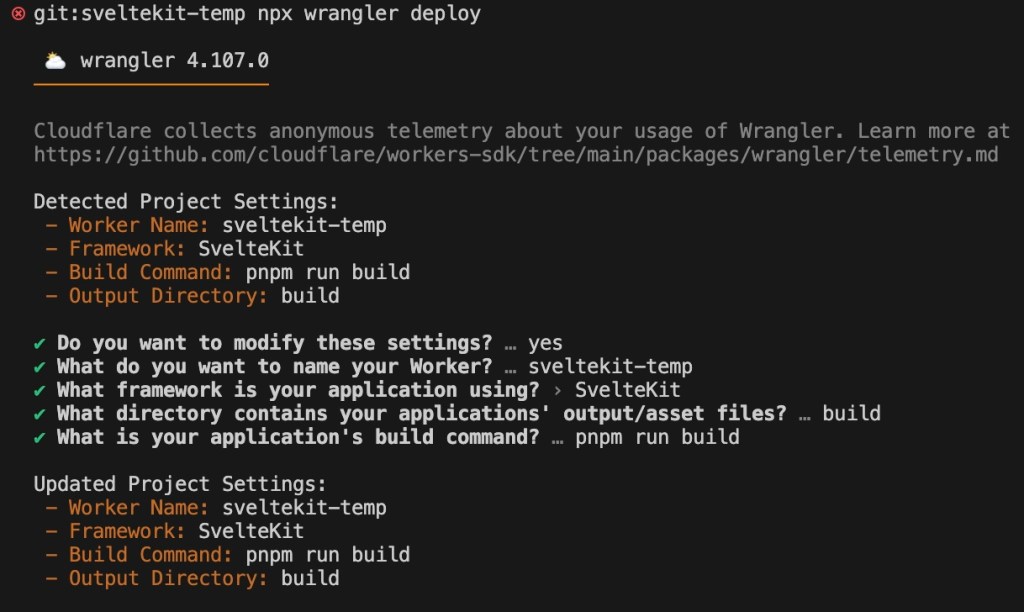
This will install some new dependencies and set up the Cloudflare plugin.
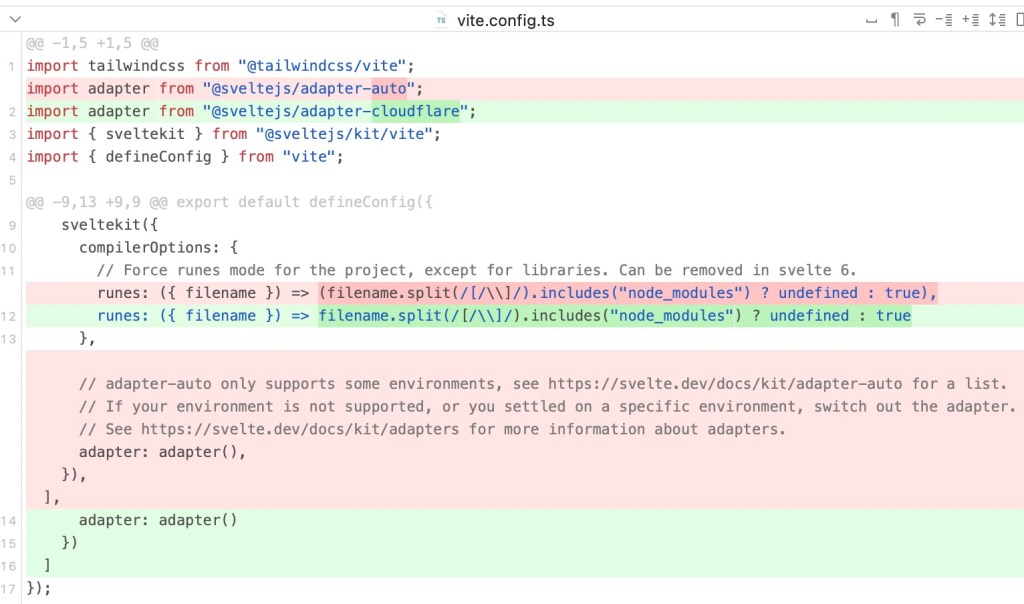
Very nice!
One Problem
If we open our Cloudflare dashboard, we will not see this new app present, and if we look in our terminal, we’ll see why.
[build] ✘ [ERROR] Types file not found at worker-configuration.d.ts.
[build]
[build]
[build]
[build] 🪵  Logs were written to "/Users/arackis/Library/Preferences/.wrangler/logs/wrangler-2026-07-12_23-14-01_652.log"
[build]
✘ [ERROR] Error: Command failed with exit code 1: npm run build
✘ [ERROR] Types file not found at
worker-configuration.d.ts.
🪵 Logs were written to
"/Users/arackis/Library/Preferences/.wrangler/logs/wrangler-2026-07-12_23-14-01_652.log"
> [email protected] build
> wrangler types --check && vite build
The problem is the build task Cloudflare scaffolded us.
"build": "vite build && wrangler types --check"Code language: JSON / JSON with Comments (json)The problem is the latter piece: wrangler types --check. This asks Wrangler to confirm that the generated typings are fully aligned with the application’s needs. In my experience, this is a fickle check that fails for reasons you may not care about, such as secrets not being properly declared in your Wrangler under certain circumstances, even if not directly accessed in code. To fix this error, you can run this:
npx wranger typesCode language: Bash (bash)This generates the types and passes the build. But I’d recommend just removing the wrangler types --check from the build script.
You’ll absolutely need to run npx wrangler types to get typings generated for when you start using Hyperdrive, adding secrets, using Durable Objects, etc. But I wouldn’t fail the build step if your types aren’t completely up to date, especially if those mismatches don’t actually cause TypeScript errors.
If your typings are not correct in a way that matters, you’ll see TypeScript errors pretty quickly, so the check was never all that valuable to begin with.
And that’s that. Note that if you got this error instead (or ever do get it)
npm error `npm ci` can only install packages when your package.json and package-lock.json or npm-shrinkwrap.json are in sync. Please update your lock file with `npm install` before continuing.
Just rm -rf node_modules, delete your lockfile, then re-run npm i.
Connecting GitHub
To enable easy deployments, let’s connect GitHub to our new app. We’ll go to our Cloudflare dashboard.
Find our app under Workers & Pages.

Go to the build section.

Then choose the right repo.
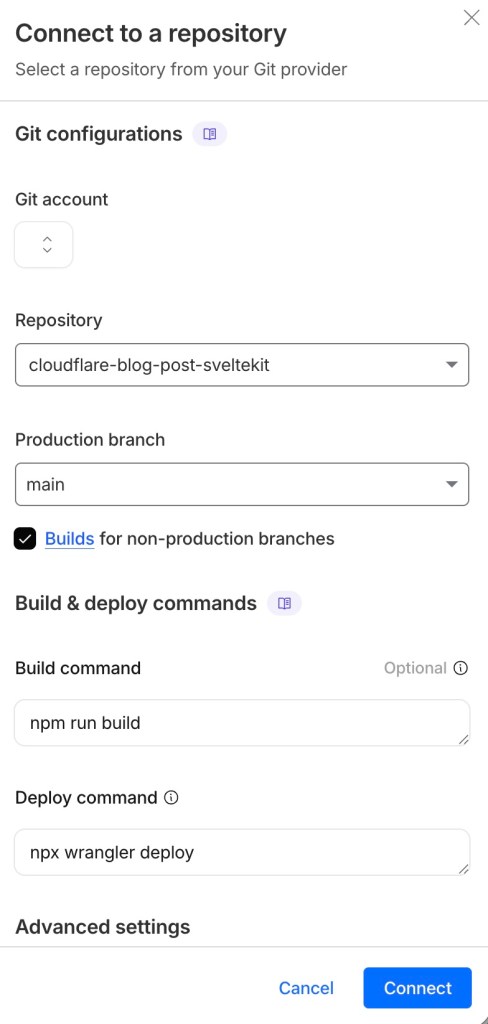
Now pushes to main will automatically deploy to Cloudflare.
Accessing Cloudflare Goodies from SvelteKit
Cloudflare manages the things we need, from secrets to Hyperdrive connection strings on the env object. With TanStack we imported our env directly, via a special import.
import { env } from "cloudflare:workers";Code language: JavaScript (javascript)With SvelteKit, this env object is injected into a platform object that shows up in server contexts. In fact, when we first ran npx wranger deploy that command, it adjusted our typings for this.
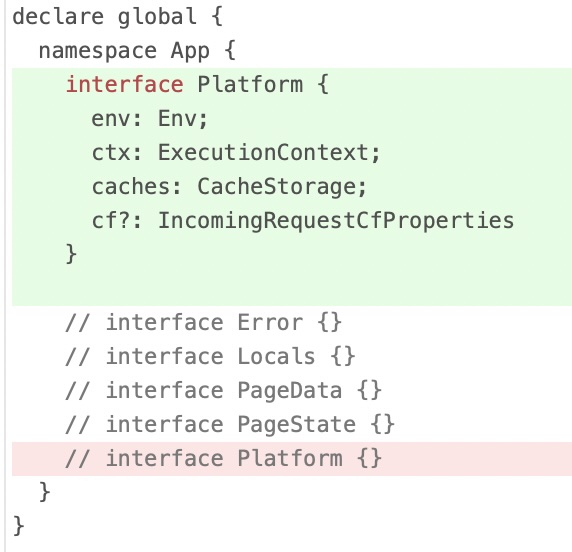
As we can see, env now exists in the platform object. This is what is passed into server loaders like page.server.ts for a route.
import type { PageServerLoad } from "./$types";

export const load: PageServerLoad = async ({ platform, locals }) => {
  return {
    value: platform?.env.SECRET_1,
  };
};Code language: JavaScript (javascript)
Other server-only locations, like API routes, also get env.
Note that this does not work for universal loaders, since those also run on the client, and SvelteKit cannot expose things on this Cloudflare env object to the client.
Remote Functions
To access the Cloudflare env object from a remote function, you import getRequestEvent.
import { getRequestEvent, query } from "$app/server";Code language: JavaScript (javascript)Then call it as needed.
export const getPosts = query(async () => {
  const evt = getRequestEvent();
  const val = evt.platform?.env.SECRET_1;

  return [
    /* ... */
  ];
});Code language: JavaScript (javascript)
Databases and Hyperdrive
Hyperdrive is Cloudflare’s answer for connecting to a database from a cloud function that can spin up as often as needed, depending on your web application’s traffic.
Since Cloudflare workers spin up quickly, on demand, to satisfy the requests they receive, they’re a poor candidate for opening a fresh TCP connection to your database for each request, since doing so would be slow and would risk overloading your database with more connections than it can support.
We also can’t just expose a top-level db object that’s exported from a module for reasons we’ll see shortly.
Hyperdrive solves all these problems by giving you a pre-warmed connection pool.
Setting up Hyperdrive
Go to the Cloudflare dashboard and, under Storage and databases, find the option Postgres & MySQL (Hyperdrive).
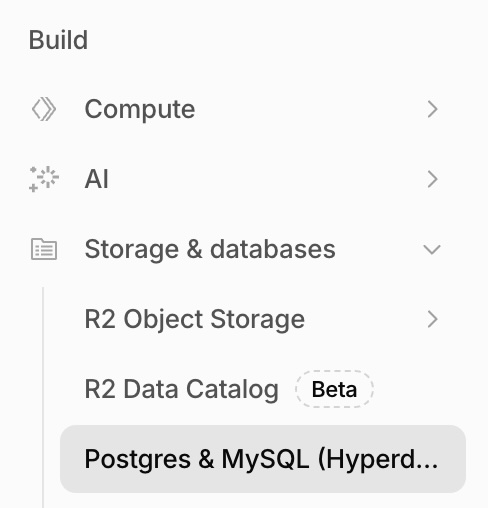
Hit the connect to database button.

You’ll be greeted with a few options for how to proceed. For this post, I’ll be using PlanetScale.
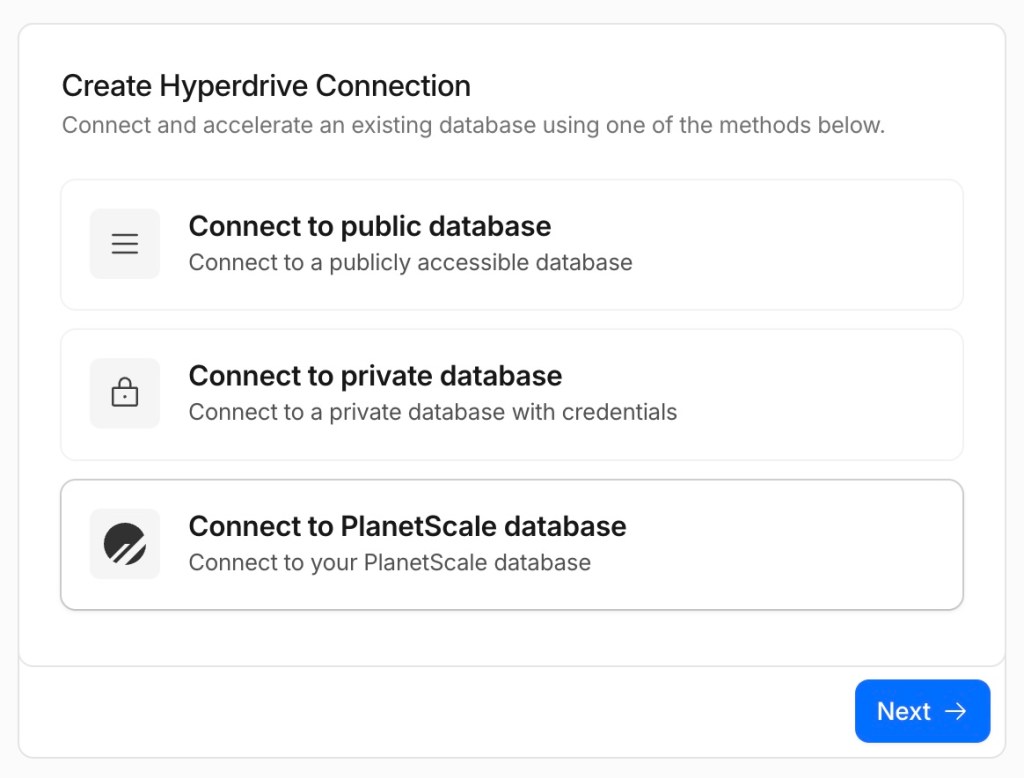
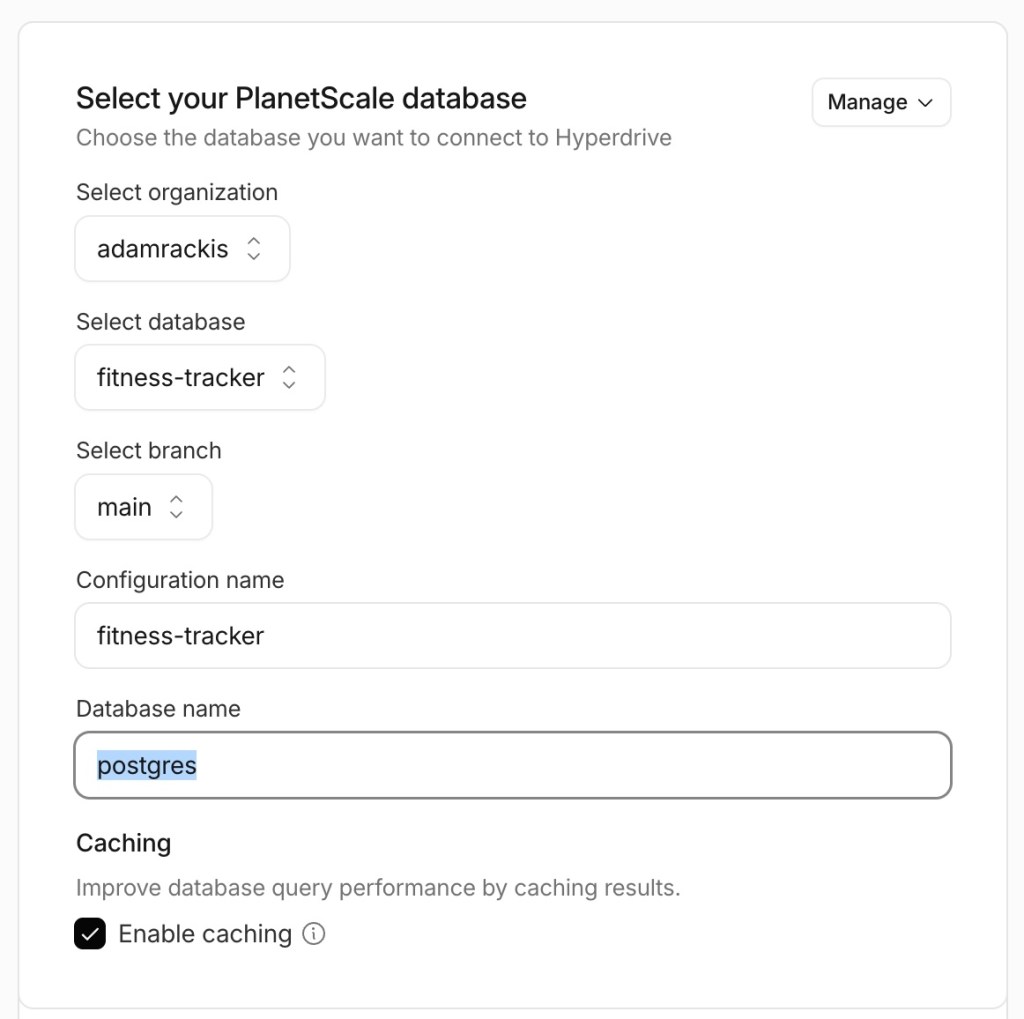
Follow the prompts, authenticate if needed, select your database, and most importantly, be sure to fill in your database name; you almost certainly do not want the default value of the postgres.
Once complete, you should see a new Wrangler entry.
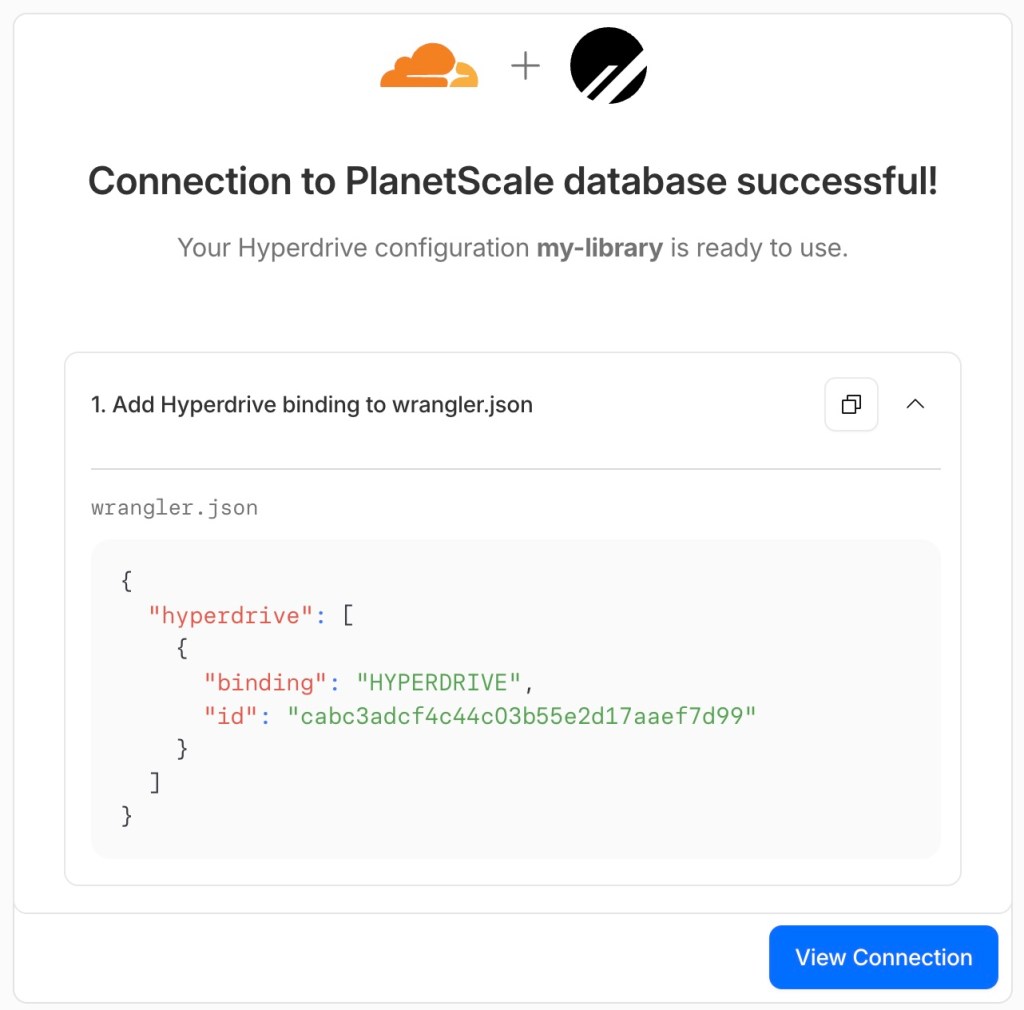
That’s what mine looks like, and no, there’s nothing secret or private about that data. In fact, you’ll need it in your Wrangler file and committed to git if you want Cloudflare’s GitHub integration to work.
Copy that into your Wrangler file and add a localConnectionString for use during local development.
{
  "hyperdrive": [
    {
      "binding": "HYPERDRIVE",
      "id": "cabc3adcf4c44c03b55e2d17aaef7d99",
      "localConnectionString": "postgresql://docker:docker@localhost:5432/my_library"
    }
  ]
}Code language: JSON / JSON with Comments (json)
You can now update your typings via npx wrangler types.
Connect to Hyperdrive
Now, via your same env object, you can connect to your database through Hyperdrive.
const pool = new Pool({
  connectionString: env.HYPERDRIVE.connectionString,
});Code language: JavaScript (javascript)
Managing Database Connections
As with TanStack, the same Cloudflare rules apply. We cannot keep a long-running I/O object open between requests. Doing so would cause errors with Cloudflare; that’s why we can’t just export a live db object from a TypeScript module that contains a database connection when we use Cloudflare Workers.
With TanStack Start we solved this with global request middleware, which ran once per request, and allowed us to open a database connection (via Hyperdrive), and put that db object on context, which is present in all server-only contexts.
With SvelteKit, we can do similarly with a server hook. If we add a src/hooks.server.js file, the handle function exported therefrom is invoked once per request, making it a perfect place to set up our database connection.
export async function handle({ event, resolve }) {
  const pool = new Pool({
    connectionString: event.platform!.env.HYPERDRIVE.connectionString,
  });
  const db = getDb(pool);

  if (event.url.pathname.includes("/.well-known/appspecific/com.chrome.devtools")) {
    return new Response(null, { status: 204 }); // Return empty response with 204 No Content
  }

  event.locals.db = db;

  const response = await resolve(event);
  return response;
}Code language: JavaScript (javascript)
As you can see, we added our db object to the event.locals object. This is a standard feature with SvelteKit; in fact, there’s already a Locals interface in the src/app.d.ts to hold any of these things we manually add.
import type { DB } from "./data/db";

declare global {
  namespace App {
    interface Platform {
      env: Env;
      ctx: ExecutionContext;
      caches: CacheStorage;
      cf?: IncomingRequestCfProperties;
    }

    // interface Error {}
    interface Locals {
      db: DB;
    }
    // interface PageData {}
    // interface PageState {}
  }
}Code language: TypeScript (typescript)
In server-only contexts like Server loaders, we can access our db object
export const load: PageServerLoad = async ({ platform, locals }) => {
  const users = await locals.db.select().from(user).limit(10);

  return {
    users,
  };
};Code language: TypeScript (typescript)
Similarly in Remote Functions, use the getRequestEvent to get the request object, on which you’ll find the same locals object, with the db object.
import { eq } from "drizzle-orm";
import { getRequestEvent, query } from "$app/server";
import { books as booksTable } from "$drizzle/schema";

export const getBooks = query(async () => {
  const evt = getRequestEvent();
  const books = await evt.locals.db.select().from(booksTable).where(eq(booksTable.userId, "106394015208813116232")).limit(5);

  return books;
});Code language: TypeScript (typescript)
Concluding Thoughts
I’m extremely excited about web development with Cloudflare’s platform. Workers are an outstanding, low-latency way to host web applications. The SvelteKit integration is great, and with just a few tricks, you can be up and running quickly.
0 Comments
Log in to join the conversation.No comments yet. Be the first to share your thoughts.