
Introduction
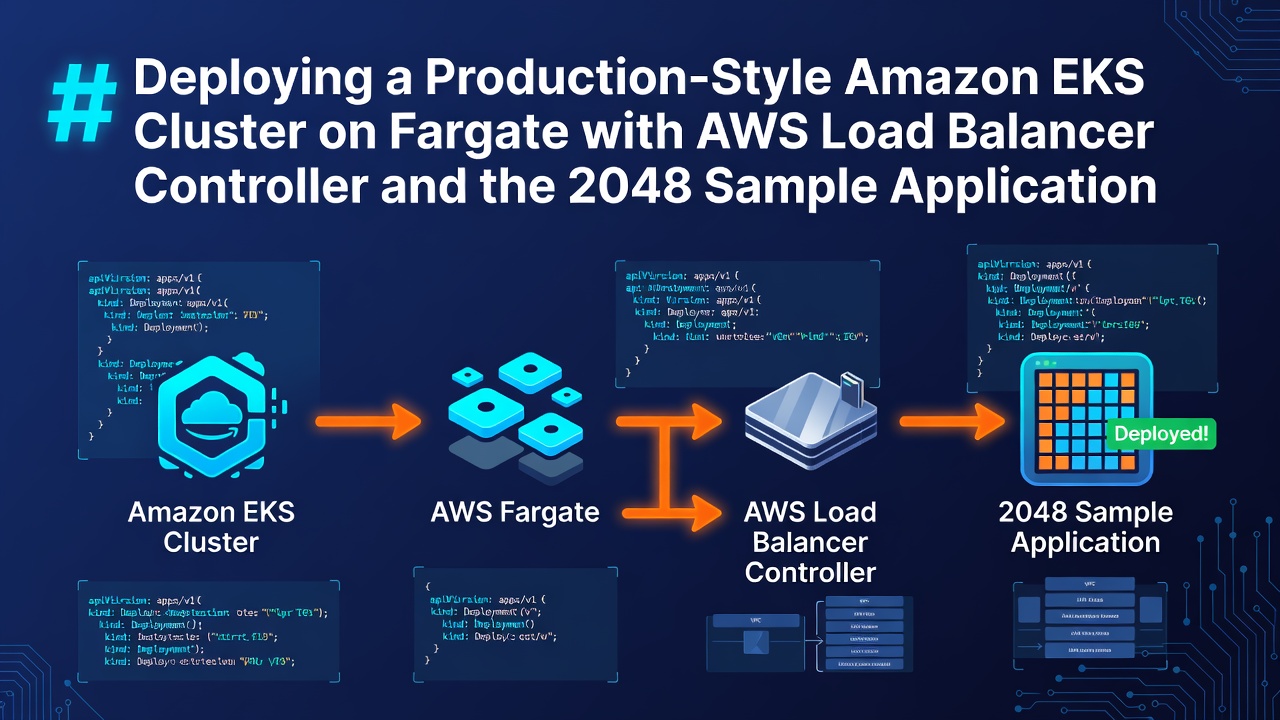
This guide provides a detailed walkthrough of deploying a Kubernetes application on Amazon Elastic Kubernetes Service (EKS) using AWS Fargate, exposing the application through an Application Load Balancer (ALB) managed by the AWS Load Balancer Controller.
The project demonstrates:
- Creating an EKS cluster using eksctl
- Configuring IAM permissions
- Enabling OIDC integration
- Implementing IAM Roles for Service Accounts (IRSA)
- Creating Fargate profiles
- Installing the AWS Load Balancer Controller
- Deploying the 2048 sample application
- Exposing the application using an ALB Ingress
- Troubleshooting common deployment issues
At the end of this guide, users will have a fully functional Kubernetes application running on EKS Fargate and accessible through an AWS Application Load Balancer.
Architecture Overview
The deployed architecture consists of:
Internet Users
↓
Application Load Balancer (ALB)
↓
AWS Load Balancer Controller
↓
Ingress Resource
↓
Kubernetes Service
↓
2048 Application Pods
↓
Amazon EKS on AWS Fargate
All application workloads run on AWS Fargate, eliminating the need to manage worker nodes.
Prerequisites
Before starting, ensure the following tools are installed:
AWS CLI
Verify installation:
aws --version
Enter fullscreen mode Exit fullscreen mode
kubectl
Verify installation:
kubectl version --client
Enter fullscreen mode Exit fullscreen mode
eksctl
Verify installation:
eksctl version
Enter fullscreen mode Exit fullscreen mode
Helm
Verify installation:
helm version
Enter fullscreen mode Exit fullscreen mode
IAM Permissions Required
The IAM user performing the deployment requires the following AWS managed policies:
AmazonEKSClusterPolicy
Provides permissions to create and manage EKS clusters.
AmazonEKSServicePolicy
Allows EKS to interact with AWS services.
AmazonEKSWorkerNodePolicy
Required for node and Fargate-related operations.
AmazonEKS_CNI_Policy
Required for Kubernetes networking.
AmazonEC2ContainerRegistryReadOnly
Allows Kubernetes components to pull container images from ECR.
IAMFullAccess
Required to create IAM roles and service accounts.
AmazonVPCFullAccess
Required for networking resources.
CloudFormationFullAccess
Required because eksctl creates AWS CloudFormation stacks.
AWS Authentication Configuration
Verify identity:
aws sts get-caller-identity --profile dev
Enter fullscreen mode Exit fullscreen mode
Verify configuration:
aws configure list --profile dev
Enter fullscreen mode Exit fullscreen mode
Expected output should display:
- Account ID
- IAM user ARN
- Region
Creating the EKS Cluster
Create the cluster using Fargate:
eksctl create cluster \
  --name demo-eks-cluster \
  --region us-east-1 \
  --fargate
Enter fullscreen mode Exit fullscreen mode
This command provisions:
- EKS Control Plane
- VPC
- Public Subnets
- Private Subnets
- Fargate Profiles
- IAM Roles
Verify cluster creation:
eksctl get cluster
Enter fullscreen mode Exit fullscreen mode
Updating kubeconfig
Configure kubectl to communicate with the cluster:
aws eks update-kubeconfig \
  --region us-east-1 \
  --name demo-eks-cluster \
  --profile dev
Enter fullscreen mode Exit fullscreen mode
Verify access:
kubectl get nodes
Enter fullscreen mode Exit fullscreen mode
For Fargate deployments, no EC2 nodes will appear.
Understanding OIDC and IRSA
What is OIDC?
OpenID Connect (OIDC) enables Kubernetes service accounts to assume AWS IAM roles securely.
Without OIDC:
Pods cannot securely access AWS services.
With OIDC:
Pods receive temporary AWS credentials through IAM Roles for Service Accounts (IRSA).
Associating OIDC Provider
Set cluster variable:
export cluster_name=demo-eks-cluster
Enter fullscreen mode Exit fullscreen mode
Associate OIDC:
eksctl utils associate-iam-oidc-provider \
  --cluster demo-eks-cluster \
  --region us-east-1 \
  --approve
Enter fullscreen mode Exit fullscreen mode
Verify:
eksctl utils associate-iam-oidc-provider \
  --cluster demo-eks-cluster \
  --region us-east-1
Enter fullscreen mode Exit fullscreen mode
Expected output:
IAM Open ID Connect provider is already associated
Enter fullscreen mode Exit fullscreen mode
Creating a Fargate Profile for the Application
Create namespace-specific Fargate profile:
eksctl create fargateprofile \
  --cluster demo-eks-cluster \
  --region us-east-1 \
  --name alb-game-2048 \
  --namespace game-2048
Enter fullscreen mode Exit fullscreen mode
Verify:
eksctl get fargateprofile \
  --cluster demo-eks-cluster \
  --region us-east-1 \
  --profile dev
Enter fullscreen mode Exit fullscreen mode
Expected output:
alb-game-2048
fp-default
Enter fullscreen mode Exit fullscreen mode
Installing AWS Load Balancer Controller
The AWS Load Balancer Controller creates and manages Application Load Balancers for Kubernetes Ingress resources.
Download IAM Policy
curl -O https://raw.githubusercontent.com/kubernetes-sigs/aws-load-balancer-controller/main/docs/install/iam_policy.json
Enter fullscreen mode Exit fullscreen mode
Create policy:
aws iam create-policy \
  --policy-name AWSLoadBalancerControllerIAMPolicy \
  --policy-document file://iam_policy.json \
  --profile dev
Enter fullscreen mode Exit fullscreen mode
Create IAM Service Account
eksctl create iamserviceaccount \
  --cluster demo-eks-cluster \
  --namespace kube-system \
  --name aws-load-balancer-controller \
  --role-name AmazonEKSLoadBalancerControllerRole \
  --attach-policy-arn arn:aws:iam::622370466829:policy/AWSLoadBalancerControllerIAMPolicy \
  --approve \
  --region us-east-1 \
  --profile dev
Enter fullscreen mode Exit fullscreen mode
Verify:
eksctl get iamserviceaccount \
  --cluster demo-eks-cluster \
  --region us-east-1 \
  --profile dev
Enter fullscreen mode Exit fullscreen mode
Verify service account annotation:
kubectl get sa aws-load-balancer-controller \
  -n kube-system \
  -o yaml | grep role-arn
Enter fullscreen mode Exit fullscreen mode
Expected output:
arn:aws:iam::622370466829:role/AmazonEKSLoadBalancerControllerRole
Enter fullscreen mode Exit fullscreen mode
Helm Repository Issue Encountered
While attempting to install the controller:
helm repo add eks https://aws.github.io/eks-charts
Enter fullscreen mode Exit fullscreen mode
Error:
EOF
Enter fullscreen mode Exit fullscreen mode
Although:
curl https://aws.github.io/eks-charts/index.yaml
Enter fullscreen mode Exit fullscreen mode
worked successfully.
The issue was traced to Helm repository communication in the environment.
Manual Helm Chart Installation
Download chart:
wget https://aws.github.io/eks-charts/aws-load-balancer-controller-3.4.3.tgz
Enter fullscreen mode Exit fullscreen mode
Install controller:
helm install aws-load-balancer-controller \
  ./aws-load-balancer-controller-3.4.3.tgz \
  -n kube-system \
  --set clusterName=demo-eks-cluster \
  --set serviceAccount.create=false \
  --set serviceAccount.name=aws-load-balancer-controller
Enter fullscreen mode Exit fullscreen mode
Controller CrashLoopBackOff Issue
Initial deployment failed.
Check logs:
kubectl logs \
  -n kube-system \
  aws-load-balancer-controller-<pod-name> \
  --previous
Enter fullscreen mode Exit fullscreen mode
Error:
failed to fetch VPC ID from instance metadata
Enter fullscreen mode Exit fullscreen mode
Reason:
Fargate pods cannot access EC2 Instance Metadata Service (IMDS).
Solution:
Retrieve VPC ID:
aws eks describe-cluster \
  --name demo-eks-cluster \
  --region us-east-1 \
  --profile dev \
  --query "cluster.resourcesVpcConfig.vpcId" \
  --output text
Enter fullscreen mode Exit fullscreen mode
Output:
vpc-0e0b589efa0ebf333
Enter fullscreen mode Exit fullscreen mode
Update deployment:
kubectl edit deployment aws-load-balancer-controller \
  -n kube-system
Enter fullscreen mode Exit fullscreen mode
Add:
- --vpc-id=vpc-0e0b589efa0ebf333
Enter fullscreen mode Exit fullscreen mode
Save and exit.
Verify:
kubectl get pods -n kube-system
Enter fullscreen mode Exit fullscreen mode
Controller should become healthy.
Deploying the 2048 Application
Deploy application:
kubectl apply -f https://raw.githubusercontent.com/kubernetes-sigs/aws-load-balancer-controller/v2.5.4/docs/examples/2048/2048_full.yaml
Enter fullscreen mode Exit fullscreen mode
Verify:
kubectl get all -n game-2048
Enter fullscreen mode Exit fullscreen mode
Expected:
- 5 Pods
- 1 Service
- 1 Deployment
- 1 ReplicaSet
Verifying Service
Check service:
kubectl get svc -n game-2048
Enter fullscreen mode Exit fullscreen mode
Output:
TYPE: NodePort
EXTERNAL-IP: <none>
Enter fullscreen mode Exit fullscreen mode
This is expected.
The public endpoint will be attached to the Ingress, not the Service.
Verifying Ingress
Check ingress:
kubectl get ingress -n game-2048
Enter fullscreen mode Exit fullscreen mode
Output:
ingress-2048
Enter fullscreen mode Exit fullscreen mode
Example:
k8s-game2048-ingress2-eb1cd6e4f4-117964419.us-east-1.elb.amazonaws.com
Enter fullscreen mode Exit fullscreen mode
Verifying Subnet Discovery
Retrieve subnet information:
aws ec2 describe-subnets \
  --filters "Name=vpc-id,Values=vpc-0e0b589efa0ebf333" \
  --region us-east-1 \
  --profile dev \
  --query 'Subnets[*].{Subnet:SubnetId,Tags:Tags}' \
  --output json
Enter fullscreen mode Exit fullscreen mode
Confirm:
Public subnets contain:
kubernetes.io/role/elb=1
Enter fullscreen mode Exit fullscreen mode
Private subnets contain:
kubernetes.io/role/internal-elb=1
Enter fullscreen mode Exit fullscreen mode
These tags allow the AWS Load Balancer Controller to discover suitable subnets.
Successful Deployment Verification
Verify controller:
kubectl get pods -n kube-system
Enter fullscreen mode Exit fullscreen mode
Expected:
aws-load-balancer-controller Running
Enter fullscreen mode Exit fullscreen mode
Verify application:
kubectl get all -n game-2048
Enter fullscreen mode Exit fullscreen mode
Verify ingress:
kubectl get ingress -n game-2048
Enter fullscreen mode Exit fullscreen mode
Open the ALB DNS name in a browser.
The 2048 game should load successfully.
Lessons Learned
- OIDC association is mandatory for IRSA.
- Fargate workloads cannot rely on EC2 metadata.
- AWS Load Balancer Controller requires IAM permissions through IRSA.
- Ingress resources create ALBs, not Services.
- Service EXTERNAL-IP remaining empty is normal when using Ingress.
- Subnet tagging is critical for ALB discovery.
- Helm repository issues can be bypassed by manually downloading charts.
Cleanup
Delete application:
kubectl delete namespace game-2048
Enter fullscreen mode Exit fullscreen mode
Remove controller:
helm uninstall aws-load-balancer-controller -n kube-system
Enter fullscreen mode Exit fullscreen mode
Delete IAM service account:
eksctl delete iamserviceaccount \
  --cluster demo-eks-cluster \
  --namespace kube-system \
  --name aws-load-balancer-controller \
  --region us-east-1 \
  --profile dev
Enter fullscreen mode Exit fullscreen mode
Delete cluster:
eksctl delete cluster \
  --name demo-eks-cluster \
  --region us-east-1 \
  --profile dev
Enter fullscreen mode Exit fullscreen mode
Conclusion
This project demonstrated the deployment of a fully managed Kubernetes environment using Amazon EKS and AWS Fargate, integrated with IAM Roles for Service Accounts (IRSA) and exposed through an AWS Application Load Balancer managed by the AWS Load Balancer Controller. By completing this deployment, you gained practical experience with Kubernetes networking, AWS identity management, ingress architecture, Fargate-based container execution, and production-style application exposure patterns commonly used in modern cloud-native environments.
0 Comments
Log in to join the conversation.No comments yet. Be the first to share your thoughts.