
現代網頁開發已變得非常強大,但也越來越複雜。
許多專案在撰寫單一頁面之前,就必須先安裝數百 MB 的依賴套件。框架、打包工具、路由器、樣板系統、CSS 工具以及執行時期函式庫皆能解決重要問題,但同時也帶來額外的複雜度。
我想要不同的東西。
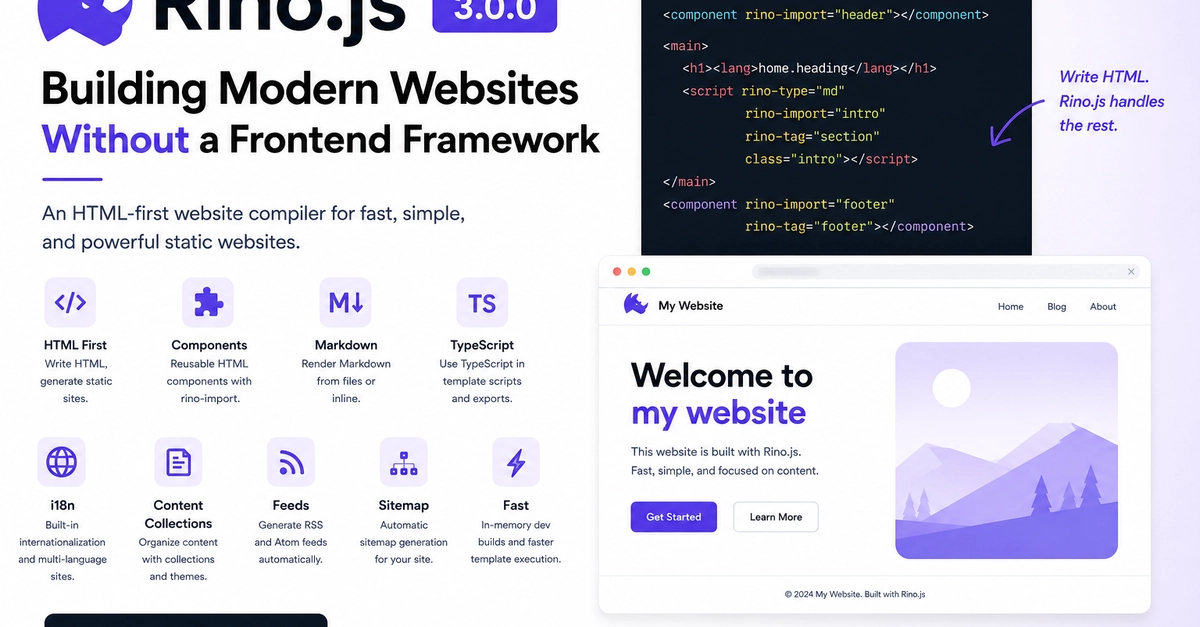
我想要從純 HTML 開始建構網站,同時仍提供開發者現今所期望的功能:
- 可重複使用的元件
- Markdown 支援
- TypeScript
- CSS 與 JavaScript 打包
- 國際化 (i18n)
- 內容集合
- RSS/Atom 摘要
- 網站地圖產生
- 快速開發建置
這個想法成為了 Rino.js。
什麼是 Rino.js?
Rino.js 是一款以 HTML 為主的網站編譯器,專門用來建構靜態網站、文件、部落格、作品集、公司網站以及其他以內容為主的專案。
Rino.js 不會引入自訂樣板語言,也不要求使用前端框架,而是將 HTML 視為主要語言。頁面維持有效的 HTML,額外功能則透過少數建置時的慣例來新增。
目標很簡單:
撰寫 HTML,產生最佳化的靜態網站。
為什麼優先使用 HTML?
HTML 已存在數十年,但現代網頁開發往往將其視為由其他語言產生的產物。
Rino.js 採取相反的做法。
不必用 JSX 或其他樣板語言撰寫元件,元件就只是 HTML 檔案。
<component rino-import="header"></component>
Enter fullscreen mode Exit fullscreen mode
就是這麼簡單。
編譯器會在建置時替換元件,產生沒有執行時期依賴的純靜態 HTML。
開始使用 Rino.js
Rino.js 提供一個指令,用來建立預設專案。
npm create rino@latest
Enter fullscreen mode Exit fullscreen mode
專案結構
一個 Rino.js 專案通常如下所示:
my-site/
  rino-config.js
  dev.js
  generate.js
  feed.js
  sitemap.js
  backoffice.js
  pages/
    index.html
    about.html
  components/
    header.html
    footer.html
  public/
    images/
      photo.webp
  scripts/
    export/
      app.js
      dashboard.ts
  styles/
    export/
      site.css
  mds/
    intro.md
  contents/
    en/
      blog/
        1-first-post.md
  content-theme/
    en/
      content.html
      content-list.html
  i18n/
    en/
      index.json
    ko/
      index.json
Enter fullscreen mode Exit fullscreen mode
只有需要的資料夾才需要建立。對於小型靜態網站來說,pages/、components/、public/、scripts/export/ 和 styles/export/ 可能就足夠了。
設定
專案設定位於 rino-config.js。
export default {
  dist: "./dist",
  port: 3000,
  site: {
    url: "https://example.com",
  },
  sitemap: ["https://example.com/custom-page"],
  i18n: {
    defaultLocale: "en",
    locales: ["en", "ko"],
  },
};
Enter fullscreen mode Exit fullscreen mode
dist 控制輸出資料夾,port 控制開發伺服器,site.url 用於網站地圖與摘要,sitemap 可加入額外 URL,i18n 則控制本地化頁面的產生。
頁面
pages/ 中的檔案會成為輸出中的 HTML 檔案。
pages/index.html        -> dist/index.html
pages/about.html        -> dist/about.html
pages/blog/index.html   -> dist/blog/index.html
Enter fullscreen mode Exit fullscreen mode
頁面是普通的 HTML,可選擇性加入 Rino 語法:
<!doctype html>
<html>
  <head>
    <title><lang>site.title</lang></title>
    <link rel="stylesheet" href="/styles/site.css" />
    <script src="/scripts/app.js"></script>
  </head>
  <body>
    <component rino-import="header"></component>

    <main>
      <h1><lang>home.heading</lang></h1>
      <script rino-type="md" rino-import="intro" rino-tag="section"></script>
    </main>

    <component rino-import="footer" rino-tag="footer"></component>
  </body>
</html>
Enter fullscreen mode Exit fullscreen mode
元件
元件位於 components/。使用 <component> 即可在頁面或其他元件中渲染它。
<component rino-import="header"></component>
Enter fullscreen mode Exit fullscreen mode
這會載入:
components/header.html
Enter fullscreen mode Exit fullscreen mode
支援巢狀元件路徑:
<component rino-import="layout/sidebar"></component>
Enter fullscreen mode Exit fullscreen mode
這會載入:
components/layout/sidebar.html
Enter fullscreen mode Exit fullscreen mode
當你想將元件輸出包裝在元素中,並將屬性傳遞給該包裝元素時,請使用 rino-tag。
<component
  rino-import="button"
  rino-tag="button"
  type="button"
  class="button"
  onclick="alert('Hello')"
></component>
Enter fullscreen mode Exit fullscreen mode
若 components/button.html 包含:
Click me
Enter fullscreen mode Exit fullscreen mode
產生的 HTML 將變成:
<button type="button" class="button" onclick="alert('Hello')">Click me</button>
Enter fullscreen mode Exit fullscreen mode
在第 3 版中,請使用 rino-import。舊的 rino-path 語法已不再支援。
Markdown
Rino.js 可以從 mds/ 渲染 Markdown 片段。
mds/intro.md
Enter fullscreen mode Exit fullscreen mode
<script rino-type="md" rino-import="intro" rino-tag="section" class="intro"></script>
Enter fullscreen mode Exit fullscreen mode
這會將 mds/intro.md 渲染在 <section> 內。
你也可以直接撰寫 Markdown:
<script rino-type="markdown" rino-tag="article" type="text/markdown">
  ## Hello from Markdown

  This content is rendered during the build.
</script>
Enter fullscreen mode Exit fullscreen mode
支援的 Markdown 類型為 md 與 markdown。
樣板指令碼
樣板指令碼在產生期間執行。它們透過 console.log 將 HTML 輸出至產生的頁面。
JavaScript 樣板指令碼:
<script rino-type="js" type="text/javascript">
  console.log("<ul>");
  for (const item of ["Home", "Blog", "About"]) {
    console.log(`<li>${item}</li>`);
  }
  console.log("</ul>");
</script>
Enter fullscreen mode Exit fullscreen mode
TypeScript 樣板指令碼:
<script rino-type="ts" type="text/typescript">
  const message: string = "Generated with TypeScript";
  console.log(`<p>${message}</p>`);
</script>
Enter fullscreen mode Exit fullscreen mode
樣板指令碼可以使用 Node.js 的 import:
<script rino-type="js" type="text/javascript">
  import os from "os";
  console.log(`<p>Built on ${os.type()}</p>`);
</script>
Enter fullscreen mode Exit fullscreen mode
在第 3 版中,樣板執行速度更快,因為 Rino.js 重複使用隔離的子程序執行器,而非為每個樣板指令碼標籤建立新的程序。
瀏覽器指令碼
瀏覽器指令碼是普通的瀏覽器 JavaScript。請將原始檔案放在 scripts/export/。
scripts/export/app.js -> dist/scripts/app.js
scripts/export/app.ts -> dist/scripts/app.js
Enter fullscreen mode Exit fullscreen mode
從 HTML 引用產生的檔案:
<script src="/scripts/app.js"></script>
Enter fullscreen mode Exit fullscreen mode
JavaScript 範例:
document.querySelector("button")?.addEventListener("click", () => {
  console.log("Clicked");
});
Enter fullscreen mode Exit fullscreen mode
TypeScript 範例:
const button = document.querySelector<HTMLButtonElement>("button");

button?.addEventListener("click", () => {
  console.log("Clicked with TypeScript");
});
Enter fullscreen mode Exit fullscreen mode
Rino.js 會打包指令碼並壓縮輸出。壓縮有助於縮小檔案大小。
CSS
請將 CSS 檔案放在 styles/export/。
styles/export/site.css -> dist/styles/site.css
Enter fullscreen mode Exit fullscreen mode
@import "../theme.css";

body {
  font-family: system-ui, sans-serif;
}
Enter fullscreen mode Exit fullscreen mode
引用產生的 CSS:
<link rel="stylesheet" href="/styles/site.css" />
Enter fullscreen mode Exit fullscreen mode
Rino.js 會解析本機 CSS import、跳過循環 import、跳過 URL import,並壓縮 CSS 輸出。
公開資源
public/ 中的檔案會複製到輸出根目錄。
public/favicon.ico       -> dist/favicon.ico
public/images/photo.webp -> dist/images/photo.webp
Enter fullscreen mode Exit fullscreen mode
使用根相對路徑:
<img src="/images/photo.webp" alt="Photo" />
<link rel="icon" href="/favicon.ico" />
Enter fullscreen mode Exit fullscreen mode
內嵌樣式、JavaScript 與 TypeScript 匯出
rino-export 讓頁面或元件能將相關的 CSS 與 JavaScript 與其 HTML 放在一起,同時仍產生外部檔案。
匯出的標籤會從最終 HTML 中移除,並寫入產生的資源。
CSS 匯出
<section class="callout">
  <h2>Hello</h2>
</section>

<style rino-export="/site.css">
  .callout {
    border: 1px solid #ddd;
    padding: 1rem;
  }
</style>
Enter fullscreen mode Exit fullscreen mode
這會寫入:
dist/styles/site.css
Enter fullscreen mode Exit fullscreen mode
JavaScript 匯出
<script rino-export="/site.js">
  console.log("Exported browser script");

  window.openMenu = function () {
    document.body.classList.toggle("menu-open");
  };
</script>
Enter fullscreen mode Exit fullscreen mode
這會寫入:
dist/scripts/site.js
Enter fullscreen mode Exit fullscreen mode
TypeScript 匯出
<script rino-export="/site.ts" type="text/typescript">
  const message: string = "Exported TypeScript";
  console.log(message);
</script>
Enter fullscreen mode Exit fullscreen mode
這會寫入 JavaScript:
dist/scripts/site.js
Enter fullscreen mode Exit fullscreen mode
若 bundle 外的程式碼需要呼叫函式,請將其附加到 window。
<script rino-export="/site.ts" type="text/typescript">
  (window as any).testExportTypescript = function (): void {
    console.log("Called from outside");
  };
</script>
Enter fullscreen mode Exit fullscreen mode
然後從 HTML 呼叫它:
<button onclick="window.testExportTypescript()">Run</button>
Enter fullscreen mode Exit fullscreen mode
多個標籤可以匯出到同一個檔案。Rino.js 會附加獨特的區塊,並忽略完全重複的區塊。
i18n
在頁面與元件中使用 <lang> 標籤:
<h1><lang>name</lang></h1>
<p><lang>body.hero.copy</lang></p>
<p><lang>items[0].title</lang></p>
Enter fullscreen mode Exit fullscreen mode
在 i18n/{locale}/ 中建立對應的 JSON 檔案。
pages/index.html
i18n/en/index.json
i18n/ko/index.json
Enter fullscreen mode Exit fullscreen mode
i18n/en/index.json 範例:
{
  "name": "Rino.js",
  "body": {
    "hero": {
      "copy": "Simple static websites from HTML."
    }
  },
  "items": [
    {
      "title": "First item"
    }
  ]
}
Enter fullscreen mode Exit fullscreen mode
預設語系會產生在一般頁面路徑下。其他語系則會產生在其語系前綴下,例如 /ko/index.html。
缺少的鍵會保留在 HTML 中,不會中斷建置。若要保留原樣的語言標籤,請跳脫它:
\<lang>name\</lang>
Enter fullscreen mode Exit fullscreen mode
內容集合
Rino.js 可以建置 Markdown 內容集合,例如部落格。
contents/en/blog/1-first-post.md
Enter fullscreen mode Exit fullscreen mode
Markdown 內容可以在 HTML 註解中以 JSON 中繼資料開頭:
<!--
{
  "title": "Welcome to the Blog",
  "time": "2026-07-29T00:00:00.000Z",
  "description": "The first post on our Rino.js blog."
}
-->

# Hello World

This is the first post.
Enter fullscreen mode Exit fullscreen mode
這會產生:
dist/contents/en/blog/1-first-post.html
Enter fullscreen mode Exit fullscreen mode
對應的樣板位於:
content-theme/en/content.html
Enter fullscreen mode Exit fullscreen mode
內容樣板範例:
<!doctype html>
<html lang="en">
  <head>
    <title>{{ content.title }}</title>
  </head>
  <body>
    <main>
      <h1>{{ content.title }}</h1>
      <p>{{ content.time }}</p>
      <article>{{ content.body }}</article>
    </main>
  </body>
</html>
Enter fullscreen mode Exit fullscreen mode
你可以存取中繼資料與產生的欄位:
{{ content.title }}
{{ content.description }}
{{ content.body }}
{{ content.urlPath }}
{{ content.nearby[0].title }}
Enter fullscreen mode Exit fullscreen mode
若要使用迴圈,請使用樣板指令碼:
<script rino-type="js" type="text/javascript">
  const args = process.argv;
  const content = JSON.parse(args[args.length - 1]);

  console.log("<ul>");
  for (const post of content.nearby || []) {
    console.log(`<li><a href="${post.link}">${post.title}</a></li>`);
  }
  console.log("</ul>");
</script>
Enter fullscreen mode Exit fullscreen mode
內容清單
內容清單樣板位於內容樣板旁:
content-theme/en/content-list.html
Enter fullscreen mode Exit fullscreen mode
Rino.js 會為每個分類建立分頁清單頁面:
dist/contents-list/en/blog/blog-1.html
Enter fullscreen mode Exit fullscreen mode
範例:
<ol>
  <script rino-type="js" type="text/javascript">
    const args = process.argv;
    const data = JSON.parse(args[args.length - 1]);

    for (const item of data.contentList) {
      console.log(`<li><a href="${item.link}">${item.title}</a></li>`);
    }
  </script>
</ol>
Enter fullscreen mode Exit fullscreen mode
可用的資料包括:
{{ contentList[0].title }}
{{ pagination.prevLink }}
{{ pagination.nextLink }}
Enter fullscreen mode Exit fullscreen mode
樣板指令碼通常是渲染陣列的更好選擇。
網站地圖與摘要
Rino.js 可以從頁面、本地化頁面、內容頁面以及額外的設定 URL 產生網站地圖。
import { generateProjectSitemapFile } from "rinojs";
import config from "./rino-config.js";

await generateProjectSitemapFile(process.cwd(), config);
Enter fullscreen mode Exit fullscreen mode
它也可以從 contents/ 產生 RSS 與 Atom 摘要。
import { generateProjectFeedFiles } from "rinojs";
import config from "./rino-config.js";

await generateProjectFeedFiles(process.cwd(), config);
Enter fullscreen mode Exit fullscreen mode
典型的輸出:
dist/sitemap.xml
dist/rss.xml
dist/atom.xml
dist/rss-en.xml
dist/atom-en.xml
Enter fullscreen mode Exit fullscreen mode
我的目標
我不想再建立另一個前端框架,而是想探討純 HTML 在輕量編譯器下能走多遠。
成果是一個以 HTML 為核心的工作流程,同時在需要時加入實用的建置時功能。
第 3 版是一個重要的里程碑,但這只是開始。未來版本還有許多想法,我期待根據實際使用情況持續改進這個專案。
0 Comments
Log in to join the conversation.No comments yet. Be the first to share your thoughts.