
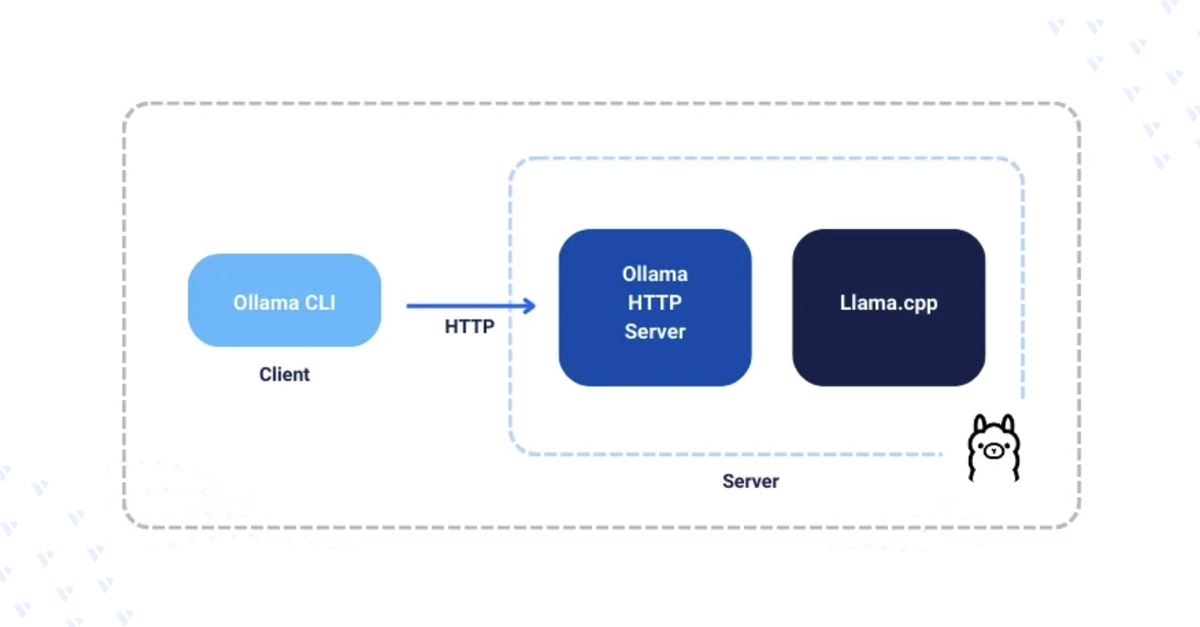
Ollama is an open-source platform for running large language models locally (Llama 3, DeepSeek R1, Mistral, Phi-4, Gemma 2, and more) with no internet connection or cloud API required. Running models locally improves privacy, security, and gives you full control over performance tuning. This guide installs Ollama on Linux/macOS/Windows, downloads and runs models, and covers management and environment-variable configuration.
Install Ollama
Linux
1. Install via the official script:
$ curl -fsSL https://ollama.com/install.sh | sh
Enter fullscreen mode Exit fullscreen mode
2. Verify and list models:
$ ollama -v
$ ollama list
Enter fullscreen mode Exit fullscreen mode
3. Ollama installs as a systemd service — check it, enable at boot, restart:
$ sudo systemctl status ollama
$ sudo systemctl enable ollama
$ sudo systemctl restart ollama
Enter fullscreen mode Exit fullscreen mode
Optional — AMD GPU (ROCm) support:
$ curl -L https://ollama.com/download/ollama-linux-amd64-rocm.tgz -o ollama-linux-amd64-rocm.tgz
$ sudo tar -C /usr/ -xzf ollama-linux-amd64-rocm.tgz
Enter fullscreen mode Exit fullscreen mode
macOS
- Download the package from ollama.com/download, open the
.zip, dragOllama.appto Applications. - Verify and start:
$ ollama -v
$ ollama list
$ ollama serve
Enter fullscreen mode Exit fullscreen mode
Windows
- Download the
.exefrom ollama.com/download/windows and run the installer. - From PowerShell:
> ollama -v
> ollama list
> ollama serve
Enter fullscreen mode Exit fullscreen mode
Download Models
1. Pull a model by name:
$ ollama pull [model]
Enter fullscreen mode Exit fullscreen mode
2. Examples:
$ ollama pull mistral
$ ollama pull deepseek-r1:1.5b
$ ollama pull llama3.3
Enter fullscreen mode Exit fullscreen mode
Llama 3.3 is ~40GB — confirm you have the disk space before pulling.
3. List what's local:
$ ollama list
Enter fullscreen mode Exit fullscreen mode
NAME                ID              SIZE      MODIFIED
llama3.3:latest     a6eb4748fd29    42 GB     21 seconds ago
deepseek-r1:1.5b    a42b25d8c10a    1.1 GB    4 minutes ago
mistral:latest      f974a74358d6    4.1 GB    26 minutes ago
Enter fullscreen mode Exit fullscreen mode
Run Models
1. Run a model directly:
$ ollama run qwen2.5:1.5b
Enter fullscreen mode Exit fullscreen mode
2. Enter a prompt at the >>> interactive prompt:
>>> Give me two lines of text about cloud computing
Enter fullscreen mode Exit fullscreen mode
The model streams its response in the terminal. Exit with /bye.
3. Run a reasoning model like DeepSeek R1 — its output includes a <think> block showing its reasoning trace before the final answer:
$ ollama run deepseek-r1:1.5b
Enter fullscreen mode Exit fullscreen mode
Different models suit different tasks — run several against the same prompt to compare quality and speed on your hardware.
Manage Models
$ ollama list                        # list local models
$ ollama show llama3.3                # inspect a model's params, context length, license
$ ollama stop deepseek-r1:1.5b        # stop a running model
$ ollama rm mistral                   # remove a model
Enter fullscreen mode Exit fullscreen mode
Environment Variables
Key variables:
-
OLLAMA_HOST— server bind address -
OLLAMA_GPU_OVERHEAD— reserved VRAM per GPU (bytes) -
OLLAMA_MODELS— custom model storage directory -
OLLAMA_KEEP_ALIVE— how long a model stays loaded in memory -
OLLAMA_DEBUG— verbose logging -
OLLAMA_FLASH_ATTENTION— experimental attention optimizations -
OLLAMA_NOHISTORY— disable readline history -
OLLAMA_NOPRUNE— skip blob pruning at startup -
OLLAMA_ORIGINS— allowed origin URLs for the server
Linux — edit the systemd unit:
$ sudo vim /etc/systemd/system/ollama.service
Enter fullscreen mode Exit fullscreen mode
[Service]
Environment="OLLAMA_DEBUG=1"
Environment="OLLAMA_HOST=0.0.0.0:11434"
Enter fullscreen mode Exit fullscreen mode
Setting OLLAMA_HOST=0.0.0.0 lets other hosts on the network reach Ollama on that port.
$ sudo systemctl daemon-reload
$ sudo systemctl restart ollama
Enter fullscreen mode Exit fullscreen mode
macOS:
$ launchctl setenv OLLAMA_HOST "0.0.0.0"
$ ollama serve
Enter fullscreen mode Exit fullscreen mode
Windows: Search Edit the System Variables → Environment Variables → New, set name/value, OK/Apply.
Next Steps
Ollama is installed and serving models locally. From here:
- Pair it with Open WebUI for a chat-style GUI
- Set
OLLAMA_HOST=0.0.0.0to expose it to other machines on your network - Script
ollama run/ollama pullagainst your own prompts to benchmark models on your hardware
For the full guide, visit the original article on Vultr Docs.
0 Comments
Log in to join the conversation.No comments yet. Be the first to share your thoughts.